




IPTV Not Working? 12 Quick Fixes
Is IPTV not working on your Smart TV, phone, or TV box? Discover the most common causes and fix error messages, black screens, and connection problems step by step.
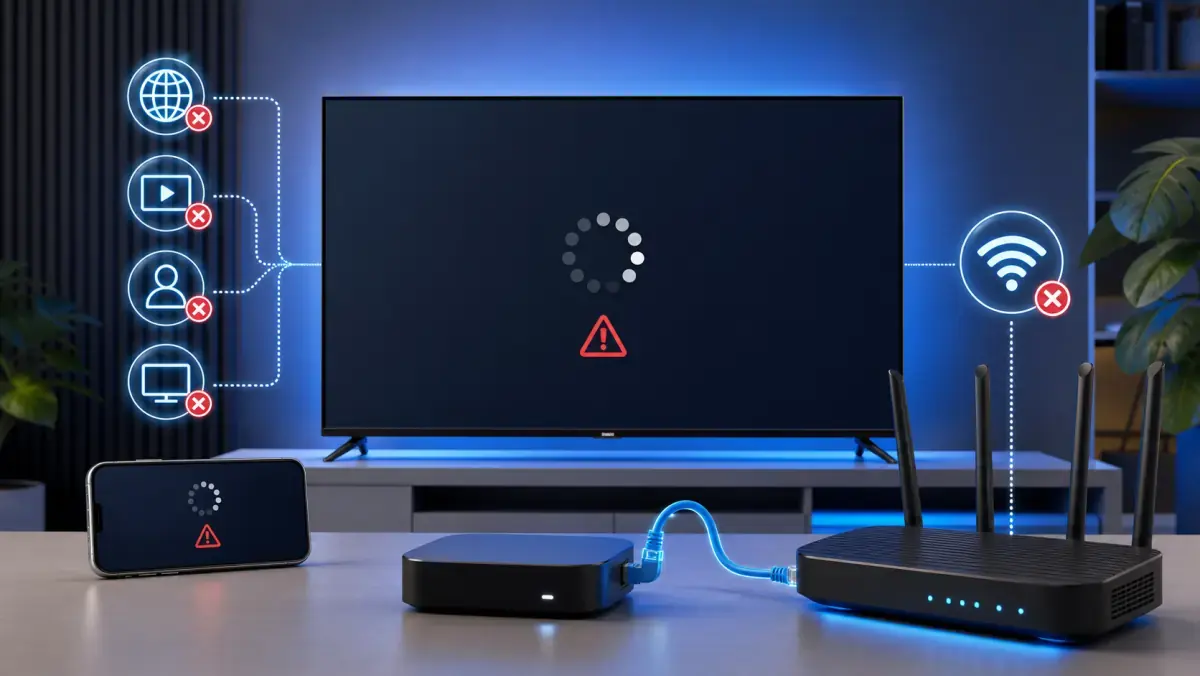
IPTV Not Working? 12 Fixes You Can Try Right Now
You open your IPTV app, choose a channel, and expect the picture to start immediately.
But nothing happens.
Maybe the screen stays black. Maybe you see an error message. Or the app keeps loading without ever connecting.
That is frustrating, especially when everything worked normally yesterday.
However, this does not automatically mean your subscription has stopped working or the IPTV server is offline. In many cases, the cause is a temporary network issue, an expired session, incorrect login details, a frozen app, or a device that simply needs to be restarted.
The most important thing is not to change random settings.
Work step by step.
In this guide, we explain what to check when IPTV is not working on a Smart TV, Android TV box, Formuler box, Fire TV Stick, smartphone, tablet, or computer.
First Check: Is Everything Broken or Only One Part?
Before you begin, determine how large the problem actually is.
Ask yourself these questions:
- Are none of the channels working?
- Is only one channel not working?
- Do movies and series work while live television does not?
- Does IPTV work on your phone but not on your television?
- Does the app open but only show a black screen?
- Are you seeing a specific error message?
- Did the problem start suddenly, or has the service never worked?
The answer helps you find the most likely cause more quickly.
If only one channel is not working, the problem is probably limited to that specific stream.
If IPTV does not work on any device, the account, server, or internet connection may be involved.
If IPTV works on your phone but not on your Smart TV, the problem is more likely related to the app, television, or network connection on that device.
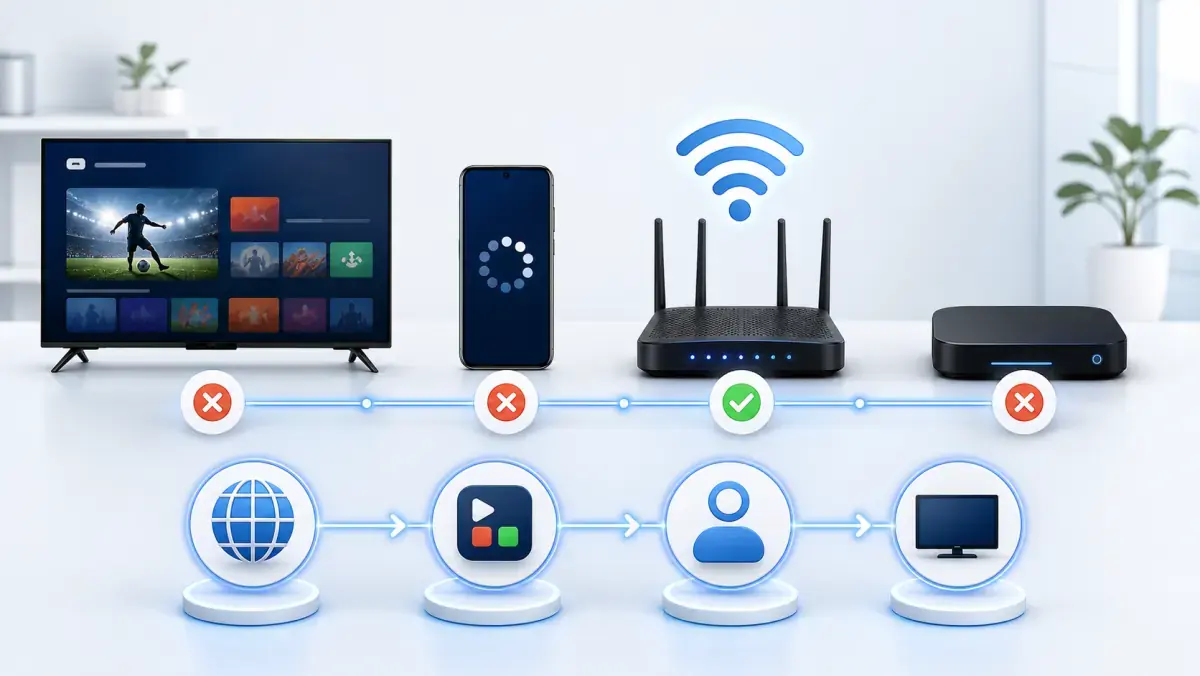
1. Check Whether Your Internet Connection Works
IPTV needs an active internet connection.
That sounds obvious, but many issues begin with a router that temporarily lost its connection or a television that disconnected from Wi-Fi.
Open another app on the same device first.
Try:
- YouTube;
- Netflix;
- a web browser;
- another streaming app;
- the app store on your television.
If none of these apps work, the problem is probably not specific to IPTV.
Next, check:
- Whether the device is still connected to Wi-Fi or Ethernet.
- Whether other devices in your home have internet access.
- Whether the router shows any warning lights.
- Whether your internet connection was recently interrupted.
- Whether the device connected to a guest network by mistake.
Restart the router if the connection appears unstable.
Disconnect the router from power for about 30 seconds, reconnect it, and give it a few minutes to start fully before testing IPTV again.
2. Close the IPTV App Completely
Many users return to the home screen and assume the app has closed.
That is not always the case.
The IPTV app may remain active in the background. If the app has frozen, the same error may continue.
Close the app completely.
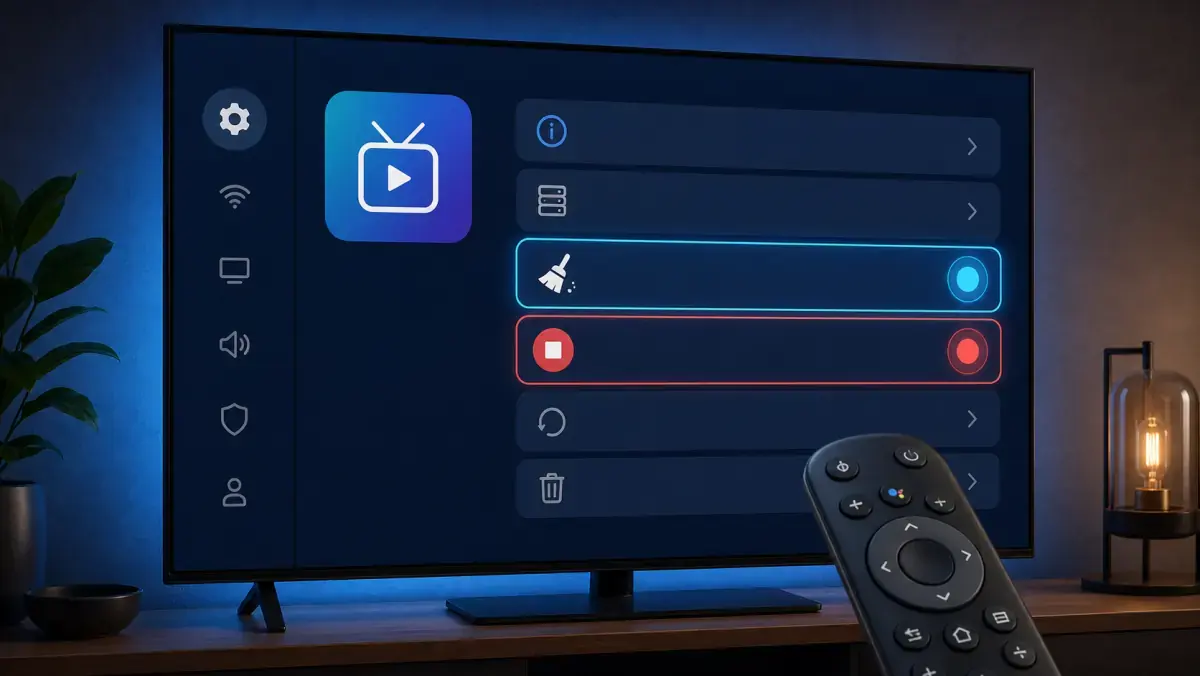
On Android TV or an Android streaming box, you can usually open the app settings and choose Force stop.
On a Smart TV, you may need to restart the television fully.
On a smartphone, remove the app from the list of recently opened apps.
Open the app again and test one channel first.
If the problem continues, move to the next step.
3. Restart Your Television or Streaming Device
A television, Android TV box, or Fire TV Stick is essentially a small computer.
After long periods of use, processes may freeze, memory may fill up, or the app may stop responding properly.
A full restart often fixes this.
Follow these steps:
- Close the IPTV app.
- Turn off the device.
- Disconnect it from power for 30 seconds.
- Reconnect it.
- Wait until it has fully started.
- Open only the IPTV app.
Do not rely only on standby mode.
Some televisions remain partially active in standby and do not perform a complete restart.
A full power cycle refreshes temporary processes and memory.
4. Check Your Username, Password, and Server Address
If IPTV has never worked or fails after a new installation, incorrect login details are a common cause.
Check each item carefully:
- username;
- password;
- server address;
- port number;
- M3U link;
- Xtream Codes details;
- portal URL.
Pay attention to uppercase letters, lowercase letters, and special characters.
An extra space at the beginning or end of a field may be enough to block the connection.
If you are copying the details from an email or chat message, make sure the app did not include a full stop, comma, or extra space by mistake.
Enter the details manually again if necessary.
If you recently received new login details, remove the old profile from the app and add the account again.
At iptv-netherland.com, we help customers with the installation and configuration of their devices so the correct information is entered properly.
5. Check Whether Your Subscription Is Still Active
An expired subscription may produce several different error messages.
Sometimes the app opens normally, but the channels do not load. In other cases, you may see messages such as:
- account expired;
- authorization failed;
- invalid credentials;
- user disabled;
- subscription ended;
- login failed.
Check when your subscription started and how long it was supposed to remain active.
Was it a one-month, three-month, or yearly subscription?
Confirm whether the expiration date has already passed.
If you are unsure, contact the provider and ask whether the account is still active.
To compare available options, view the current IPTV subscriptions.
6. Check Whether the Account Is Active on Another Device
Many IPTV subscriptions allow only one active connection at a time by default.
This means you may be able to install the account on multiple devices, but not necessarily use them simultaneously.
If someone else is using the same login details, your stream may stop or fail to start.
This can lead to:
- a black screen;
- repeated reconnection attempts;
- error 403;
- stream unavailable;
- connection limit reached;
- the channel closing automatically.
Close the IPTV app completely on all other devices.
Wait one or two minutes and try again.
If you want to watch on multiple televisions at the same time, check how many simultaneous connections your plan supports.
7. Test Another Channel or Movie
If one channel does not work, the entire service may still be functioning normally.
Always test:
- another Dutch channel;
- an international channel;
- a movie from the video library;
- a series;
- a radio station, if available.
If everything works except one specific channel, the problem is probably with the source of that stream.
If only one channel remains black or offline, report its name to the provider.
Include:
- the exact channel name;
- the time you tested it;
- the device you used;
- the app you used;
- whether other channels worked.
This information makes it easier to investigate the issue.
You can also check the Dutch IPTV channel list to confirm which channels are included.
8. Clear the IPTV App Cache
IPTV apps store temporary data.
This helps menus, channel lists, and images load more quickly. Over time, however, the cache may become corrupted or too large.
On Android TV and Android boxes, the process usually looks like this:
- Open Settings.
- Go to Apps.
- Select your IPTV app.
- Choose Storage.
- Select Clear cache.
- Restart the app.
Do not clear all data immediately.
The Clear data option often removes your account settings as well. You may need to enter the login details again afterward.
Start by clearing only the cache.
Some Smart TVs do not provide a separate cache option. In that case, uninstalling and reinstalling the app may help.
9. Update the App and Your Device
An old app version may cause problems after a server-side change or an operating-system update.
Check the app store for an available update.
Also update the operating system on your Smart TV, streaming stick, or TV box when necessary.
Updates may include improvements for:
- video decoding;
- network connections;
- security;
- app compatibility;
- stability;
- audio playback.
However, an update is not a guaranteed solution.
If the problem began immediately after an app update, the new version itself may be responsible. In that case, test another IPTV app or video player.
Only use apps from trusted app stores or official developers.
10. Try a Different Video Player
Sometimes the IPTV app opens, but the picture remains black.
You may hear sound without seeing video, or the channel may close immediately after opening.
This can indicate a problem with the video player or decoder.
Many apps let you choose between:
- a built-in player;
- hardware decoding;
- software decoding;
- an external player;
- VLC;
- ExoPlayer;
- the system player.
Test hardware decoding first.
If the picture still does not work, try software decoding or an external player.
Older televisions may handle modern video formats poorly. In that case, an external Android TV box may perform better than the built-in IPTV app.
You do not need to buy a new device immediately. Test another app or player first.
11. Check the Device Date and Time
An incorrect date or time can interfere with secure connections.
This sometimes happens after a power outage, factory reset, or network problem.
Check whether your television or TV box is using the correct date, time, and time zone.
Choose automatic date and time settings through the network whenever possible.
An incorrect clock may cause:
- connection errors;
- certificate problems;
- the program guide not loading;
- login failures;
- apps failing to connect.
For the Netherlands, use the appropriate Central European time zone.
Restart the app after correcting the date and time.
12. Test a Different Internet Connection
Is IPTV still not working?
Temporarily test a mobile hotspot.
Connect your television, TV box, or phone to the mobile network from your smartphone and open the same channel again.
The result provides useful information.
IPTV Works Through the Hotspot
The problem is probably related to your normal home network, router, DNS settings, or network route.
IPTV Still Does Not Work Through the Hotspot
The problem is more likely related to the app, device, account, or streaming server.
A mobile hotspot is not intended as a permanent television connection. Video streaming can consume a large amount of mobile data.
Use it only as a diagnostic test.
Common IPTV Error Messages
The exact meaning may vary between apps, but these errors appear frequently.
An error code does not always tell the full story.
Test another device or network before drawing a conclusion.
IPTV Works on Your Phone but Not on Your Smart TV
This is a common situation.
Because the account works on the phone, the login details are probably correct.
The problem is more likely related to one of these:
- the IPTV app on the television;
- the television’s Wi-Fi connection;
- limited storage space;
- outdated software;
- a video-decoder problem;
- an unsupported video format;
- corrupted app cache.
Try these steps in order:
- Restart the television fully.
- Check the internet connection on the television.
- Clear the app cache.
- Update the app.
- Uninstall and reinstall the app.
- Test another IPTV app.
- Test an external streaming box.
If an older Smart TV is too slow, a separate streaming stick or Android TV box may be the easiest solution.
IPTV Works Over Wi-Fi but Not Through Ethernet
A wired connection is normally more stable.
If IPTV works only over Wi-Fi, check:
- whether the Ethernet cable is connected correctly;
- whether the cable is damaged;
- whether the router’s LAN port works;
- whether the television receives an IP address;
- whether manual IP or DNS settings are incorrect;
- whether another cable works.
Reset the network settings to automatic if necessary.
Also test another LAN port on the router.
IPTV Works Through Ethernet but Not Over Wi-Fi
In this situation, the account is probably working correctly.
The problem is more likely related to the wireless network.
Check:
- distance from the router;
- signal strength;
- Wi-Fi channel congestion;
- 2.4 GHz versus 5 GHz;
- walls and obstacles;
- mesh or repeater settings;
- devices using large amounts of bandwidth.
Move the router closer to the television when possible.
For live television, a direct Ethernet connection remains the most reliable choice.
Black Screen but Sound Works
If you hear sound but see no picture, the stream is probably active.
The video decoder may not support the format.
Try:
- Another channel.
- Another player.
- Hardware decoding.
- Software decoding.
- An external player such as VLC.
- A lower picture quality, if available.
- Another device.
If the same channel works on a phone or laptop, the television or TV box is probably responsible.
Picture Works but There Is No Sound
If the picture works but you hear nothing, first check whether the television is muted and whether other apps produce sound.
Then test:
- another channel;
- another audio-track option;
- another player;
- software decoding;
- stereo instead of surround sound;
- the television’s audio output;
- HDMI settings on an external TV box.
Some older televisions do not support every audio format.
A different player or decoder setting may solve the problem.
The App Keeps Loading Without Showing Channels
If the app continues loading, the channel list may be too large, the connection may be slow, or the server may not respond.
Wait a few minutes during the first installation.
A large channel list and program guide may take time to synchronize.
If the app remains stuck:
- close the app completely;
- clear the cache;
- check the login details;
- test another connection;
- refresh the playlist;
- reload the EPG later;
- try another app.
Some older Smart TVs do not have enough memory to handle very large lists.
Should You Change DNS?
An alternative DNS server may help when a domain cannot be resolved correctly or when your provider’s default DNS server responds slowly.
You can test Cloudflare:
- Primary DNS:
1.1.1.1 - Secondary DNS:
1.0.0.1
Or Google:
- Primary DNS:
8.8.8.8 - Secondary DNS:
8.8.4.4
Changing DNS does not directly increase the speed of the video stream.
It may help with connection problems caused while finding the server address.
Write down the original settings before making changes.
Return to automatic DNS if the change makes no difference.
Do You Need a VPN When IPTV Does Not Work?
Not by default.
A VPN may be useful as a test if IPTV does not work through your home network but does work through a mobile hotspot.
A VPN changes the route used by your internet traffic.
This may help with a network-routing issue, but it may also reduce speed.
Use a VPN only after checking the basics:
- internet connection;
- app;
- device;
- account status;
- login details;
- other channels;
- other devices;
- mobile hotspot.
If the service works only with a VPN, contact your provider and explain exactly what you tested.
What Should You Avoid Doing?
When IPTV stops working, it can be tempting to change advanced router settings immediately.
Do not do that without a clear reason.
Avoid:
- opening random ports;
- disabling the firewall completely;
- installing unknown APK files;
- sharing account details in public groups;
- installing several cleaner apps;
- performing a factory reset too quickly;
- changing several settings without testing between each change.
A factory reset often removes all apps and settings.
Use it only as a last resort.
Work logically and change one thing at a time.
The Fastest Troubleshooting Checklist
Would you like to perform the most important checks in the correct order?
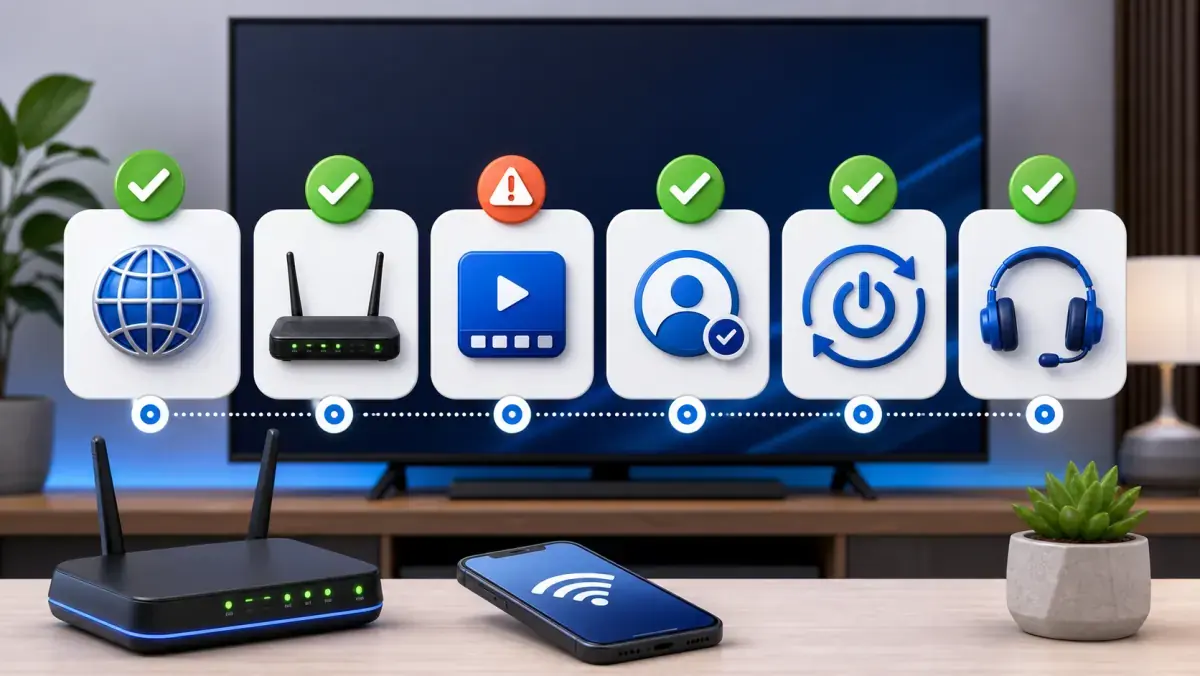
Use this list:
- Test another channel.
- Check whether other apps have internet access.
- Close the IPTV app completely.
- Restart the device.
- Restart the router.
- Check the login details.
- Check whether the subscription is active.
- Close IPTV on other devices.
- Clear the app cache.
- Update the app.
- Test another player.
- Check the date and time.
- Test another device.
- Temporarily test a mobile hotspot.
- Contact the provider.
This order prevents you from wasting time on settings that have nothing to do with the actual problem.
What Information Should You Give Customer Support?
When you need help, do not send only: “IPTV is not working.”
Provide as much specific information as possible.
Include:
- your device;
- the name of the IPTV app;
- the exact error message;
- which channels do not work;
- whether movies and series work;
- whether the problem appears on multiple devices;
- whether you use Wi-Fi or Ethernet;
- whether you tested a mobile hotspot;
- when the problem started.
Take a photo or screenshot of the error message when possible.
The clearer your description, the faster the cause can be identified.
Conclusion: Work Step by Step
When IPTV does not work, you do not need to assume there is a major outage immediately.
Start with the basics.
Check your internet connection. Close the app completely. Restart your device and router. Then verify your login details, account status, and the number of active connections.
Next, test another channel, player, device, and internet connection.
By checking one part at a time, you can quickly determine where the problem begins.
At iptv-netherland.com, we help customers not only access IPTV but also complete the installation and configuration of their devices.
Would you like to test how the service performs on your own television and internet connection first?
Compare our IPTV subscriptions, view the Dutch IPTV channel list, or request a free trial account.
If your main problem is freezing or stuttering, read our guide on watching IPTV without buffering.
Written by
IPTV Netherland Editorial Team
IPTV setup and streaming support
Our editorial team writes practical IPTV guides for viewers in the Netherlands, with a focus on device setup, stable streaming, app configuration, and clear troubleshooting steps.
Useful IPTV resources
Continue with the most relevant setup, channel, and subscription pages.