




Kodi IPTV Setup: M3U, PVR IPTV Simple Client & EPG (2026)
Set up Kodi IPTV with PVR IPTV Simple Client. Complete guide for M3U, XMLTV EPG, Android TV, Fire TV, Windows, Linux and troubleshooting.
Kodi IPTV Setup: M3U, PVR IPTV Simple Client & EPG
Want to watch IPTV through Kodi?
Kodi can do much more than play local movies and music. With the official PVR IPTV Simple Client, you can add an M3U playlist, open live television directly inside Kodi and connect an XMLTV source for the electronic program guide.
That makes Kodi especially useful if you want one media center for:
- live TV;
- local movies and series;
- music;
- radio;
- network storage;
- EPG;
- multiple media sources on one device.
The setup is a little more technical than apps such as SmartOne IPTV, TiviMate or IPTV Smarters Pro.
You first install Kodi, then add the IPTV PVR client, and finally configure your M3U and optional XMLTV details.
In this guide, we explain how Kodi IPTV works in 2026.
You will learn:
- which Kodi version to use;
- how to install PVR IPTV Simple Client;
- how to add an M3U link;
- how to configure XMLTV EPG;
- how to use multiple playlists;
- how Kodi handles Xtream Codes;
- how to use Kodi IPTV on Android TV;
- how to use Kodi on Fire TV;
- how to use Kodi on Windows and Linux;
- what to do when channels are empty, EPG is missing or playback buffers.
Important: Kodi and PVR IPTV Simple Client do not provide TV channels or an IPTV subscription. Use only streams and playlists you are authorized to access.
Quick answer: how do you set up IPTV in Kodi?
The simplest official method is:
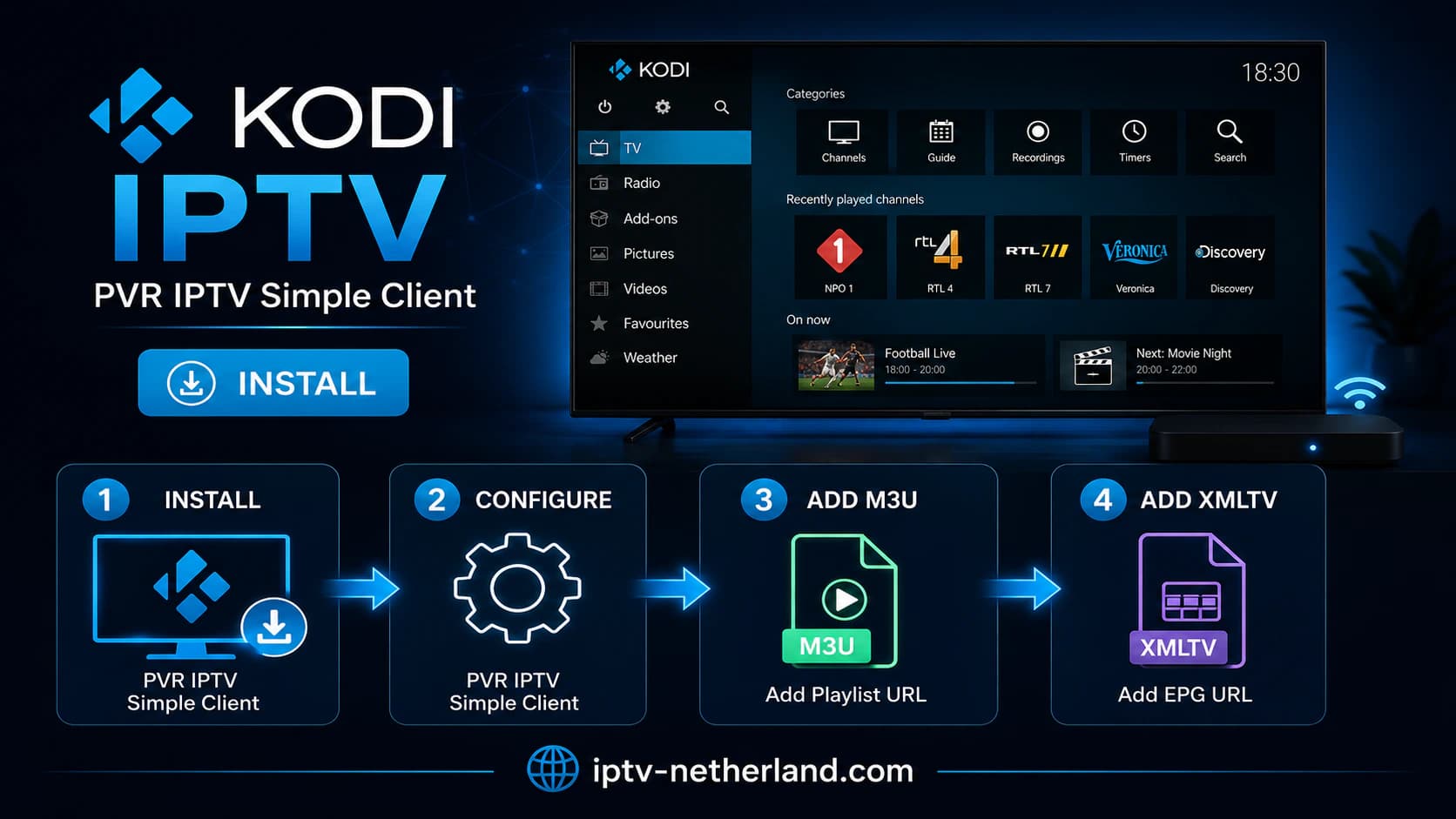
- Install Kodi.
- Open Settings.
- Go to Add-ons.
- Choose Install from repository.
- Open PVR clients.
- Install PVR IPTV Simple Client.
- Open Configure.
- Select your M3U playlist as a local or remote source.
- Add an XMLTV link for EPG if you have one.
- Save.
- Restart Kodi or refresh PVR data.
- Open TV or Live TV in Kodi.
The official IPTV Simple Client uses:
What Is Kodi?
Kodi is a free and open-source media center.
It is designed for television use and supports:
- video;
- music;
- images;
- local media libraries;
- network storage;
- add-ons;
- PVR and live TV;
- remote controls.
Kodi is available on platforms such as:
- Android;
- Windows;
- Linux;
- macOS;
- selected embedded systems and media boxes.
For TV use, Kodi is particularly common on:
- Android TV;
- Google TV;
- NVIDIA Shield;
- Xiaomi TV Box;
- Fire TV;
- mini PCs;
- Raspberry Pi-style media centers.
Which Kodi version should you use in 2026?
At the time of writing, Kodi 21.3 "Omega" is the recommended stable release on the official download pages.
Kodi 22 "Piers" is already in development and has reached beta status in 2026.
For a normal IPTV setup, use the stable release.
A beta can contain newer features, but it is intended for testing and may have bugs or add-on compatibility issues.
What Is PVR IPTV Simple Client?
PVR IPTV Simple Client is an official Kodi PVR add-on.
It is available through Kodi's own repository.
The add-on allows Kodi to process an M3U playlist as a live TV source.
That gives you functions such as:
- channel list;
- live TV;
- groups;
- radio;
- program guide;
- channel logos;
- favorites through Kodi;
- catch-up when supported.
The official documentation supports:
- M3U as the live TV source;
- XMLTV as the EPG source.
If you want to understand how an M3U playlist works first, read M3U IPTV: What Is an M3U Link?.
How to Install Kodi IPTV: Step by Step
We will start with a standard installation.
Menu labels can vary slightly depending on your Kodi skin or version, but the general structure remains similar.
Step 1: Install Kodi
Install Kodi from the official app store or Kodi download page for your device.
Prefer:
- Google Play on Android TV;
- official Kodi downloads for Windows;
- the official installation method for Linux;
- a trusted app store when Kodi is available there.
Avoid unofficial “fully loaded Kodi” packages.
These often include unknown repositories and add-ons you do not need.
Step 2: Open Add-ons
Open Kodi.
Go to:
Settings → Add-ons
Then choose:
Install from repository
Next, open:
PVR clients
Step 3: Find PVR IPTV Simple Client
Select:
PVR IPTV Simple Client
Choose:
Install
Wait until Kodi confirms that the add-on has been installed.
This is the official PVR client for a straightforward M3U IPTV configuration.
Step 4: Open the Configuration
Go to:
Settings → Add-ons → My add-ons → PVR clients
Select:
PVR IPTV Simple Client
Choose:
Configure
You will now see the settings for your IPTV source.
Add M3U IPTV to Kodi
The most important setting is the M3U playlist.
You can usually choose between:
- a local M3U file;
- a remote M3U URL.
For most IPTV services, a remote URL is more convenient.
Example M3U URL
A playlist can technically look like:
https://example.com/playlist.m3uOr a service may give you a dynamic URL that contains account credentials.
Treat that URL like a password.
A playlist link may contain sensitive login information.
Do not post it publicly on:
- forums;
- Reddit;
- GitHub;
- screenshots;
- social media.
Configure a Remote M3U URL
Open:
PVR IPTV Simple Client → Configure
In the general settings, find:
Location
Choose:
Remote path / Internet address
Then paste your complete M3U URL.
Check carefully:
http://orhttps://;- port number;
- capitalization;
- username;
- password;
- additional parameters.
Choose OK to save.
Use a Local M3U File
If you have a local file such as:
playlist.m3uyou can select a local path instead.
Choose:
Local path
and browse to the M3U file.
This is useful when:
- you maintain your own playlist;
- you use a local TV source;
- your playlist does not need to refresh from the internet.
The disadvantage is that remote changes will not automatically appear unless you replace the file yourself.
Add EPG to Kodi IPTV
A channel list works without a program guide, but EPG makes Kodi much more practical.
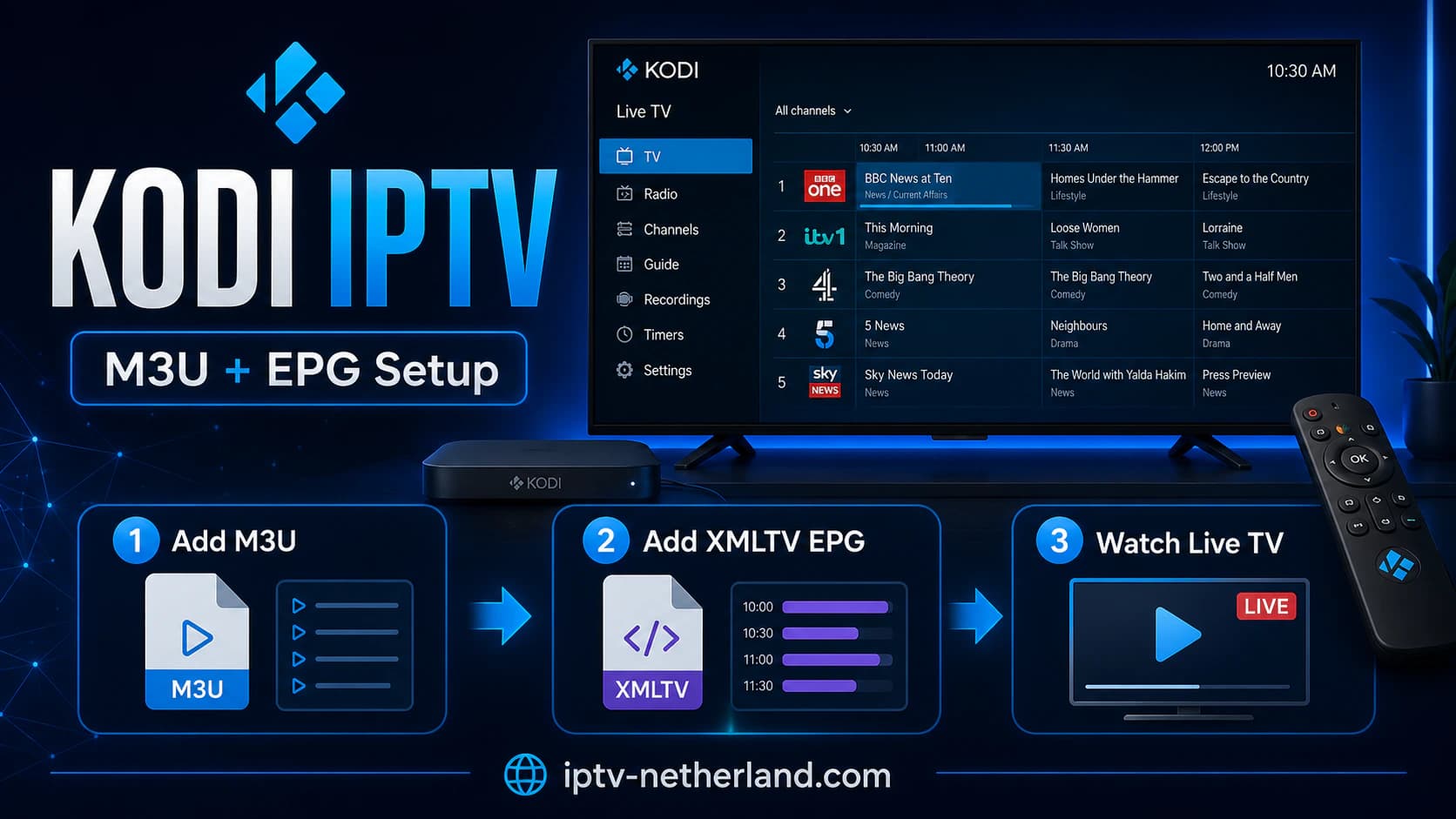
Kodi IPTV Simple Client uses XMLTV for this.
XMLTV can contain:
- program title;
- start time;
- end time;
- description;
- channel ID;
- sometimes category or episode information.
Configure an XMLTV URL
Open:
PVR IPTV Simple Client → Configure
Go to the EPG settings.
Choose a remote XMLTV source and paste the complete URL.
For example:
https://example.com/epg.xmlSave the settings.
Kodi then needs to:
- load the playlist;
- download the EPG;
- match channels to EPG entries.
This can take a little time with a large playlist.
Why Is Kodi EPG Empty?
An empty EPG does not automatically mean Kodi is broken.
Common causes include:
- incorrect XMLTV URL;
- XMLTV server temporarily unavailable;
- channel names do not match;
tvg-iddoes not match the XMLTVchannel-id;- device date/time is wrong;
- playlist lacks useful EPG metadata;
- source does not provide EPG for that channel.
tvg-id matters
An M3U item may include metadata such as:
tvg-id="npo1.nl"The XMLTV source then needs a corresponding channel ID.
If those IDs do not match, Kodi may not be able to associate the channel with the correct guide data.
IPTV Simple Client can sometimes fall back to names, but matching IDs are more reliable.
Kodi IPTV and Xtream Codes
This is an important difference compared with apps such as TiviMate or IPTV Smarters.
PVR IPTV Simple Client does not provide the same simple built-in Xtream Codes login screen where you enter server, username and password.
The official client is primarily designed around:
- M3U;
- XMLTV.
There is still an open feature request in the official project for direct Xtream Codes support.
Only have Xtream Codes?
Ask your IPTV provider or service whether it can also provide:
- an M3U playlist;
- an XMLTV / EPG URL.
Many systems that provide Xtream-style credentials can also supply an M3U source.
Use those official credentials where available.
We do not recommend installing random third-party Kodi repositories just to gain an Xtream login form.
That gives unknown code access to Kodi and potentially to your account credentials.
When is another app easier?
If you simply want to enter:
Server
Username
Password
then apps that explicitly support Xtream Codes can be easier.
For example:
Multiple M3U Playlists in Kodi
Modern versions of IPTV Simple Client support multiple M3U/XMLTV configurations.
This can be useful if you have:
- a local playlist;
- a second lawful IPTV source;
- a separate radio playlist;
- multiple XMLTV sources.
Since Kodi 20, IPTV Simple Client can manage multiple configuration pairs.
Open the add-on settings and use:
Add add-on configuration
or the equivalent option in your Kodi version.
Give each configuration a clear name.
For example:
Netherlands
Local TV
Radio
Test
Do not merge huge playlists unless you need to.
The larger the combined setup, the more Kodi needs to process when:
- starting;
- refreshing;
- loading EPG;
- creating groups;
- handling logos.
Channel Groups in Kodi
M3U playlists can include groups.
For example:
Netherlands
Sports
News
Kids
Movies
Radio
Kodi can display these groups inside the live TV interface.
If your provider uses group-title correctly, little extra configuration is usually required.
Too many groups?
A playlist with many countries can become difficult to navigate.
You can:
- use Kodi favorites;
- hide groups;
- use a smaller playlist;
- ask your provider for a region-specific playlist.
For viewers in the Netherlands, a focused list is often faster and easier than thousands of unused channels.
Channel Logos in Kodi IPTV
Kodi can display channel logos.
An M3U playlist may contain a logo URL for each channel.
If logos are missing:
- check whether the playlist contains logo information;
- check internet connectivity;
- refresh PVR data;
- clear the PVR database/cache if necessary;
- check whether the logo URL still exists.
Channel logos improve the interface but do not affect stream quality.
Install Kodi IPTV on Android TV
Kodi works well on Android TV.
This can include:
- NVIDIA Shield TV;
- Xiaomi TV Box;
- selected Sony TVs;
- Philips Android TV;
- certified Android TV boxes.
Installation
- Open Google Play.
- Search for Kodi.
- Install the official app.
- Open Kodi.
- Install PVR IPTV Simple Client.
- Add your M3U playlist.
- Add XMLTV if available.
Android TV and remote controls
Kodi is designed for remote-control navigation.
That is an advantage compared with mobile Android apps that are sideloaded onto a TV.
Menus, EPG and channel lists are all optimized for television use.
Kodi IPTV on Google TV
Google TV is based on Android.
The setup is therefore almost identical:
- open Google Play;
- install Kodi;
- open PVR IPTV Simple Client;
- configure M3U and XMLTV;
- open Live TV.
Kodi can work on devices such as:
- Google TV Streamer;
- Chromecast with Google TV;
- televisions running Google TV;
- other certified Google TV devices.
Install Kodi IPTV on Fire TV
Kodi is widely used on Fire TV, but availability through the standard store can vary.
Use only an official Kodi download or a trusted official installation route.
Avoid websites offering modified Kodi APK files.
After installation
The IPTV setup remains the same:
- open Kodi;
- go to Add-ons;
- install PVR IPTV Simple Client;
- add your M3U URL;
- configure XMLTV;
- restart or refresh PVR.
Fire TV Stick and large playlists
An older Fire TV Stick has less memory and processing power than a modern media box.
A very large setup containing:
- thousands of channels;
- thousands of VOD items;
- a huge EPG;
can load slowly.
Use a smaller live TV playlist when possible.
Kodi IPTV on Windows
Kodi is also available for Windows.
This is useful for:
- testing a playlist;
- checking EPG;
- comparing problems with your TV device;
- using IPTV on an HTPC.
Installation
- install the stable Kodi release;
- open Add-ons;
- open PVR Clients;
- install IPTV Simple Client;
- add M3U and EPG.
A Windows PC is also useful for troubleshooting.
If the same M3U works on Windows but not on your TV box, investigate:
- codec support;
- hardware decoding;
- network;
- device performance.
Kodi IPTV on Linux
Kodi supports Linux.
On some Linux distributions, binary PVR add-ons are packaged separately.
On Debian-based systems, the package name may be:
kodi-pvr-iptvsimpleUse the installation method provided by your distribution or Kodi's official documentation.
Package names and versions vary between Linux distributions.
Kodi IPTV on Raspberry Pi
Kodi can be used on Raspberry Pi-style systems through media-center distributions or Linux.
This can be an attractive fixed TV setup.
Pay attention to:
- hardware model;
- hardware decoding;
- power supply;
- cooling;
- network connection;
- output resolution.
For live Full HD, Ethernet is often preferable when practical.
For demanding 4K codecs, newer hardware can make a significant difference.
Catch-Up in Kodi IPTV
IPTV Simple Client supports catch-up/archive functionality when the source supports it.
That does not mean every channel automatically includes catch-up.
Three things are required:
- your provider or source must offer catch-up;
- the playlist must contain suitable metadata or you must use a compatible catch-up configuration;
- the selected Kodi inputstream must support the feature.
How far back can you watch?
That is controlled by the source.
For example:
- 24 hours;
- 3 days;
- 5 days;
- 7 days.
Kodi cannot replay a program that the server did not store.
Timeshift and Pausing Live TV
Pausing and rewinding live TV depends on:
- stream type;
- selected inputstream;
- Kodi version;
- IPTV Simple configuration;
- server support.
The official client can use different inputstream methods.
Some streams may only support:
- start;
- stop.
Other combinations may support:
- pause;
- resume;
- timeshift;
- navigation through a catch-up window.
Do not assume every M3U stream automatically supports live pausing.
Kodi IPTV Is Buffering: Possible Causes
Kodi can be an excellent player, but buffering has several possible causes.
1. Wi-Fi
Weak Wi-Fi is one of the first things to test.
For a fixed television:
Ethernet > strong 5 GHz / 6 GHz Wi-Fi > weak 2.4 GHz Wi-Fi
when cabling is practical.
2. Internet connection
Run a speed test on the same device.
A high speed test does not guarantee a perfect stream, but an unstable connection can cause buffering.
Read Internet Speed for IPTV.
3. Source server
Buffering can also be server-side.
Test:
- another channel;
- another category;
- another time of day.
If only one channel performs badly, your internet may not be the cause.
4. Very large playlist
A huge playlist can make Kodi slower during loading, but it does not necessarily cause buffering during active playback.
Distinguish between:
- slow interface;
- channel starts slowly;
- video buffers during playback.
5. Older hardware
Older devices may struggle with:
- HEVC;
- 4K;
- high bitrate;
- certain audio codecs;
- software decoding.
Test a lower resolution or the same stream on newer hardware.
Kodi IPTV Hangs During Startup
Does Kodi keep loading PVR data indefinitely?
Check:
- is the M3U URL reachable?
- is the XMLTV URL reachable?
- is the playlist extremely large?
- is an external server responding slowly?
- are you using multiple configurations?
- is the add-on up to date?
Temporarily disable EPG.
Restart Kodi.
If live TV then works, the XMLTV source may be the problem.
Kodi IPTV Shows No Channels
Check the M3U URL
A small typo is enough to break it.
Check:
- complete URL;
- protocol;
- port;
- query parameters;
- account status.
Test locally
You can temporarily download the M3U and test it as a local file.
Works locally but not remotely?
Possible causes include:
- URL issue;
- redirects;
- TLS/HTTPS;
- server;
- network.
Test with another player
Try the same M3U in another trustworthy player.
If it fails everywhere, the problem is probably not Kodi.
Kodi EPG Is One Hour Off
An EPG that is exactly one or two hours wrong can be caused by:
- timezone;
- daylight saving time;
- XMLTV timestamps;
- EPG offset.
First check the device date, time and timezone.
Only then use a manual EPG offset.
An incorrect manual offset can cause the problem to return when daylight saving time changes.
Kodi Will Not Play One Channel
If only one channel fails:
- try another channel;
- restart playback;
- test the same channel on another device;
- try another quality level if available;
- check codec compatibility.
One broken stream does not mean Kodi needs to be reinstalled.
Black Screen but Audio Works
This often points to a video-decoding issue.
Possible causes include:
- codec;
- hardware decoding;
- HDR profile;
- video driver;
- device does not support the stream correctly.
Test:
- hardware acceleration on/off;
- another channel;
- lower quality;
- a newer streaming device.
Do not change dozens of Kodi settings at once.
Change one setting, test and note the result.
Video Works but Subtitles Do Not
Subtitle support depends on:
- stream;
- codec;
- embedded subtitle track;
- external subtitle source;
- Kodi settings.
During playback, open the audio/subtitle menu.
Some live streams use subtitle methods that behave differently across platforms.
Kodi IPTV vs TiviMate
Which is better?
It depends on your goal.
Choose Kodi if:
- you want a complete media center;
- you combine local movies and IPTV;
- you use M3U/XMLTV;
- you want more configuration options.
Choose TiviMate if:
- live TV is your main goal;
- you use Android TV;
- you want a straightforward Xtream Codes login;
- you prefer a traditional TV interface.
Read Install TiviMate.
Kodi IPTV vs SmartOne IPTV
SmartOne is particularly attractive on:
- Samsung;
- LG;
- VIDAA;
- other native Smart TV platforms.
Kodi is especially useful on:
- Android TV;
- Google TV;
- Windows;
- Linux;
- HTPC;
- media boxes.
Kodi is a complete media center.
SmartOne is primarily an IPTV player.
Read our full guide Install SmartOne IPTV.
Kodi IPTV vs IPTV Smarters Pro
IPTV Smarters is easier for users who simply want to enter:
- server;
- username;
- password.
Kodi gives much more control over your entire media library.
So the question is not just “Which IPTV app is better?”
The better question is:
Do you want an IPTV player or a complete media center?
Is Kodi IPTV Free?
Kodi is free and open source.
PVR IPTV Simple Client is also a free official Kodi add-on.
You do not pay Kodi to play your own M3U source.
That does not mean the content itself is free.
A commercial IPTV source, TV service or EPG provider may require its own subscription.
Is Kodi IPTV Legal?
Kodi is legal media software.
PVR IPTV Simple Client is a normal PVR client.
M3U and XMLTV are technical formats.
The legality depends on the content source and its rights.
Use Kodi for things such as:
- your own media;
- local network streams;
- official live streams;
- TV services you legally subscribe to;
- content you are authorized to access.
Installing Kodi does not make unauthorized content legal.
Avoid Unknown Kodi Builds and Repositories
Kodi has an open add-on system.
That is powerful, but it also requires caution.
Avoid downloads marketed as:
- “fully loaded Kodi”;
- “all channels unlocked”;
- “premium IPTV build”;
- “free sports forever”;
- modified Kodi APK.
Why?
You may not know:
- what code was added;
- which servers are contacted;
- which repositories update automatically;
- whether your data is collected.
For a basic IPTV setup, you do not need an unknown repository.
PVR IPTV Simple Client is available in Kodi's official repository.
Keep Your M3U Link Private
An M3U URL can contain sensitive account data.
Treat it like a password.
Do not
Post the complete M3U link in:
- screenshots;
- public support tickets;
- Reddit posts;
- GitHub;
- Discord channels;
- YouTube comments.
Do
When asking for help, mask the credentials:
https://server.example/get.php?username=***&password=***How to Make Kodi IPTV Faster
Use a stable Kodi version
For everyday use, install the official stable release.
Reduce unnecessary playlists
Load only sources you actually use.
Use a focused EPG
A huge XMLTV file containing countries you never watch creates unnecessary processing.
Use Ethernet
For a fixed TV setup, Ethernet is often the most predictable option.
Keep free storage available
Kodi uses storage for:
- databases;
- thumbnails;
- caches;
- add-ons.
A nearly full device can become slower.
Restart occasionally
Budget Android and Fire TV devices can benefit from an occasional restart after long periods of use.
Best Devices for Kodi IPTV
Kodi runs on many types of hardware.
For television use, look for devices with:
- good codec support;
- enough RAM;
- hardware decoding;
- Ethernet or strong Wi-Fi;
- active software support.
Useful categories include:
Android / Google TV box
Compact and convenient.
NVIDIA Shield-type device
Strong hardware for demanding media libraries.
Mini PC
Good for a more advanced HTPC setup.
Linux media center
Offers a high level of control.
Fire TV
Affordable, but performance depends on the model.
Compare hardware in our Best IPTV Box.
Kodi IPTV Checklist
Before you begin:
- install the official stable Kodi release;
- make sure your M3U works;
- request an XMLTV EPG if available;
- keep login details private;
- install PVR IPTV Simple Client from the Kodi repository;
- test one playlist first;
- add extra sources later.
After installation:
- check channels;
- check groups;
- check EPG;
- test Full HD;
- test 4K if needed;
- test during busy evening hours;
- check Wi-Fi or Ethernet.
Frequently Asked Questions About Kodi IPTV
Can I watch IPTV with Kodi?
Yes.
PVR IPTV Simple Client allows Kodi to use an M3U playlist as a live TV source.
Which Kodi IPTV add-on should I use?
For a straightforward official M3U setup, PVR IPTV Simple Client is the logical choice.
It is available in the official Kodi repository.
Does Kodi have an M3U player?
Kodi can process an M3U playlist through PVR IPTV Simple Client and display the channels inside its live TV interface.
Can I add EPG?
Yes.
IPTV Simple Client supports XMLTV as an EPG source.
Can I enter Xtream Codes directly?
Not in the same simple way as TiviMate or IPTV Smarters.
IPTV Simple Client is primarily based on M3U and XMLTV.
Ask your service for an M3U/EPG source if it supports one.
Does Kodi IPTV work on Android TV?
Yes.
Install Kodi through an official route and configure PVR IPTV Simple Client.
Does Kodi IPTV work on Google TV?
Yes.
Google TV is based on Android and Kodi can be installed on supported devices.
Does Kodi work on Fire TV?
Kodi can be used on Fire TV.
Use an official Kodi installation source and avoid modified APK files.
Can I use multiple M3U playlists?
Yes.
Modern IPTV Simple versions can manage multiple M3U/XMLTV configurations.
Does Kodi support catch-up?
IPTV Simple Client can support catch-up when the provider and configuration support it.
Can I pause live TV?
That depends on the stream type, inputstream and source support.
Not every live stream supports timeshift.
Why does Kodi show no channels?
Check your M3U URL, account status, internet connection and PVR configuration.
Kodi does not provide channels itself.
Why is my EPG not working?
Check XMLTV, tvg-id, date/time and whether the EPG source actually provides program data for those channels.
Why does Kodi IPTV buffer?
Possible causes include Wi-Fi, internet quality, source-server load, hardware, codec or the individual stream.
Do I need a VPN?
Not by default.
A VPN can be useful as a diagnostic test for a specific routing issue, but it can also reduce speed.
Do not treat a VPN as a guaranteed buffering fix.
Is Kodi IPTV better than TiviMate?
Kodi is more capable as a complete media center.
TiviMate is usually easier when live IPTV is your main priority.
Is Kodi free?
Yes.
Kodi and PVR IPTV Simple Client are free.
Is Kodi IPTV legal?
Kodi and IPTV Simple Client are legal software.
Whether the streams are lawful depends on the rights and licenses associated with the content you add.
Conclusion: Kodi IPTV Is Powerful but More Technical
Kodi is a great option when you want more than a simple IPTV app.
With PVR IPTV Simple Client, you can:
- load M3U playlists;
- watch live TV;
- add XMLTV EPG;
- use groups;
- manage multiple configurations;
- use catch-up when supported;
- combine IPTV with your local media library.
The main limitation is that IPTV Simple Client does not provide the same direct Xtream Codes login workflow as some dedicated IPTV apps.
If you have an M3U and XMLTV URL, Kodi can be an excellent fit for a more advanced home media setup.
If you mainly want to enter a server, username and password and start watching quickly, a dedicated IPTV player may be easier.
At iptv-netherland.com, we help customers not only with IPTV access but also with the installation and configuration of their device.
Would you like to test Kodi IPTV first on your own internet connection and media player?
Compare our IPTV subscriptions, browse the Dutch IPTV channel list, or request a free trial account.
That way, you can check playlist loading, channel playback, EPG and picture quality in Kodi before choosing a longer subscription period.
Written by
IPTV Netherland Editorial Team
IPTV setup and streaming support
Our editorial team writes practical IPTV guides for viewers in the Netherlands, with a focus on device setup, stable streaming, app configuration, and clear troubleshooting steps.
Useful IPTV resources
Continue with the most relevant setup, channel, and subscription pages.