




What Internet Speed Do You Need for IPTV? Complete Guide (2026)
How many Mbps does IPTV need for SD, HD, Full HD, and 4K? Calculate the right internet speed per stream, device, and household and reduce buffering.
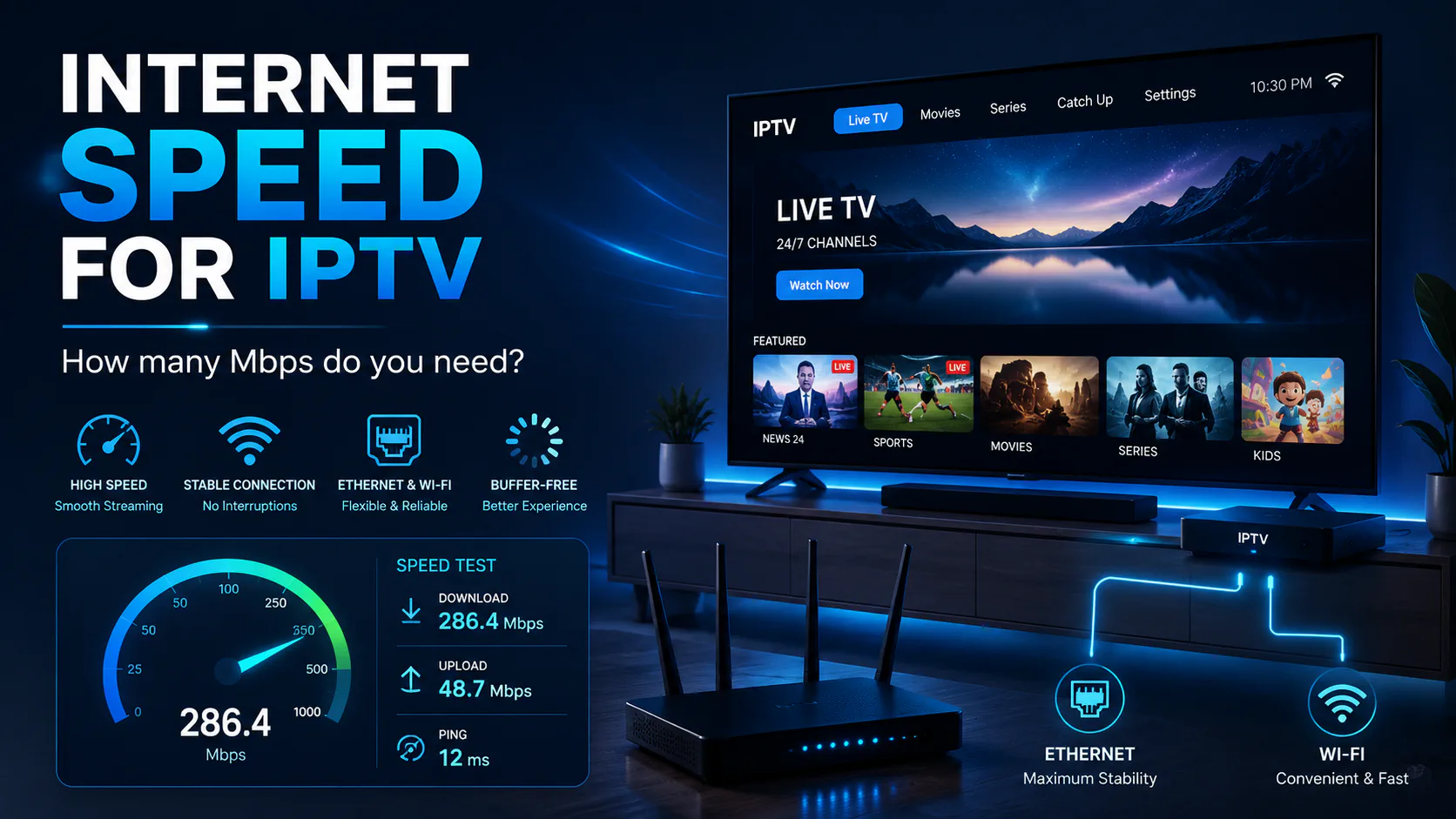
What Internet Speed Do You Need for IPTV?
How fast does your internet need to be for smooth IPTV playback?
The simple answer is: a stable connection of around 15 to 25 Mbps is usually more than enough for one Full HD stream.
But that is not the whole story.
A speed test may show 200 Mbps while your television still buffers every few minutes. On the other hand, IPTV may work perfectly on a stable 30 Mbps connection.
That is because IPTV does not depend only on your maximum download speed.
Other factors also matter:
- the actual bitrate of the channel;
- connection stability;
- Wi-Fi coverage;
- network congestion at home;
- the number of simultaneous streams;
- the performance of your Smart TV or TV box;
- the IPTV app being used;
- the source server;
- packet loss, latency, and jitter;
- downloads and cloud backups on other devices.
In this guide, you will learn how many Mbps you need for SD, HD, Full HD, and 4K. We also calculate the speed required for several televisions and explain why a high speed-test result does not automatically guarantee stable IPTV.
Important: There is no universal bitrate for every IPTV channel. Required speed varies by source, resolution, frame rate, codec, and compression. The figures in this guide are therefore practical recommendations with extra room for fluctuations, not guarantees for every stream.
Quick Answer: How Many Mbps Does IPTV Need?
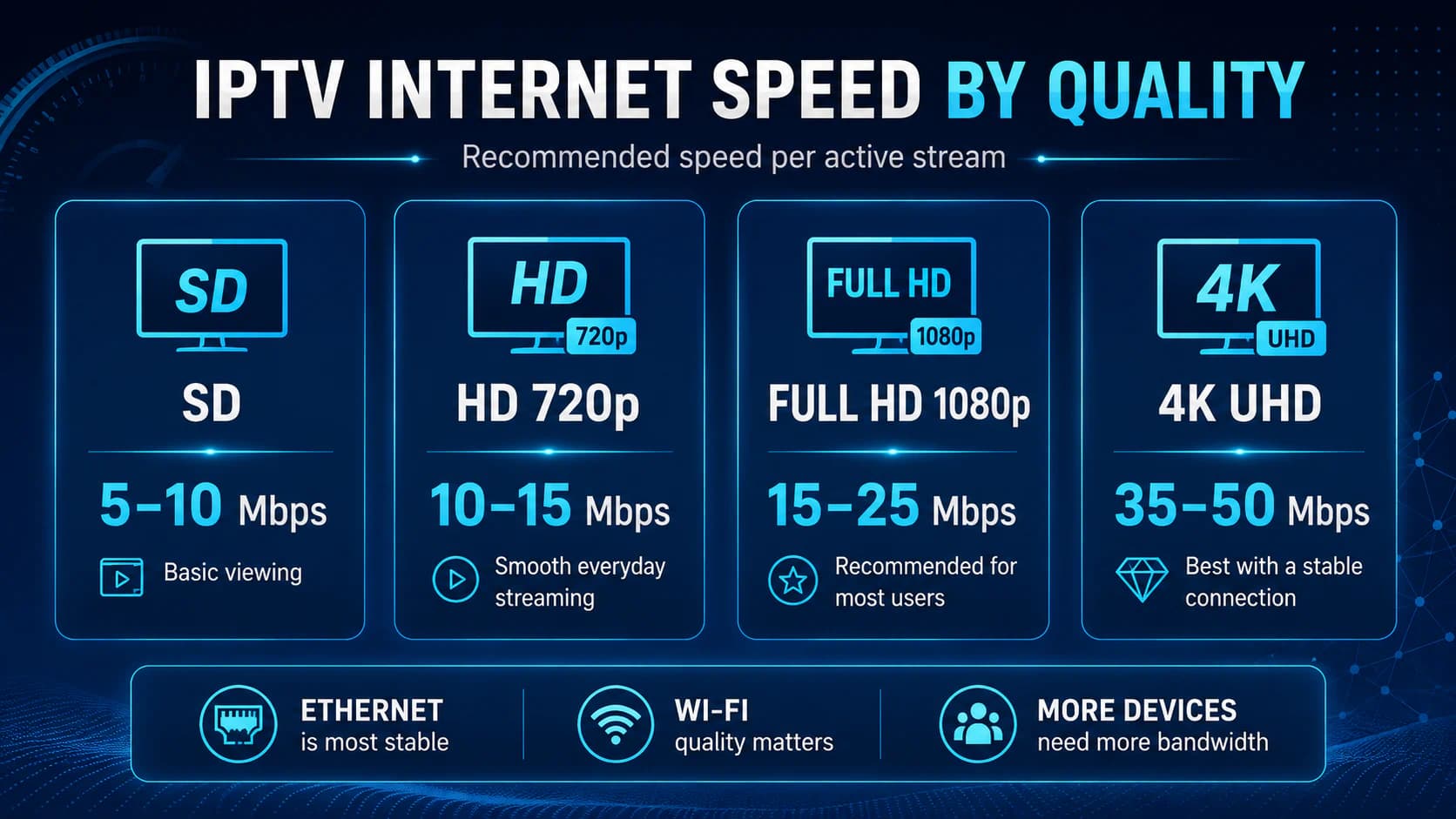
Use this table as a practical starting point for one active stream:
The second column shows what may work under favorable conditions.
The third column is more useful for everyday use. It includes extra room for:
- Wi-Fi fluctuations;
- temporary speed drops;
- network overhead;
- other devices;
- higher-bitrate channels;
- live sports with a lot of movement.
For one Full HD television, we therefore do not recommend choosing an internet plan that delivers exactly 10 Mbps. A connection of 30 to 50 Mbps gives you much more room.
If several televisions, phones, and computers are active at the same time, add their speed requirements together.
Why Do Different Websites Recommend Different Speeds?
When you search online for streaming-speed requirements, you will find different numbers.
One website may say 5 Mbps is enough for HD. Another may recommend 15 Mbps. For 4K, recommendations can range from 15 to 50 Mbps.
That does not automatically mean one of them is wrong.
They may be referring to different things:
- The average video bitrate.
- The minimum constant connection speed.
- A recommended internet connection with safety margin.
- The total connection required by the household.
Large streaming platforms often publish relatively low minimum speeds for efficiently compressed video. A live IPTV stream may use a different bitrate, codec, or compression method.
That is why this guide uses more generous practical recommendations.
Internet Speed Is Not the Same as Video Bitrate
These two terms are often confused.
Internet Speed
This is the capacity of your internet connection.
Your plan may be sold as:
- 50 Mbps;
- 100 Mbps;
- 200 Mbps;
- 1 Gbps.
A speed test tries to measure how much data your device can download and upload at that moment.
Video Bitrate
Bitrate is the amount of data used by the video stream every second.
One Full HD channel may use 6 Mbps, while another Full HD channel may require 12 Mbps.
Resolution alone therefore does not determine bitrate.
Other factors include:
- codec, such as H.264 or H.265;
- frames per second;
- the amount of movement;
- source-picture quality;
- compression settings;
- audio format;
- constant or variable bitrate.
A football match with fast camera movement may require more data than a calm news program at the same resolution.
Mbps vs. MB/s: What Is the Difference?
Internet plans are usually measured in Mbps, meaning megabits per second.
File sizes and download speeds may sometimes be shown in MB/s, meaning megabytes per second.
Eight bits equal one byte.
This means:
100 Mbps ÷ 8 = 12.5 MB/sA 100 Mbps connection therefore downloads at approximately 12.5 megabytes per second under ideal conditions.
For IPTV, you normally do not need to convert between them. Streaming recommendations and speed-test results are usually shown in Mbps.
How Much Speed Does SD IPTV Need?
SD has a lower resolution than HD and normally uses less data.
An SD stream may work from approximately 3 to 5 Mbps under good conditions.
For a more stable experience, we recommend 5 to 10 Mbps per stream.
SD can be useful when:
- the internet connection is slow;
- you are using mobile data;
- the Wi-Fi signal is weak;
- the television is small;
- the HD version of a channel buffers;
- you are temporarily connected through a hotspot.
The obvious disadvantage is lower image sharpness, especially on a large television.
How Much Speed Does 720p HD Need?
A 720p HD stream normally uses less bandwidth than Full HD.
Under favorable conditions, approximately 5 to 8 Mbps may be enough.
For everyday use, 10 to 15 Mbps per stream is a safer recommendation.
HD can be a good compromise when:
- Full HD is not stable;
- several devices share the same connection;
- the channel does not offer a Full HD version;
- you are using Wi-Fi farther from the router;
- you want to reduce data usage.
How Much Speed Does Full HD IPTV Need?
Full HD, also called 1080p, is the most important quality level for many IPTV users.
An efficient Full HD stream may work at around 8 to 12 Mbps.
We recommend 15 to 25 Mbps of available capacity for each active Full HD stream.
The extra room helps with:
- live sports;
- 50 or 60 frames per second;
- brief Wi-Fi drops;
- other devices on the network;
- higher-bitrate streams;
- loading EPG images and menus.
If you use only one television and nobody else is using the internet, a stable connection of 25 to 30 Mbps may be enough.
For a normal household, 50 to 100 Mbps is more comfortable.
How Much Speed Does 4K IPTV Need?
4K contains four times as many pixels as Full HD, but it does not automatically use four times as much data.
Modern compression can reduce the required bitrate.
Still, 4K places greater demands on:
- the internet connection;
- Wi-Fi;
- the decoder;
- the processor;
- the HDMI chain;
- the IPTV app;
- the source server.
An optimized 4K stream may work from approximately 20 to 25 Mbps.
For IPTV, we recommend 35 to 50 Mbps of free capacity per 4K stream in real-world use.
High-bitrate 4K streams may require 50 Mbps or more.
4K Requires More Than Fast Internet
Also check whether:
- the television supports 4K;
- the TV box can decode 4K;
- the app supports the codec being used;
- the HDMI port and cable are suitable;
- hardware decoding is enabled;
- the source is actually delivered in 4K.
A channel name containing “4K” does not automatically mean the stream is always native 4K.
How Much Speed Does Live Sport Need?
Live sport is often more demanding than a calm television program.
This is caused by:
- fast movement;
- rapid camera changes;
- grass, crowds, and fine detail;
- higher frame rates;
- higher bitrate to reduce blockiness.
For Full HD sport, 20 to 25 Mbps of available capacity per stream is a sensible recommendation.
For 4K sport, keep 50 Mbps or more per stream available when possible.
The stream may not use that amount constantly. The extra capacity prevents short bitrate peaks from causing buffering.
How Much Speed Do You Need for Multiple TVs?
Add the recommended speed for every simultaneous stream.
Then add extra capacity for other internet activity.
Example 1: Two Full HD Televisions
Television 1: 20 Mbps
Television 2: 20 Mbps
Other devices and safety margin: 20 Mbps
Total: approximately 60 Mbps
A 100 Mbps plan gives comfortable room here.
Example 2: One 4K TV and One Full HD TV
4K stream: 40 Mbps
Full HD stream: 20 Mbps
Other devices and safety margin: 30 Mbps
Total: approximately 90 Mbps
A stable 100 to 200 Mbps connection is reasonable.
Example 3: Four Full HD Streams
4 × 20 Mbps = 80 Mbps
Extra capacity: 40 Mbps
Total: approximately 120 Mbps
A stable plan of 200 Mbps or more would be comfortable.
Remember that your IPTV subscription must also allow the required number of simultaneous connections.
A faster internet plan does not increase the connection limit of your IPTV account.
Practical Recommendation by Household
A slower plan may work well when the streams are efficient and the connection is stable. A faster plan may still perform badly if Wi-Fi, hardware, or the source server is poor.
Download or Upload Speed: Which Matters?
For normal IPTV viewing, download speed is the most important.
Your device receives video data from the server.
Upload speed plays a smaller role in:
- requests sent to the server;
- account communication;
- app interaction;
- limited technical data.
Upload becomes more important when someone is simultaneously:
- uploading large files to the cloud;
- making video calls;
- livestreaming;
- uploading security-camera footage;
- running online backups.
A fully saturated upload connection can make the whole network less responsive, which may cause IPTV to buffer even when the download speed looks sufficient.
Why Does IPTV Buffer With 100, 500, or Even 1,000 Mbps?
A gigabit internet plan does not guarantee that every stream will work perfectly.
The Television Does Not Receive the Full Speed
Your modem may deliver 500 Mbps while the television receives only 20 Mbps through weak Wi-Fi.
Measure speed on or near the IPTV device.
The Wi-Fi Signal Is Unstable
A speed test measures a short period.
IPTV needs to receive data continuously for minutes or hours. Short interruptions may cause buffering even when the average speed-test result looks good.
The Source Server Is Overloaded
Your own connection may be excellent while the IPTV source lacks enough capacity.
Test other channels and another time of day.
The TV Box or Smart TV Is Slow
An older device may struggle with H.265, high bitrates, 4K, large playlists, or software decoding.
Packet Loss Is Present
Packet loss means some data packets do not arrive.
Even a small percentage can disrupt live video.
Other Devices Are Using the Network
Examples include game updates, cloud backups, downloads, security cameras, video calls, and other streams.
The Account Is Active Elsewhere
Some subscriptions allow only one active connection.
Opening a second stream may disrupt or stop the first.
The App or Decoder Does Not Match the Stream
A different decoder or media player may work better with a specific video format.
For a complete checklist, read IPTV not working.
Stability Matters More Than Maximum Speed
Compare these two connections:
Connection A
- Speed test: 300 Mbps
- Regular drops to 2 Mbps
- High jitter
- Packet loss
- Weak Wi-Fi
Connection B
- Speed test: 50 Mbps
- Remains stable between 45 and 50 Mbps
- Low jitter
- No noticeable packet loss
- Wired
For one Full HD stream, connection B may perform better.
IPTV does not require extreme speed when the video data arrives consistently.
The most important figure is often not the peak speed, but the lowest stable speed while you are watching.
What Are Latency, Jitter, and Packet Loss?
Internet speed does not tell you everything about connection quality.
Latency
Latency is the time data needs to travel from your device to a server and back.
For IPTV, latency is less critical than it is for online gaming because video is buffered.
However, very high or rapidly changing latency may indicate network problems.
Jitter
Jitter is variation in delay.
When packets sometimes arrive quickly and sometimes much later, it becomes harder to play the stream smoothly.
Packet Loss
Packet loss means data packets fail to arrive.
This can cause:
- blocky images;
- brief silence;
- freezing;
- reloading;
- disappearing audio.
High download speed does not automatically compensate for packet loss.
Ethernet or Wi-Fi for IPTV?
Ethernet is usually the most reliable option.
Advantages of Ethernet
- more stable speed;
- less interference;
- lower jitter;
- less dependence on distance;
- no competition with neighboring Wi-Fi networks;
- suitable for long viewing sessions.
For one normal IPTV stream, a 100 Mbps Ethernet port on many televisions is more than sufficient.
When Wi-Fi Can Work Well
Wi-Fi can be perfectly suitable when:
- the router is nearby;
- the signal is strong;
- there are few obstacles;
- the band is not congested;
- the device supports modern Wi-Fi.
An excellent Wi-Fi connection may be faster than a television’s Ethernet port. Even so, a cable is often more consistent.
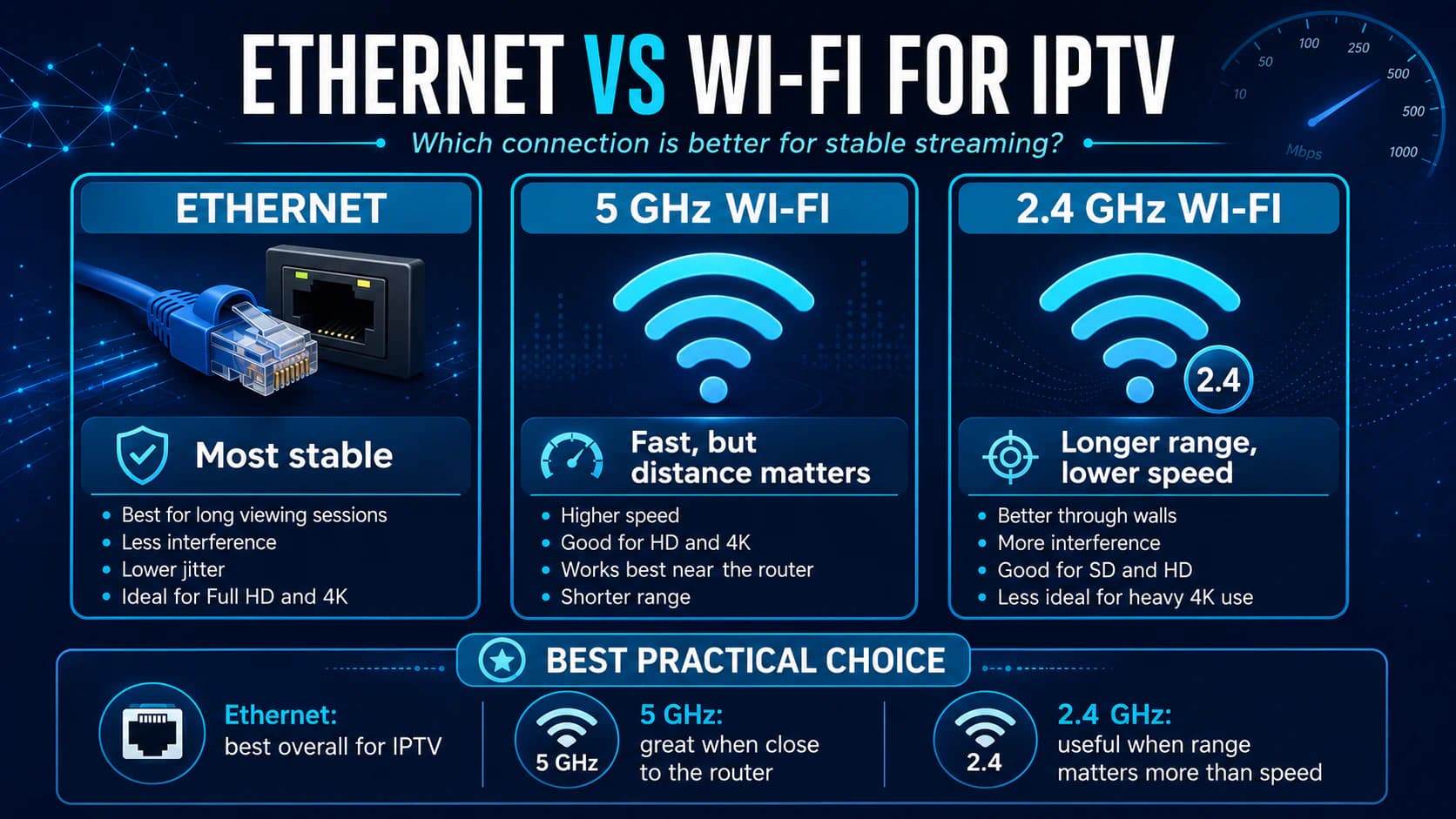
2.4 GHz or 5 GHz for IPTV?
2.4 GHz
Advantages:
- longer range;
- travels through walls better;
- useful at greater distances.
Disadvantages:
- lower speed;
- often more congested;
- more interference.
5 GHz
Advantages:
- higher speed;
- often less interference;
- suitable for HD and 4K over short distances.
Disadvantages:
- shorter range;
- loses strength more quickly through walls and floors.
Use 5 GHz when the television is close to the router.
Use 2.4 GHz when greater range is necessary and the actual speed remains sufficient.
Wi-Fi 6 and newer standards can improve capacity, but only when both the router and IPTV device support them.
Where Should the Router Be Placed?
Router placement has a major effect on performance.
Place it:
- near the center of the home;
- above floor level;
- not behind a television;
- not inside a closed cabinet;
- away from large metal objects;
- away from microwaves and interfering equipment.
Do not hide a TV box completely behind the television if that weakens the Wi-Fi signal.
Test speed with the box in its final location.
Mesh Wi-Fi, Repeater, or Access Point?
Wi-Fi Repeater
A repeater can extend range, but in some setups it reduces available capacity or adds delay.
Mesh Wi-Fi
A good mesh system can provide better coverage in a larger home.
Performance depends on placement, backhaul type, walls, Wi-Fi band, and hardware quality.
Wired Access Point
An access point connected to the router through Ethernet often provides the best combination of range and stability.
For a fixed television, a direct Ethernet cable remains the simplest reliable option.
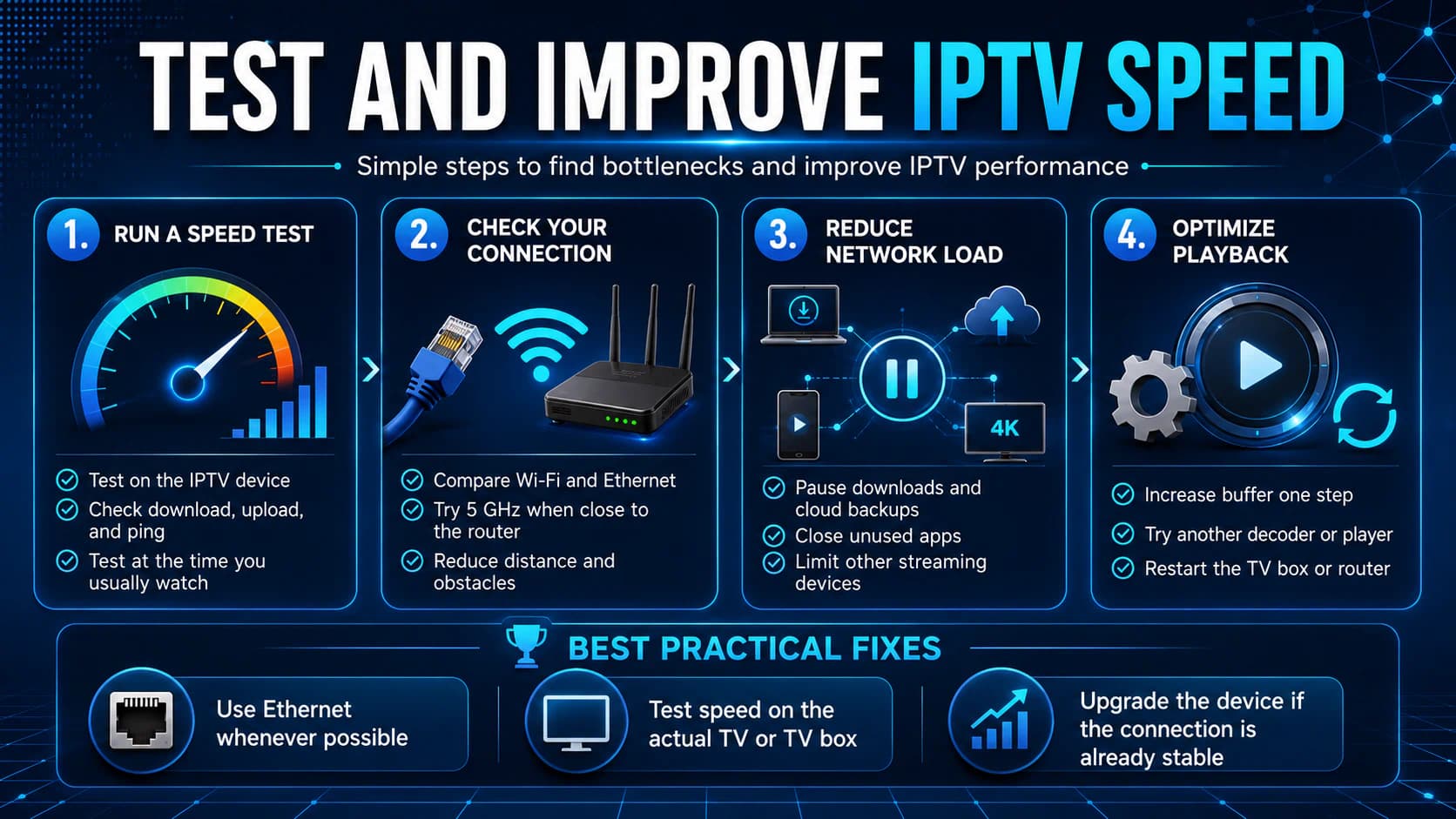
How to Test IPTV Speed Correctly
Run the test on the device you use for IPTV, or as close to it as possible.
Steps
- Pause downloads and other streams temporarily.
- Open a reliable speed test on the TV box or Smart TV.
- Test at the time you normally watch.
- Repeat the test several times.
- Note download, upload, and ping.
- Test both Wi-Fi and Ethernet when possible.
- Test again when buffering occurs.
Why Run Several Tests?
A test at 10:00 a.m. tells you little about congestion at 9:00 p.m.
Test:
- in the morning;
- during the evening peak;
- while other devices are active;
- in different locations;
- with and without Ethernet.
A speed test often connects to a nearby powerful server. The real test is whether the same channel plays for a long period without freezing.
How Much Safety Margin Should You Keep?
Do not match your internet connection exactly to the measured bitrate.
Keep extra capacity available.
A practical rule is to keep at least 25 to 50 percent headroom above expected stream usage, and more when several devices share the connection.
Example:
A Full HD stream currently uses 10 Mbps.
A connection that delivers exactly 10 Mbps has no room for fluctuations.
With 20 Mbps available, the chance of buffering is lower.
This is not a technical guarantee. It is a simple way to account for normal network activity.
Calculate the Usage of Other Devices
IPTV shares the connection with everything else in the home.
Activities that may use significant bandwidth include:
- 4K streaming;
- large game downloads;
- system updates;
- cloud storage;
- video calls;
- online backups;
- security cameras;
- video on several phones;
- other IPTV streams.
An online game itself may not use much bandwidth, but a game update of several dozen gigabytes can saturate the connection.
When needed, use Quality of Service, or QoS, on the router to prioritize streaming traffic.
QoS quality and behavior vary by router.
Does IPTV Use a Lot of Data?
Yes, especially during long viewing sessions in high quality.
You can estimate usage with:
Data used per hour in GB ≈ bitrate in Mbps × 0.45Examples
These are calculated examples.
A variable-bitrate stream does not use exactly the same amount every hour.
If you watch three hours per day at an average bitrate of 10 Mbps:
4.5 GB per hour × 3 hours × 30 days = approximately 405 GBWith 4G or 5G, check your monthly data allowance carefully.
IPTV Over 4G or 5G
IPTV can work over mobile internet.
The result depends on:
- coverage;
- network congestion;
- signal strength;
- data allowance;
- speed;
- latency and jitter;
- mobile-provider policies.
A good 4G connection can support HD and Full HD.
5G may offer higher speeds and more capacity, but it is not automatically more stable inside every home.
Use a Hotspot as a Test
A mobile hotspot is useful for checking whether the home network is the problem.
If IPTV works well through the hotspot, your router, Wi-Fi, or fixed connection deserves closer inspection.
Watch the data usage.
Does DNS Affect IPTV Speed?
A different DNS server may help when a domain name is not being resolved correctly or quickly.
DNS does not determine how much video data your connection can carry each second.
A DNS change may sometimes help with:
- a server address that does not open;
- slow name resolution;
- an error finding a domain.
DNS does not directly increase download speed, Wi-Fi capacity, or source-server bandwidth.
Does a VPN Help With Buffering?
A VPN routes your traffic through an additional server.
It may help in specific cases, such as when the route between your provider and a stream server performs poorly.
However, a VPN can also make the connection slower.
Possible effects include:
- lower download speed;
- higher latency;
- extra load on a weak TV box;
- blocking by the service;
- an unstable VPN server.
Use a VPN as a diagnostic test, not as a guaranteed solution.
Compare the same channel without a VPN and with a nearby VPN server.
Which IPTV App Uses the Least Bandwidth?
The video stream determines most of the data usage.
TiviMate, IPTV Smarters Pro, IBO Player, and other apps do not all change bitrate automatically in the same way.
An app can still affect:
- decoder choice;
- buffer size;
- selected quality variant;
- external-player use;
- background images;
- EPG downloads.
The difference between apps is usually smaller than the difference between an SD, Full HD, and 4K stream.
Compare your options in TiviMate vs IPTV Smarters Pro.
Buffer Settings and Internet Speed
A buffer downloads a small section of the stream in advance.
Small Buffer
Advantages:
- faster start;
- faster channel switching;
- less delay behind live.
Disadvantages:
- more sensitive to short network interruptions.
Large Buffer
Advantages:
- can absorb brief fluctuations.
Disadvantages:
- slower channel switching;
- longer startup time;
- greater delay behind live;
- does not solve long-term speed shortages.
A larger buffer does not turn a 5 Mbps connection into a 20 Mbps connection.
Can an Old Smart TV Limit Performance?
Yes.
Your internet plan may be fast enough while the television still cannot process the stream properly.
Possible limitations include:
- an old Wi-Fi chip;
- weak 2.4 GHz reception;
- a slow processor;
- limited memory;
- an outdated app;
- no H.265 support;
- a limited video decoder;
- a very large playlist.
Test the same connection and account on a recent phone, laptop, or TV box.
If it works well there, an external Android TV or Google TV device may be a practical solution.
For platform guidance, read our article on the best IPTV app for Smart TV.
Samsung TV and Internet Speed
With a Samsung TV, consider Tizen, production year, Wi-Fi version, distance from the router, Ethernet port, and supported codecs.
Test speed directly on the television when possible.
If Wi-Fi performs poorly, use Ethernet or an external streaming box.
Also read our guide to choosing an IPTV app for Samsung TV.
LG TV and Internet Speed
Similar considerations apply to LG webOS.
An older LG television may show a good speed-test result and still struggle with a demanding 4K stream.
The decoder or processor may be the problem rather than the connection.
Test a lower quality, another app, Ethernet, and the same stream on a second device.
For more information, read our guide to choosing an IPTV app for LG TV.
What to Do When the TV Gets Much Lower Speed
Does the television receive much less speed than devices near the router?
Follow this order:
- Restart the router and television.
- Test again in the same location.
- Move the router out of a cabinet.
- Switch from 2.4 GHz to 5 GHz when the distance is short.
- Pause downloads.
- Connect the television through Ethernet.
- Test another network cable.
- Update the television software.
- Test an external streaming box.
- Review mesh or repeater placement.
- Contact the internet provider if wired speed is also too low.
When Is Your Internet Probably Not the Problem?
Your internet is probably not the main cause when:
- other streaming services play 4K without problems;
- the speed test on the IPTV device is stable;
- only one channel buffers;
- the problem always affects the same source;
- another playlist works correctly;
- all other apps function normally.
Always test several channels.
One Channel Has Problems
Probably a channel-source issue.
One Category Has Problems
Possibly a specific server cluster or source package.
Everything Has Problems
Check the connection, account, app, and device.
Only During the Evening
The cause may be home-network congestion, internet-provider congestion, or load on the stream source.
How to Reduce Buffering Without Upgrading Your Plan
Before paying for a faster internet plan, try:
- Using Ethernet.
- Improving router placement.
- Pausing downloads.
- Switching Wi-Fi bands.
- Restarting the TV box.
- Closing unused apps.
- Increasing the buffer by one step.
- Trying another decoder.
- Choosing a lower stream quality.
- Testing another channel.
- Updating the app.
- Using a newer streaming box.
A faster plan helps only when available bandwidth is actually the problem.
Read our complete guide to watching IPTV without buffering for additional fixes.
Frequently Asked Questions
How Many Mbps Do I Need for IPTV?
For one Full HD stream, we recommend approximately 15 to 25 Mbps of available speed.
For 4K, keep 35 to 50 Mbps or more available.
Is 20 Mbps Enough for IPTV?
For one HD or efficient Full HD stream, 20 Mbps may be enough when the connection is stable and other devices use little bandwidth.
For 4K or several televisions, more capacity is advisable.
Is 50 Mbps Enough for IPTV?
For one Full HD stream and normal internet use, a stable 50 Mbps connection is usually more than sufficient.
Is 100 Mbps Enough for IPTV?
For most households, 100 Mbps is enough for several HD or Full HD activities and one 4K stream alongside normal internet use.
How Many Mbps Do I Need for 4K IPTV?
Keep approximately 35 to 50 Mbps available per 4K stream.
A high-bitrate stream may require more.
Do I Need Gigabit Internet for IPTV?
No.
Gigabit internet can be useful for large households, several 4K streams, and heavy downloads, but it does not fix weak Wi-Fi or an overloaded source server.
Why Does IPTV Buffer Even Though My Internet Is Fast?
Possible causes include unstable Wi-Fi, packet loss, a slow TV box, source-server load, the wrong decoder, or an account that is active elsewhere.
Is Ethernet Better Than Wi-Fi?
Ethernet is generally more stable and less affected by interference.
Good 5 GHz Wi-Fi can also work very well when the television is close to the router.
Is 2.4 GHz Good Enough for IPTV?
It can be, especially for SD and HD.
For Full HD and 4K, 5 GHz or Ethernet is often better.
Does Upload Speed Affect IPTV?
IPTV mainly uses download capacity.
However, a fully saturated upload connection can make the network slower and less stable.
Does IPTV Use a Lot of Data?
Yes.
A stream averaging 10 Mbps uses approximately 4.5 GB per hour.
Can IPTV Work Through a Mobile Hotspot?
Yes, when the 4G or 5G connection is stable.
Pay attention to the data allowance.
Does Changing DNS Help?
DNS may help the device find a server address, but it does not directly increase download speed.
Does a VPN Help?
A VPN may bypass a poor route, but it can also slow the connection.
Use it as a test.
How Should I Test the Correct Speed?
Test on the IPTV device, at the normal viewing time, and in its final location.
Repeat the test and compare Wi-Fi with Ethernet.
How Much Speed Do Two Televisions Need?
For two Full HD streams, keep approximately 40 Mbps available for the streams, plus capacity for other devices.
A stable 100 Mbps plan is a comfortable choice.
Conclusion: Do Not Look Only at the Number on Your Internet Plan
For IPTV, a stable connection matters more than an impressive peak speed.
Use these practical recommendations:
- SD: 5 to 10 Mbps per stream
- HD: 10 to 15 Mbps per stream
- Full HD: 15 to 25 Mbps per stream
- 4K: 35 to 50 Mbps or more per stream
Add simultaneous streams together and reserve additional capacity for phones, computers, downloads, and video calls.
If you still have problems despite sufficient speed, check the Wi-Fi signal, Ethernet connection, packet loss, router placement, TV box, app, decoder, account connections, and source server.
At iptv-netherland.com, we help customers not only access IPTV but also complete the installation and configuration of their devices.
Would you like to test which quality your own internet connection can play reliably?
Compare our IPTV subscriptions, view the Dutch IPTV channel list, or request a free trial account.
This lets you evaluate Full HD and 4K on your own television, app, and network before choosing a package.
Written by
IPTV Netherland Editorial Team
IPTV setup and streaming support
Our editorial team writes practical IPTV guides for viewers in the Netherlands, with a focus on device setup, stable streaming, app configuration, and clear troubleshooting steps.
Useful IPTV resources
Continue with the most relevant setup, channel, and subscription pages.