




IPTV App for Samsung TV: Best Options (2026)
Which IPTV app works on Samsung TV? Discover the best apps for Tizen, how to install them, and how to fix black screens, buffering, or missing channels.
IPTV App for Samsung TV: Installation, Setup & Best Options
Do you want to watch IPTV on a Samsung TV?
Then you first need a compatible IPTV app.
That sounds simple, but this is where many users run into problems.
Samsung Smart TVs do not use Android. Most modern models run Samsung’s own Tizen operating system. Because of that, you cannot install every popular IPTV app directly on the television. An app that works perfectly on an Android TV box may not appear in the Samsung App Store at all.
There is another complication.
App availability can differ by television model, year, and region. An IPTV app that someone else uses on a Samsung TV may not automatically be available on your device.
In this guide, you will learn:
- which IPTV apps work on Samsung TV;
- how to install an app through the Samsung App Store;
- how to add an M3U playlist or Xtream Codes account;
- why TiviMate does not run directly on Samsung Tizen;
- which settings you should check;
- what to do when an app is missing or shows no picture.
By the end, you will know which setup is most suitable for your Samsung television.
Good to know: An IPTV app is only a media player. The app itself normally does not provide television channels, films, or a subscription. You need separate, lawfully obtained login details from a provider.
Quick Answer: What Is the Best IPTV App for Samsung TV?
For most modern Samsung Smart TVs, IBO Player and SmartOne IPTV are practical options.
Both are designed for Smart TV platforms and support common ways of adding your own playlist or account.
Our quick recommendation:
- Simple installation: IBO Player
- More management options and multiple accounts: SmartOne IPTV
- Other native Tizen players: Only when the app appears in your Samsung App Store
- If you want to use TiviMate: Connect an Android TV or Google TV device through HDMI
- For an older Samsung TV: Consider an external streaming box
The best app for you depends on three things:
- Your television’s year and operating system.
- Which apps are available in your region.
- Which login method your IPTV provider uses.
To compare apps for LG, Android TV, and Google TV as well, read our guide to the best IPTV app for Smart TV.
Why Do Some IPTV Apps Not Work on Samsung TV?
Most modern Samsung Smart TVs use the Tizen operating system.
Tizen is different from Android TV and Google TV.
This means you cannot install a standard Android APK directly on a Samsung TV. APK files are made for Android and are not supported by Tizen.
This distinction matters because many online guides use the term “Smart TV” without mentioning the operating system.
They may recommend TiviMate or Televizo, even though those apps are primarily designed for Android TV devices.
Samsung Tizen vs. Android TV
Do you own a Samsung TV but still want to use an Android app?
You can connect an external media player, such as:
- an Android TV box;
- Chromecast with Google TV;
- Google TV Streamer;
- Nvidia Shield;
- Amazon Fire TV Stick, when the app is available for that platform.
The external device runs the IPTV app. Your Samsung television is then used only for picture and sound.
Which Samsung TV Model Do You Have?
Before choosing an IPTV app, it helps to know your exact Samsung model and production year.
You can usually find the model number:
- on the label at the back of the television;
- under Settings;
- under Support;
- in About This TV;
- in the Samsung SmartThings app when the TV has been added.
The exact menu names may differ by model.
The production year matters because older Samsung televisions may use a different platform and support fewer applications.
Modern Samsung models generally use Tizen. Older models can have limitations involving:
- modern video formats;
- subtitles;
- alternative audio tracks;
- large channel lists;
- recent app versions;
- secure connections.
An app may install successfully but still perform slowly on an older television.
1. IBO Player for Samsung TV
IBO Player is a popular choice for users who want a straightforward IPTV player directly on their Samsung TV.
The app functions as a media player and supports playlists that you add yourself.
Depending on the current version, IBO Player may support:
- M3U links;
- M3U8 playlists;
- live television channels;
- films;
- series;
- favorites;
- electronic program guides.
How Does IBO Player Work?
After installation, the app usually shows device identification details, such as a device ID or MAC address.
You then use the app’s official management portal to connect your playlist to the television.
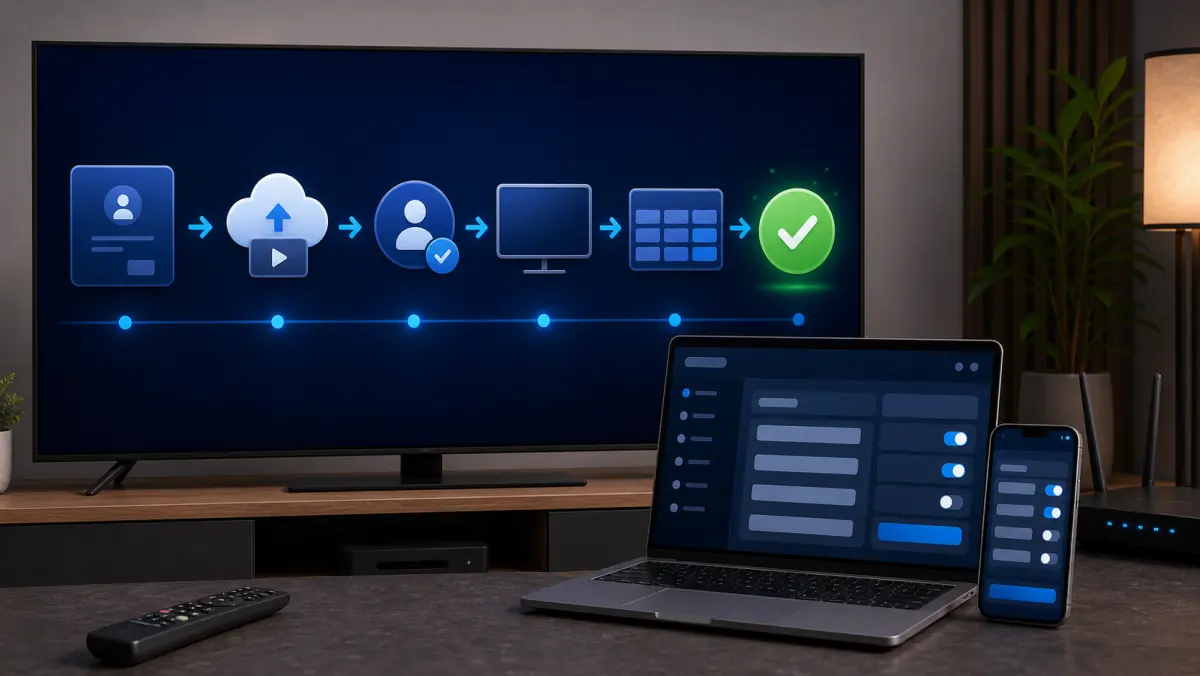
The process usually looks like this:
- Install IBO Player from the Samsung App Store.
- Open the app.
- Note the device code or MAC address shown on screen.
- Open the official IBO management portal on your phone or computer.
- Add your M3U or M3U8 link.
- Save the details.
- Restart or refresh the app on your Samsung TV.
- Wait for the channels and EPG to finish loading.
Why Is IBO Player Convenient?
You do not have to type a long URL using the television remote.
That is a significant advantage. An M3U link may contain dozens of characters, and one typing error can prevent the playlist from loading.
Using a phone or computer makes it much easier to copy and paste the link correctly.
Does IBO Player Require a License?
The player may include a trial period followed by a separate activation fee.
This activation is independent of your IPTV subscription.
Paying for the app does not give you access to channels. You are paying only for the use of the player.
Always check the latest conditions inside the app and on the official website before paying.
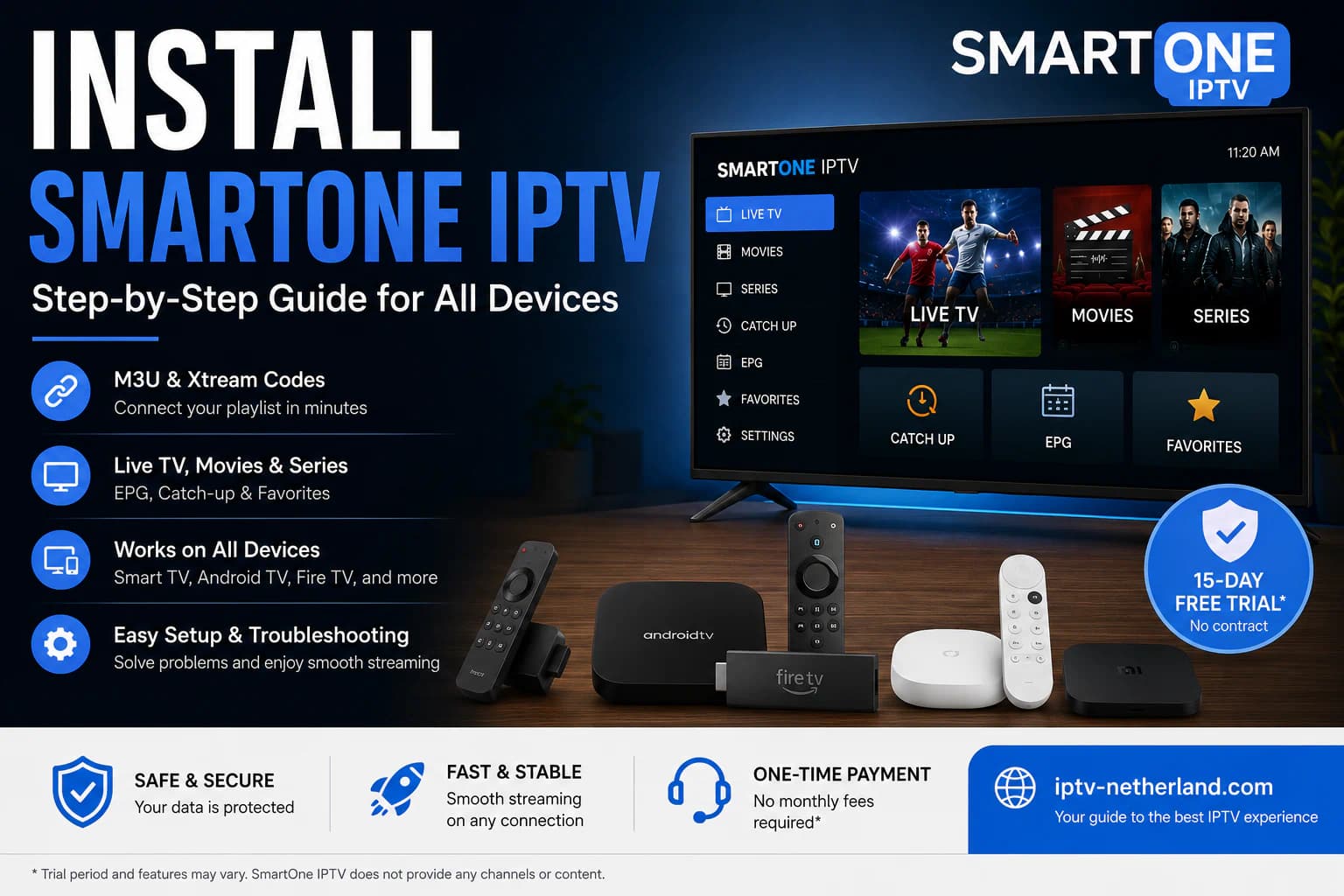
2. SmartOne IPTV for Samsung TV
SmartOne IPTV is another player that supports Samsung platforms, including Tizen and some older Orsay series.
Depending on the current version and your television, the app may support:
- M3U playlists;
- API or Xtream Codes-style accounts;
- live television;
- films and series;
- multiple accounts;
- favorites;
- parental controls;
- catch-up when supported by the stream;
- EPG;
- various app settings.
Not every feature works in exactly the same way on every Samsung model.
The available options may differ depending on the television’s age, hardware, and supported video formats.
When Is SmartOne a Good Choice?
SmartOne may suit you when:
- you want to add multiple accounts;
- you use live television, films, and series;
- you prefer managing playlists online;
- you want to organize favorites;
- you need an app for an older Samsung model;
- your provider supplies Xtream Codes or M3U details.
Installing and Setting Up SmartOne
The general process is:
- Open the Samsung App Store.
- Search for SmartOne IPTV.
- Install and open the app.
- Note the device or activation details.
- Add your account through the official SmartOne portal.
- Select M3U or the API method that matches your credentials.
- Save the configuration.
- Restart the app.
- Allow the playlist to synchronize fully.
When entering the details, check:
- username;
- password;
- server address;
- port number;
- uppercase and lowercase characters;
- accidental spaces;
- the complete M3U link.
One missing character can prevent all channels from appearing.
Other IPTV Apps in the Samsung App Store
You may find other players in addition to IBO Player and SmartOne.
The apps shown in the store can differ by country, region, model, and production year.
You may see app names containing terms such as:
- IPTV Player;
- Smarters;
- Smart IPTV;
- OTT Player;
- M3U Player;
- TV Player.
Be careful.
Popular app names are often used by several different developers. Two apps with almost the same name may be completely unrelated.
Before installing an app, check:
- the developer;
- the official logo;
- the date of the latest update;
- reviews from Samsung TV users;
- the privacy policy;
- requested permissions;
- whether the app is only a player;
- whether clear support information is available.
Do not enter your IPTV username and password into an unknown app.
When in doubt, use a player recommended and supported by your provider.
Can TiviMate Be Installed on Samsung TV?
Not directly on a standard Samsung Tizen television.
TiviMate is designed for Android TV and remote-control navigation. It is available through the Google Play Store for Android TV devices, not as a native Tizen app in the Samsung Store.
Installing an Android APK through USB therefore does not work in the normal way.
How to Use TiviMate With a Samsung TV
You can still use TiviMate by connecting an external Android TV device.
The process is:
- Connect the Android TV box or Google TV device to an HDMI port.
- Connect the device to the internet.
- Open the Google Play Store.
- Install TiviMate.
- Add your M3U, Xtream Codes, or Stalker Portal details.
- Use the remote control supplied with the external device.
This can be a good solution when:
- your Samsung TV is old;
- native apps feel slow;
- you want a more advanced EPG;
- you use several playlists;
- you need more player settings;
- you want recording or multiview on a suitable setup.
An external streaming box is often much cheaper than replacing the television.
How to Install an IPTV App From the Samsung App Store
On a modern Samsung Smart TV, the installation process usually works like this:
- Press the Home button on the remote.
- Open Apps.
- Select the search icon.
- Enter the exact name of the IPTV app.
- Select the correct app.
- Choose Install.
- Wait for the installation to finish.
- Choose Open or add the app to the home screen.
Cannot find the app?
Check whether:
- the television is connected to the internet;
- you are signed in with a Samsung account;
- the television software is up to date;
- the app is available in your region;
- your television model and year are supported;
- the app name was entered correctly.
Samsung TV app availability can vary between models and regions.
Which Login Details Do You Need?
The IPTV app cannot display anything until you add your own login details.
Your provider may supply one of several different methods.
Xtream Codes
With Xtream Codes, you usually receive:
- a server URL;
- a username;
- a password.
Example structure:
Server: http://example-server.com:8080
Username: user123
Password: password123
Only enter your real credentials into the app or its official management portal. Do not share them publicly.
M3U Link
An M3U link is a long URL that often already contains the account details.
Its technical structure may look similar to this:
http://example-server.com/get.php?username=USER&password=PASSWORD&type=m3u_plusThis is only an example. Your provider will supply the actual link.
Portal or MAC-Based Access
Some apps and services work through a portal URL and a device or MAC address.
In that case, the device may need to be registered with the provider first.
Ask which method you should use when unsure. M3U, Xtream Codes, and portal access are not interchangeable.
At iptv-netherland.com, we help customers with the installation and configuration of their devices so the correct details are added in the right way.
How to Configure the App Properly
The default settings are often enough.
However, checking a few options can improve the experience.
Refresh the EPG
The EPG shows what is currently on television and what will be broadcast next.
If the program guide does not load, try:
- refreshing the playlist;
- reloading the EPG manually;
- restarting the app;
- checking the television’s date and time;
- waiting a few minutes after the first installation.
A large EPG may take some time to load.
Set Up Favorites
A playlist may contain hundreds or thousands of channels.
Add the channels you actually use to your favorites. This prevents you from searching through every category each time.
Hide unwanted groups if the app supports it.
Subtitles and Audio Tracks
Some channels and films include several audio tracks or subtitle options.
Open the playback options and check:
- audio language;
- subtitles;
- default player;
- aspect ratio.
Not every Samsung model supports every subtitle or audio format.
Buffer Settings
Some apps offer a buffer option.
Start with the standard or medium setting.
A larger buffer may absorb brief network interruptions, but it can also make channel switching slower.
A buffer cannot repair a poor or offline source stream.
Best Internet Connection for IPTV on Samsung TV
A good app is only one part of the setup.
IPTV also requires a stable internet connection.
Ethernet Is Usually the Most Reliable
Connect the Samsung TV directly to the router with an Ethernet cable whenever possible.
A wired connection avoids many of the fluctuations that can affect Wi-Fi.
When Wi-Fi Can Work Well
Wi-Fi can perform well when:
- the router is nearby;
- the signal is strong;
- there are few obstacles;
- the home network is not overloaded;
- the television has a stable wireless connection.
Use 5 GHz when the TV is close to the router.
Use 2.4 GHz when the signal must travel through several walls, although this band may be busier and slower.
How Much Speed Do You Need?
As a practical guideline:
Stability matters more than a high peak speed.
A connection that constantly moves between fast and slow may perform worse than a lower but consistent speed.
If playback frequently freezes, read our guide to watching IPTV without buffering.
The IPTV App Is Missing From the Samsung Store
This is one of the most common problems.
An app may be missing because of:
- the television’s production year;
- the selected region;
- regional availability;
- an outdated operating system;
- discontinued support;
- temporary removal from the store;
- an unsupported model.
What Can You Do?
- Search for the exact app name.
- Check for television software updates.
- Restart the television.
- Sign out and back into your Samsung account.
- Confirm that the developer officially supports your model.
- Choose another native IPTV player.
- Use an external Android TV box.
Avoid installing random USB packages from unknown websites.
They may be outdated, modified, or unsafe.
The App Opens but No Channels Appear
If the app opens but the channel list remains empty, check:
- whether the complete M3U link was entered;
- whether the username and password are correct;
- whether the subscription is still active;
- whether the server URL includes the port number;
- whether an extra space was added;
- whether the television has internet access;
- whether the playlist works on another device;
- whether you refreshed the app after adding the account.
Test the same credentials on a second supported device when possible.
If the account does not work there either, the Samsung app is probably not the cause.
Black Screen on Samsung TV
A black screen can have several causes.
Only One Channel Shows a Black Screen
Test other channels.
If they work, the source stream for that channel may be temporarily offline.
Every Channel Shows a Black Screen
Check:
- the internet connection;
- subscription status;
- whether the account is active on another device;
- app cache or stored app data;
- the selected player;
- the video format;
- the television software version.
Sound but No Picture
This often indicates a video-decoder or unsupported-format problem.
Try:
- another channel;
- another IPTV app;
- a lower picture quality;
- an external media player;
- an Android TV box.
Picture but No Sound
Check:
- volume and mute;
- another audio track;
- stereo instead of surround sound;
- HDMI audio settings;
- another channel.
Older Samsung TVs do not support every audio format.
For a more complete troubleshooting process, use our guide: IPTV not working.
The App Buffers or Freezes
If the app works but the picture keeps stopping, the app may not be the cause.
Possible causes include:
- unstable Wi-Fi;
- a busy home network;
- a slow television;
- insufficient memory;
- a bitrate that is too high;
- server load;
- a problem with one channel;
- another user on the same account;
- a buffer that is too small.
Test in this order:
- Open another channel.
- Restart the app.
- Restart the television.
- Restart the router.
- Connect an Ethernet cable.
- Pause downloads and updates.
- Test the same stream on another device.
- Adjust the buffer carefully.
- Test another IPTV app.
- Contact the provider if only specific channels have problems.
The App Feels Slow
A slow IPTV app may be caused by:
- limited free storage;
- a very large playlist;
- a large EPG;
- an old Samsung model;
- too many background apps;
- outdated television software;
- a damaged app installation.
Try the following:
- Remove apps you no longer use.
- Restart the television fully.
- Refresh the playlist.
- Hide unused categories.
- Uninstall and reinstall the app.
- Ask for a smaller playlist if your provider offers one.
- Use an external streaming box.
An older television may still be an excellent display, but its built-in processor can struggle with modern apps.
How to Remove and Reinstall a Samsung IPTV App
Reinstalling the app may be the fastest solution.
Keep your login details available before you begin.
The general steps are:
- Press Home.
- Open Apps.
- Go to the app-store settings.
- Select the IPTV app.
- Choose Delete.
- Restart the television.
- Open the Samsung App Store again.
- Search for and install the app.
- Add your account again.
After deletion, your playlists, favorites, and app settings may be removed.
Create a backup when possible or write down the required details first.
Using an External Android TV Box
Do none of the Samsung apps work well?
An external Android TV box may be the best solution.
Advantages include:
- a larger app selection;
- access to TiviMate;
- often faster hardware;
- more storage;
- better support for modern codecs;
- easier replacement than the entire television;
- regular app updates.
Connect the box through HDMI and select the correct input on the Samsung television.
Choose a reliable certified device where possible. Extremely cheap, unknown Android boxes may use outdated software, weak Wi-Fi hardware, or insecure firmware.
Is IPTV on Samsung TV Legal?
IPTV technology itself is legal.
Official television providers and streaming services also use the internet to deliver television and video.
The legal question concerns the content and whether the provider has the rights to distribute it.
Use:
- a reliable provider;
- lawfully obtained login details;
- official apps;
- secure payment methods;
- clear terms and conditions;
- no random free playlists from unknown websites.
The IPTV app itself is normally only a player and does not determine which content you add.
To understand the technology first, read What is IPTV?.
Frequently Asked Questions
Which IPTV App Works on Samsung Smart TV?
IBO Player and SmartOne IPTV are well-known options for supported Samsung models.
The apps available to you depend on your region, television model, and production year.
What Is the Best IPTV App for Samsung TV?
IBO Player is a practical option for a simple setup.
SmartOne IPTV may be better when you want multiple accounts and additional management features.
The best app is ultimately the one that runs reliably on your television and supports your provider’s login method.
Can I Install TiviMate Directly on Samsung TV?
No, not as a native app on a normal Samsung Tizen television.
TiviMate is designed for Android TV. Use an external Android TV or Google TV device if you want to run TiviMate.
Can I Install an APK on Samsung TV?
A standard Android APK does not work on Tizen.
Do not download unknown installation packages that claim to bypass this easily.
Why Can’t I Find the IPTV App in the Samsung Store?
The app may be unavailable for your region, television model, or production year.
Check for updates, search using the exact name, or choose a different player.
Do I Need to Pay for an IPTV App?
Some apps are free, while others offer a trial period followed by a license fee.
The app payment is separate from the IPTV subscription and normally includes no channels.
Can I Watch IPTV Over Wi-Fi on Samsung TV?
Yes, when the Wi-Fi connection is stable.
Ethernet is usually more reliable, especially for Full HD and 4K.
Why Does the Playlist Not Work?
Possible causes include incorrect credentials, an expired subscription, an incomplete URL, server problems, or too many active connections.
Can I Use the Same Account on Several Samsung TVs?
The account may be installed on multiple devices, but the number of simultaneous streams depends on your subscription.
Which App Should I Use on an Older Samsung TV?
First check which apps are still available in the store.
If the available apps do not work well, use an external Android TV box or streaming stick.
Conclusion: Choose a Native Samsung App or Use an External Box
To watch IPTV on a Samsung TV, you need an app that supports Tizen.
IBO Player and SmartOne IPTV are logical options for many users. They run directly on supported Samsung televisions and allow you to add your own M3U or account details.
TiviMate cannot be installed directly on Tizen. If you want to use it, you need an external Android TV or Google TV device.
Before installing an app, always check:
- your Samsung model and production year;
- availability in your region;
- the official app developer;
- your provider’s login method;
- any app-license fees;
- the number of simultaneous connections.
At iptv-netherland.com, we help customers not only access IPTV but also complete the installation and configuration of their devices.
Would you like to test which IPTV app works best on your Samsung TV?
Compare our IPTV subscriptions, view the Dutch IPTV channel list, or request a free trial account.
This allows you to evaluate the app, picture quality, and connection on your own Samsung television before choosing a package.
Written by
IPTV Netherland Editorial Team
IPTV setup and streaming support
Our editorial team writes practical IPTV guides for viewers in the Netherlands, with a focus on device setup, stable streaming, app configuration, and clear troubleshooting steps.
Useful IPTV resources
Continue with the most relevant setup, channel, and subscription pages.