




How to Install SmartOne IPTV: Complete Smart TV Guide (2026)
Learn how to install SmartOne IPTV on Samsung, LG, Android TV, Google TV, Fire TV and Hisense. Includes M3U, Xtream Codes, activation and troubleshooting.
How to Install SmartOne IPTV: Complete Smart TV Guide
Want to install SmartOne IPTV on your television?
SmartOne IPTV is useful because the app is available on a wide range of Smart TV platforms. While some IPTV players mainly target Android TV, SmartOne supports platforms such as Samsung Tizen, older Samsung Orsay models, LG webOS, LG Netcast, Android TV, Google TV, Amazon Fire TV and VIDAA OS.
That makes it particularly interesting if you want to watch IPTV directly on your television without buying a separate streaming box.
The setup, however, has two separate parts:
- Install and, when required, activate the SmartOne IPTV app.
- Add your own IPTV playlist or account.
These two things are often confused.
SmartOne IPTV itself does not provide TV channels, movies, series or an IPTV subscription. It is a media player. After installing the app, you still need to add your own lawfully obtained M3U playlist or supported account credentials.
In this guide, we explain how to install SmartOne IPTV on:
- Samsung Smart TV;
- LG Smart TV;
- Android TV;
- Google TV;
- Amazon Fire TV and Fire TV Stick;
- Hisense with VIDAA;
- Sony Bravia;
- Philips;
- Xiaomi TV.
We will also cover:
- M3U setup;
- Xtream Codes;
- app activation;
- EPG setup;
- favorites and categories;
- buffering;
- empty playlists;
- login problems;
- black screen issues;
- when an external IPTV box may be the better choice.
Important: SmartOne IPTV is a video player. The developer explicitly states that the app does not provide channels, subscriptions or streaming content. You must supply your own playlist or account for content you are authorized to access.
Quick answer: how do you install SmartOne IPTV?
The installation method depends on your television.
After installation:
- Open SmartOne IPTV.
- Note the device or activation information shown by the app.
- Use SmartOne's official management environment to connect your playlist or account.
- Add M3U or a supported Xtream Codes/API login.
- Restart the app if required.
- Check live TV, movies, series and EPG.
- Test the app during the trial period before purchasing a license.
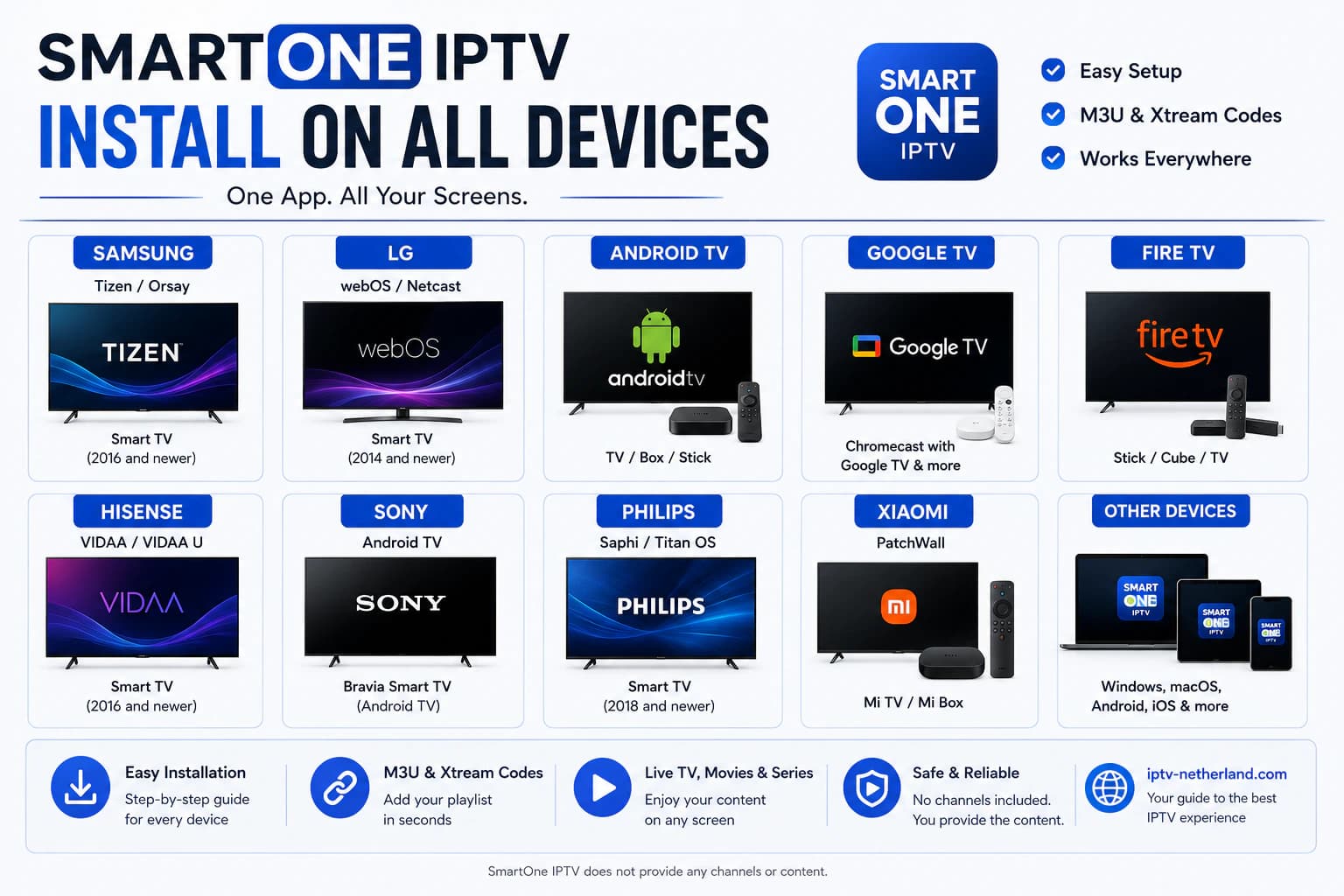
What is SmartOne IPTV?
SmartOne IPTV is a media player designed for Smart TVs and streaming devices.
According to SmartOne's official website, the app supports a variety of platforms, including:
- Samsung Tizen;
- Samsung Orsay;
- LG webOS;
- LG Netcast;
- Android TV;
- Google TV;
- Amazon Fire TV;
- VIDAA OS;
- Foxxum;
- selected Vestel platforms;
- other supported Smart TV systems.
The app can organize IPTV content into sections such as:
- live TV;
- movies;
- series;
- radio;
- favorites;
- EPG;
- catch-up when supported by the source.
SmartOne also supports multiple accounts and playlists.
SmartOne IPTV is not an IPTV provider
This distinction matters.
Installing the app does not automatically give you Dutch TV channels or any other content.
You still need:
- your own M3U link;
- or supported Xtream Codes/API credentials;
- and possibly a separate EPG source.
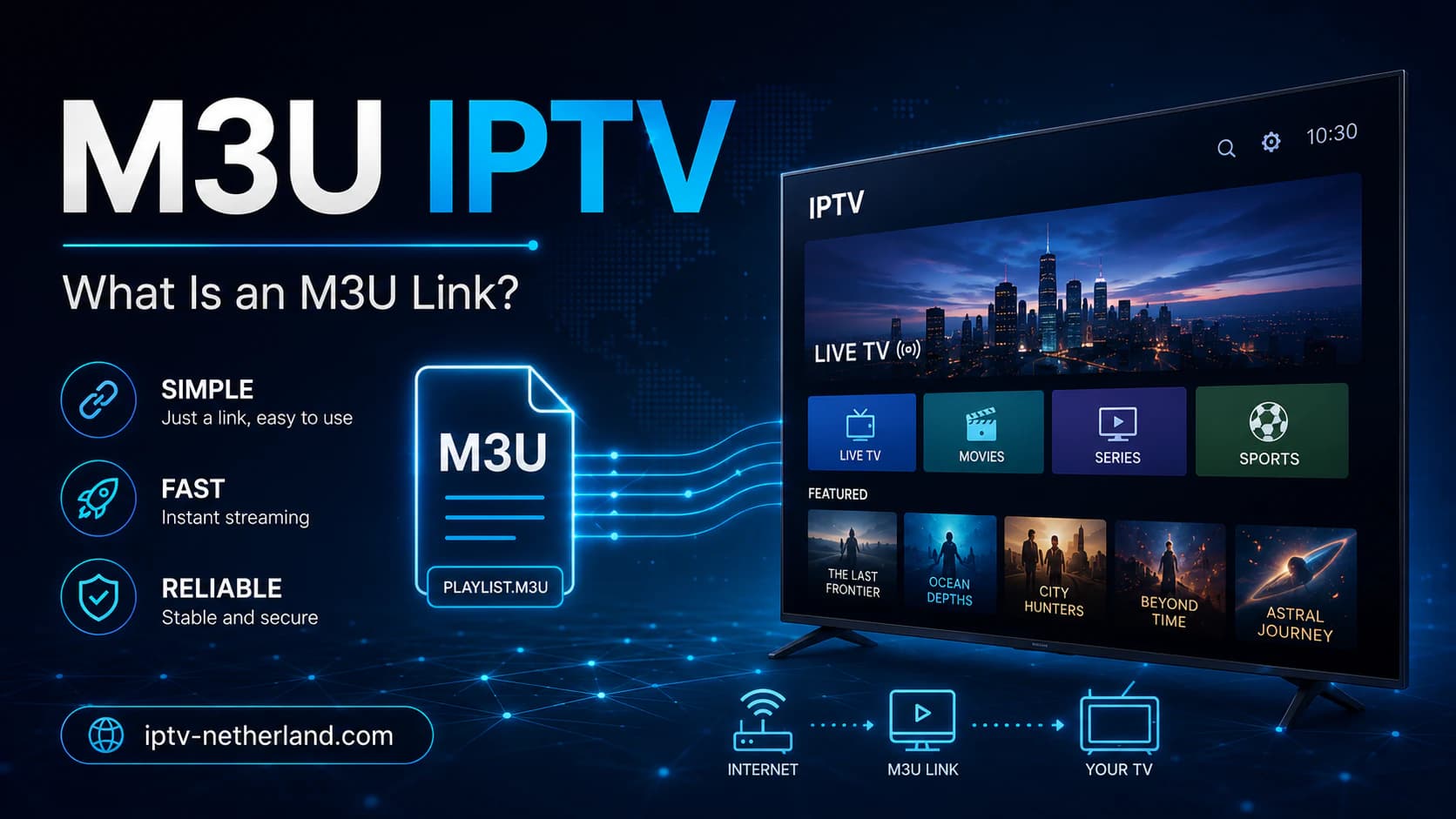
If you want to understand how an M3U playlist works, read our guide M3U IPTV: What Is an M3U Link?.
SmartOne IPTV vs TiviMate and IPTV Smarters Pro
SmartOne's main strength is different from TiviMate's.
SmartOne IPTV
A strong choice when you:
- want to watch directly on a Samsung TV;
- want to watch directly on an LG TV;
- want the same player across several Smart TV platforms;
- do not want to buy an external Android TV box.
TiviMate
A strong choice when you:
- use Android TV or Google TV;
- watch a lot of live television;
- want a more advanced EPG;
- want extensive group customization;
- care about recording and multiview.
IPTV Smarters Pro
A strong choice when you:
- prefer a straightforward dashboard;
- want live TV, movies and series clearly separated;
- use several different device types.
For a broader comparison, read TiviMate vs IPTV Smarters Pro.
You can also compare more options in Best IPTV App for Smart TV.
How to Install SmartOne IPTV on Samsung TV
Samsung is one of the main reasons many users consider SmartOne IPTV.
Samsung Smart TVs do not use Android TV. Modern models generally use Tizen, while much older models may use Samsung's earlier Orsay platform.
The installation method therefore depends on the TV generation.
Install SmartOne IPTV on Samsung Tizen
For modern Samsung Smart TVs, start in Samsung's app store.
Steps
- Turn on the Samsung TV.
- Connect the television to the internet.
- Press Home on the remote.
- Open Apps.
- Open the search function.
- Search for SmartOne IPTV.
- Make sure you have selected the correct app.
- Choose Install.
- Wait for installation to complete.
- Open SmartOne IPTV.
SmartOne's official documentation lists installation through Samsung's app store for supported Tizen models.
Actual availability can still vary based on:
- country;
- Samsung account region;
- television model;
- model year;
- Tizen version;
- changes in the Samsung app store.
SmartOne does not appear in the Samsung Store
Try the following:
- Make sure the TV is connected to the internet.
- Update the Samsung TV software.
- Restart Smart Hub.
- Check the TV's configured region.
- Search again using the full app name.
- Check SmartOne's official website for model compatibility.
Avoid downloading random installation files from unknown websites.
Samsung models around 2015
SmartOne's official documentation describes a USB installation method for certain older Samsung Tizen models.
If your TV falls into this category, use only the official installation package and instructions provided by SmartOne.
USB installation is generally unnecessary if the app is already available through the Samsung Store.
Very old Samsung Orsay TV
For older Samsung TVs using Orsay, SmartOne provides a different official installation method.
The documentation mentions options such as:
- developer mode/app synchronization;
- USB installation for supported Orsay models.
This process is more technical than installing from the app store.
If your television is now ten years old or more, an external Google TV or Android TV box may be simpler and more reliable.
See our guide to the Best IPTV Box.
More Samsung options
To compare other apps, read IPTV App for Samsung TV.
How to Install SmartOne IPTV on LG TV
LG Smart TVs mainly use webOS.
SmartOne states that the app is available for several webOS generations.
Install through LG Content Store
- Turn on the LG TV.
- Check the internet connection.
- Press Home.
- Open Apps or LG Content Store.
- Use the search function.
- Search for SmartOne IPTV.
- Select the app.
- Choose Install.
- Open SmartOne from the Home screen.
SmartOne lists support for multiple webOS generations, including both older and more recent LG TVs.
Exact availability still depends on model and region.
SmartOne is missing on LG
Check:
- TV software updates;
- LG account;
- country or region;
- available storage;
- exact model number;
- webOS version.
Do not try to install an Android APK directly on LG webOS.
APK files are designed for Android and do not run natively on webOS.
Older LG Netcast TVs
SmartOne also lists support for selected older LG Netcast models.
For these TVs, use only the installation procedure published by SmartOne for your exact platform and model.
With very old hardware, an external box can provide a better experience.
More LG options
Compare other apps in IPTV App for LG TV.
How to Install SmartOne IPTV on Android TV
On Android TV, installation is straightforward.
SmartOne's official documentation directs users to Google Play.
Steps
- Open the Android TV home screen.
- Go to Apps.
- Open the Google Play Store.
- Search for SmartOne IPTV.
- Check the app name and developer.
- Select Install.
- Wait for installation to finish.
- Open SmartOne IPTV.
- Add your playlist or account.
The developer lists support for Android TV from Android 5.0 and newer versions.
Examples of Android TV devices
These may include:
- selected Sony Bravia models;
- Philips Android TVs;
- Xiaomi TV Box models;
- NVIDIA Shield;
- certified Android TV boxes.
How to Install SmartOne IPTV on Google TV
Google TV runs on top of Android TV technology.
That means you also install SmartOne through Google Play.
Steps
- Open Apps.
- Select Search for apps.
- Search for SmartOne IPTV.
- Install the app.
- Open SmartOne.
- Add your account.
This can apply to devices such as:
- Google TV Streamer;
- Chromecast with Google TV;
- televisions with Google TV;
- certified Google TV boxes.
SmartOne or TiviMate on Google TV?
If you already use Google TV, TiviMate is another strong option.
SmartOne is especially attractive if you want to use the same player on different TV platforms, such as Samsung and Android TV.
TiviMate, meanwhile, is particularly strong for a traditional live-TV and EPG experience.
How to Install SmartOne IPTV on Amazon Fire TV
SmartOne officially lists support for Amazon Fire TV and Fire OS.
The standard installation process begins in the Amazon Appstore.
Steps
- Open Fire TV.
- Go to search.
- Search for SmartOne IPTV.
- Check the app.
- Select Download or Install.
- Open SmartOne from your Apps.
- Add your playlist or account.
SmartOne's documentation currently lists support for Fire OS 5 and newer versions.
Why this can be easier than some other IPTV apps
Some IPTV players need to be manually sideloaded onto Fire TV.
If SmartOne is available directly through the Amazon Appstore for your device and region, installation is much simpler.
App unavailable?
Check:
- Fire OS version;
- Amazon account region;
- Fire TV model;
- free storage.
Use an alternative installation method only when it is officially provided by SmartOne.
How to Install SmartOne IPTV on Hisense TV
Hisense televisions use several operating systems depending on the model and market.
Your TV may use:
- VIDAA;
- Android TV;
- Google TV.
Hisense with VIDAA
According to SmartOne:
- Open the VIDAA home screen.
- Go to My Apps.
- Open the VIDAA Store.
- Search for SmartOne IPTV.
- Install the app.
- Open SmartOne.
Hisense Android TV
Use Google Play:
- Open the Play Store.
- Search for SmartOne IPTV.
- Install the app.
- Open the player.
Before starting, check which operating system your Hisense television actually uses.
How to Install SmartOne IPTV on Sony Bravia
Recent Sony Bravia Smart TVs generally use Android TV or Google TV.
SmartOne lists installation through Google Play.
Steps
- Open Apps.
- Open Google Play.
- Search for SmartOne IPTV.
- Install the app.
- Open SmartOne.
- Add your playlist.
If your Sony model does not use Android TV or Google TV, check SmartOne's compatibility information for that specific model.
How to Install SmartOne IPTV on Philips TV
Philips uses several Smart TV platforms depending on model and region.
SmartOne lists support for platforms including:
- Android TV;
- Whale OS;
- selected Zeasn-based platforms.
Philips Android TV
Install through Google Play.
Philips Whale OS
Open the Whale TV Store and search for SmartOne IPTV.
Philips using another platform
Check your television's app store and SmartOne's official compatibility information.
How to Install SmartOne IPTV on Xiaomi TV
Xiaomi TVs and streaming boxes generally run Android TV or Google TV.
SmartOne lists installation through Google Play.
Steps
- Open Google Play.
- Search for SmartOne IPTV.
- Install the app.
- Open the app.
- Add your playlist.
On devices such as Xiaomi TV Box S, a TV-focused app interface can be easier to control with a remote than a mobile-oriented Android app.
What do you see when SmartOne first opens?
When you first launch SmartOne, the app displays device or activation information.
Depending on the version, this may include:
- TV MAC;
- device ID;
- another identifier used to manage the device through SmartOne's portal.
Copy the details carefully.
SmartOne's official activation page, for example, uses a TV MAC to identify a television.
Do not share device identifiers publicly
Avoid publicly posting screenshots containing:
- MAC address;
- activation code;
- playlist link;
- username;
- password.
Hide sensitive information before asking for help on a forum or social platform.
How to Activate SmartOne IPTV
SmartOne is a separate media player with its own app license.
That license is independent from your IPTV subscription.
Test first, pay later
SmartOne provides a trial period before payment.
At the time of writing, its official pages are not perfectly consistent: one FAQ mentions 14 days, while the activation page mentions 15 days.
For that reason, check the current activation page when you install the app.
The broader recommendation from SmartOne is clear:
test the app before paying.
Paying for the license does not fix compatibility or playback problems.
Current SmartOne license prices
At the time of writing, SmartOne's activation page lists:
- €12.99 one-time per device, or
- €2.50 per year per device.
Prices and conditions can change.
Always check the current price on SmartOne's official website before paying.
What do you get when you activate SmartOne?
You activate the media player.
You do not receive:
- TV channels;
- movies;
- series;
- an IPTV subscription;
- a premium sports package.
You still need your own lawful IPTV access.
How to Add an M3U Playlist to SmartOne IPTV
M3U is one of the most common methods for loading IPTV content into a player.
A technical example of an M3U link may look like this:
http://example-server.com/get.php?username=USER&password=PASSWORD&type=m3u_plusThis is only an example.
General setup process
Depending on SmartOne version and platform:
- Open SmartOne IPTV.
- Note the device identifier.
- Open SmartOne's official management environment on your phone or computer.
- Add your television if required.
- Choose the playlist or M3U option.
- Give the playlist a name.
- Paste the complete M3U URL.
- Save the details.
- Restart SmartOne on the TV.
- Wait for the playlist to load.
Treat an M3U link like a password
An M3U URL can contain your username and password.
Do not share it publicly.
Read our full guide to M3U IPTV.
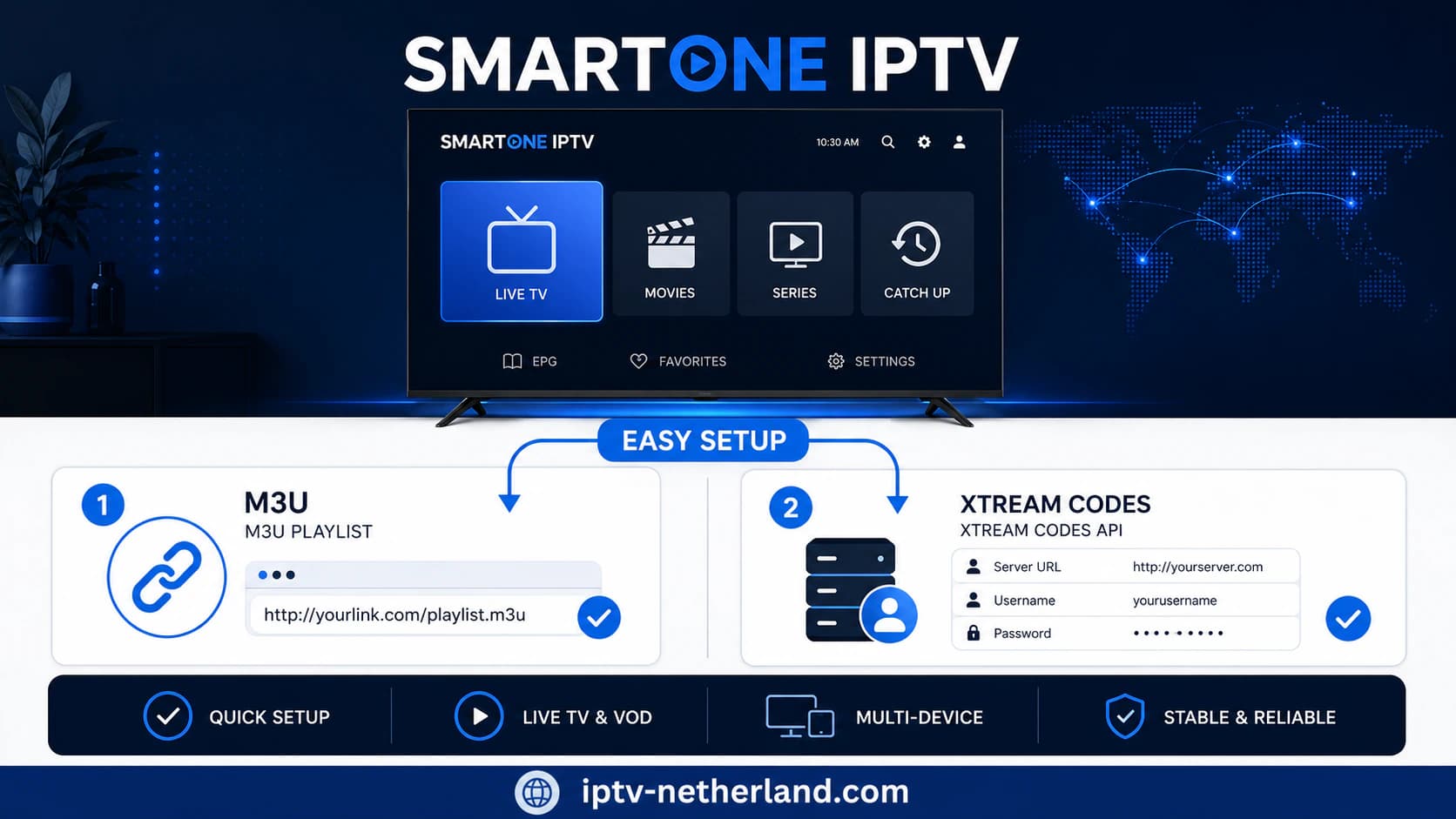
How to Add Xtream Codes to SmartOne IPTV
SmartOne states that it supports users of Xtream Code panels and similar API-based systems.
A typical Xtream login includes:
Server: http://example-server.com:8080
Username: user123
Password: password123
Why Xtream Codes can be convenient
The app can more easily separate content into:
- live TV;
- movies;
- series;
- categories.
EPG can also be easier to associate when the provider has configured the API properly.
General steps
- Open SmartOne.
- Open account or playlist management.
- Choose the API/Xtream option.
- Enter the server address.
- Enter the username.
- Enter the password.
- Give the account a name.
- Save.
- Restart or refresh the app.
- Check live TV, VOD and series.
Check the server URL carefully
This:
http://example-server.commay not be the same as:
http://example-server.com:8080Do not omit a port number if one was provided.
M3U vs Xtream Codes: Which Is Better in SmartOne?
Both methods can work well.
Use the method officially supported by your provider.
When both are available, Xtream Codes is often easier for an environment containing live TV, movies and series.
How to Set Up EPG in SmartOne IPTV
EPG stands for Electronic Program Guide.
It allows you to see information such as:
- what is currently playing;
- what is on next;
- start and end times;
- program descriptions.
EPG through Xtream Codes
With a properly configured API login, EPG information can be loaded automatically.
EPG through M3U
With M3U, you may receive a separate XMLTV URL.
A technical example might look like:
http://example-server.com/xmltv.php?username=USER&password=PASSWORDAdd it through the playlist or EPG settings when supported by your SmartOne version.
EPG stays empty
Check:
- TV date and time;
- EPG URL;
- account status;
- playlist;
- channel IDs;
- internet connection;
- whether the source actually provides EPG data.
A media player cannot generate schedule information that is not supplied by the source.
How to Use Favorites
SmartOne supports favorites.
This can make a large playlist much easier to navigate.
You might favorite:
- main Dutch channels;
- sports;
- news;
- children's channels;
- favorite movies;
- radio stations.
This saves you from browsing through large category lists every time.
How to Hide Categories
SmartOne provides options for hiding categories and sections.
This is useful if your playlist contains many countries or groups you never use.
You can hide unwanted groups to make the interface:
- faster to navigate;
- less cluttered;
- easier for family members;
- more focused on your favorite content.
Using Multiple Accounts
SmartOne supports multiple accounts.
This can be useful if you:
- use several lawful playlists;
- have a separate test playlist;
- use different household profiles;
- want to add a second source.
However, the conditions of each IPTV provider still apply.
Adding several accounts inside SmartOne does not change the number of simultaneous connections your provider allows.
Catch-Up and TV Archive
SmartOne lists support for TV Archive/catch-up.
This works only when the source server supports it.
The app cannot replay a previously aired program when the server has not stored it.
Check:
- which channels offer catch-up;
- how many days are stored;
- whether playback starts from the EPG;
- whether the feature affects your connection limit.
SmartOne IPTV Is Buffering: What Can You Do?
Buffering is not automatically caused by SmartOne.
Possible causes include:
- weak Wi-Fi;
- insufficient internet speed;
- packet loss;
- a busy home network;
- slow Smart TV hardware;
- high stream bitrate;
- overloaded source server;
- account being used on multiple devices;
- decoder problems.
Test in this order
- Open a different channel.
- Stop other active streams.
- Restart SmartOne.
- Restart the TV.
- Restart the router.
- Use Ethernet where possible.
- Test the same login on another device.
- Test using a mobile hotspot.
- Check your internet speed.
- Report specific problem channels to the provider.
For Full HD, a practical target is around 15 to 25 Mbps of stable available bandwidth per stream.
For 4K, keeping roughly 35 to 50 Mbps or more available is a more comfortable target.
Read Internet Speed for IPTV.
For a more complete troubleshooting process, read Watch IPTV Without Buffering.
SmartOne Shows No Channels
Does the app open but the playlist is empty?
Check the following.
M3U URL
Make sure it is:
- copied completely;
- free from extra spaces;
- using the correct username;
- using the correct password;
- using the correct port number;
- linked to an active subscription.
Xtream Codes
Check:
- server URL;
http://versushttps://;- port number;
- username;
- password.
Playlist has not refreshed
Restart the app or trigger a manual refresh.
Wrong device connection
Check whether the playlist is associated with the correct device inside SmartOne's management environment.
Provider-side problem
Test the same credentials in another compatible player.
If they do not work there either, the problem is probably not specific to SmartOne.
SmartOne Shows a Black Screen
One channel is black
Test several other channels.
If the others work, the source stream for that one channel may be unavailable or broken.
Every channel is black
Check:
- account status;
- internet connection;
- playlist;
- decoder settings;
- simultaneous connection limit;
- app updates;
- TV software updates.
Sound but no picture
Possible causes include:
- video codec;
- decoder compatibility;
- older TV hardware;
- unsupported video profile.
Test the same channel on a newer streaming box.
Picture but no sound
Check:
- audio track;
- surround settings;
- stereo output;
- another channel;
- external sound equipment.
SmartOne IPTV Does Not Work After Activation
Activation changes only the app's license status.
It does not fix:
- an IPTV server;
- an invalid M3U URL;
- a wrong password;
- your internet connection;
- codec problems;
- EPG problems;
- connection limits.
SmartOne's own activation page warns users to test the app before paying and not to assume that activation will solve technical problems.
If something does not work during the trial, troubleshoot it first.
SmartOne App License vs IPTV Subscription
This distinction is essential.
SmartOne license
Pays for:
- use of the media player;
- app functionality;
- device activation.
IPTV subscription
Pays for access to:
- playlist;
- server;
- TV channels;
- movies and series when offered;
- EPG and other content depending on the service.
A SmartOne license does not activate an IPTV subscription.
Likewise, an IPTV subscription does not automatically include a SmartOne app license.
Check both before paying.
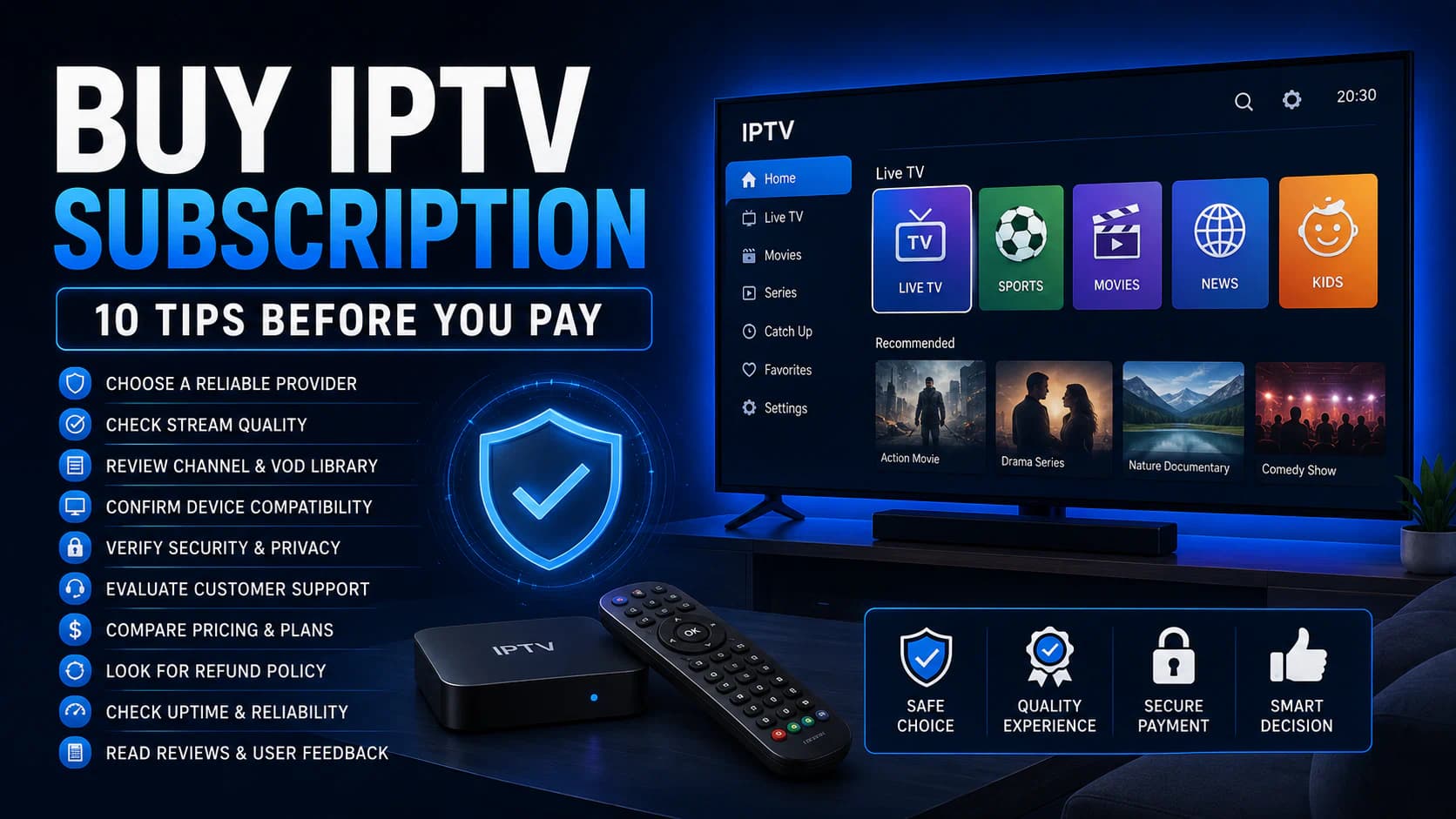
Read our buying guide Buy IPTV Subscription: What to Check Before Paying.
Is SmartOne IPTV Free?
SmartOne offers a trial period before a license is required.
Its official pages currently refer to roughly two weeks of trial use, although they are not fully consistent about whether that means 14 or 15 days.
Check the current information inside the app or on SmartOne's official activation page.
After the trial, the current activation page offers:
- annual licensing;
- one-time activation.
Prices can change.
Is SmartOne IPTV Legal?
SmartOne itself is a normal media player.
The legal question concerns the content you add to it.
Use:
- your own streams;
- official playlists;
- services with the necessary content rights;
- lawfully obtained accounts.
The app does not provide channels itself.
An M3U link, Xtream Codes login or Smart TV app does not by itself determine whether a streaming service is lawful.
How to Use SmartOne IPTV Safely
Install only the official app
Use:
- Samsung Store;
- LG Content Store;
- Google Play;
- Amazon Appstore;
- VIDAA Store;
- another official platform store;
- an official SmartOne download when necessary for an older supported model.
Avoid cracked versions
Do not install files marketed as:
- “SmartOne Premium unlocked”;
- modified APK;
- free lifetime mod;
- unofficial USB widget;
- files shared through random chat groups.
A modified app can potentially collect your playlist credentials.
Protect your M3U URL
Your playlist URL may contain login information.
Do not publish it on:
- Reddit;
- GitHub;
- forums;
- screenshots;
- public cloud storage;
- social media.
SmartOne IPTV or an External Streaming Box?
A native Smart TV app is convenient because you do not need another device.
An external box may still be better if:
- your television is slow;
- SmartOne frequently closes;
- large playlists load slowly;
- 4K playback is not smooth;
- the TV has an old Wi-Fi chipset;
- storage is limited;
- you want TiviMate;
- you want USB storage or recording;
- the television no longer receives updates.
Good external options
Depending on your needs, examples include:
- Google TV Streamer;
- Xiaomi TV Box S;
- NVIDIA Shield TV Pro;
- Formuler;
- Fire TV Stick.
See our comparison of the Best IPTV Box.
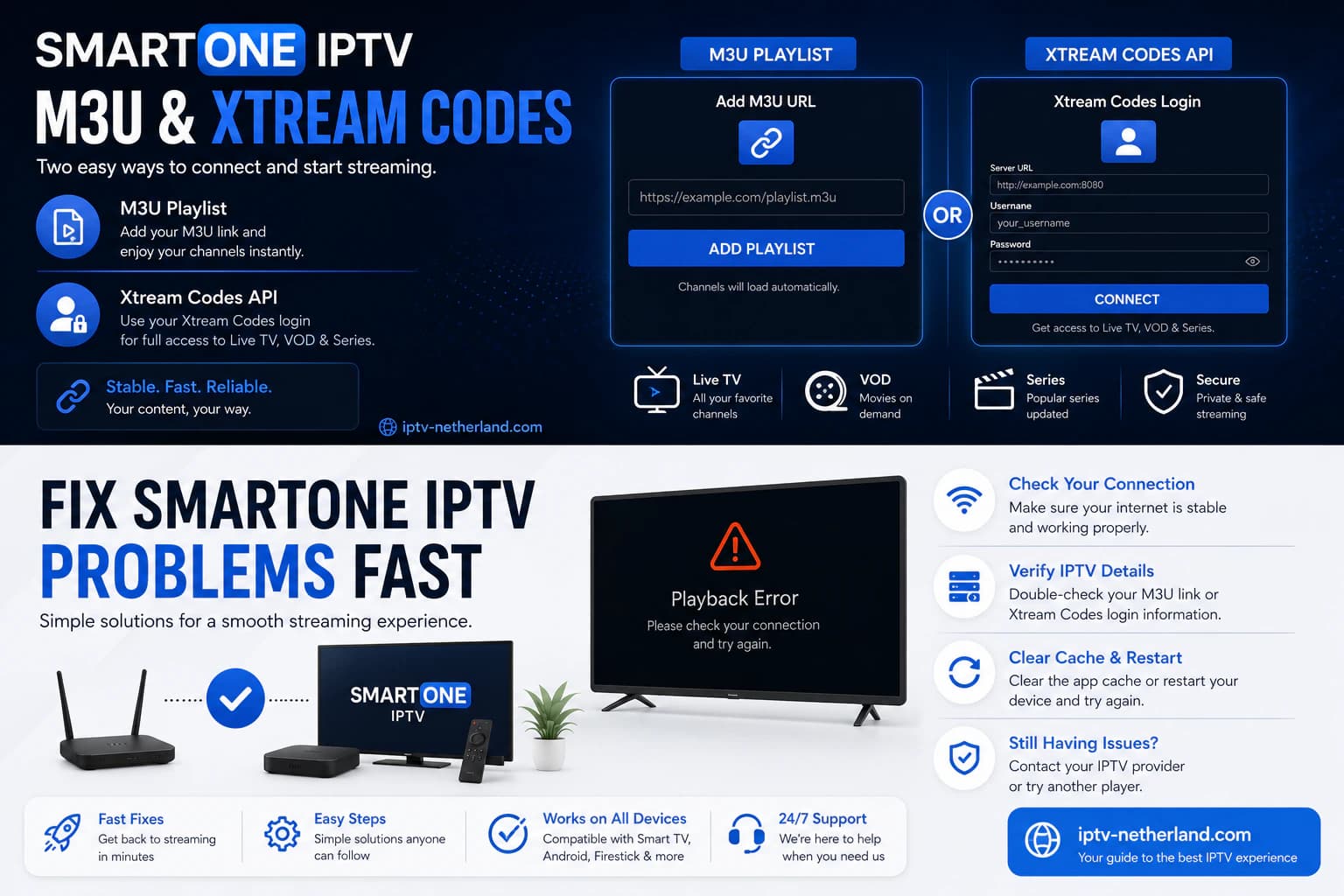
How to Uninstall and Reinstall SmartOne IPTV
If nothing else works, try a clean installation.
Before removing the app
Write down:
- device ID;
- TV MAC;
- M3U URL;
- Xtream Codes credentials;
- account name;
- EPG URL.
Then
- Remove SmartOne.
- Restart the television.
- Check for system updates.
- Reinstall SmartOne from the official store.
- Open the app.
- Check the device identifier.
- Reconnect the playlist.
- Test the app before activating it again.
A device ID or MAC address may already be associated with an existing license, so check SmartOne's account environment before paying again.
Frequently Asked Questions
How do I install SmartOne IPTV?
Open the official app store on your television, search for SmartOne IPTV and install the app.
Then add your own M3U playlist or supported account.
Does SmartOne IPTV work on Samsung TV?
Yes, SmartOne supports Samsung Tizen and selected older Orsay models.
On modern Samsung TVs, start in the Samsung App Store.
Does SmartOne IPTV work on LG TV?
Yes, SmartOne supports LG webOS and selected older Netcast models.
On webOS, use the LG Content Store.
Does SmartOne work on Android TV?
Yes.
Install SmartOne IPTV through Google Play.
Does SmartOne work on Google TV?
Yes.
Google TV uses the Android TV app environment, allowing you to install SmartOne through Google Play when available.
Does SmartOne work on Fire TV?
Yes.
The developer lists support for Fire OS and installation through the Amazon Appstore.
Does SmartOne work on Hisense?
Yes, on supported Hisense televisions running VIDAA through the VIDAA Store and on Android TV models through Google Play.
Can I use SmartOne IPTV for free?
There is a trial period.
After the trial, the app requires device activation if you want to continue using it.
How long is the SmartOne trial?
SmartOne's official pages are currently not completely consistent: one FAQ refers to 14 days, while the activation page refers to 15 days.
Check the current activation page for the latest terms.
How much does SmartOne IPTV cost?
At the time of writing, the activation page lists €12.99 one-time or €2.50 per year per device.
Check the current price before purchasing.
Do I get TV channels when I activate SmartOne?
No.
The license activates only the media player.
You must provide your own lawful playlist or account.
Does SmartOne support M3U?
Yes.
SmartOne lists support for M3U playlists.
Does SmartOne support Xtream Codes?
SmartOne's official website states support for users of Xtream Code panels and similar API systems.
Why does SmartOne show no channels?
Check the playlist, login information, device association, internet connection and account status.
Why is the EPG empty?
Possible causes include a missing EPG source, mismatched channel IDs, incorrect TV date/time or a provider-side issue.
Why is SmartOne buffering?
Buffering may be caused by Wi-Fi, internet quality, source-server load, high bitrate, Smart TV hardware or connection limits.
Is SmartOne better than TiviMate?
It depends on the device.
For Samsung and LG, SmartOne is attractive because native versions are available. On Android TV, TiviMate is often more advanced for live TV and EPG.
Can I use one SmartOne license on multiple TVs?
The current activation page describes licensing per television/device.
Check the latest terms if you want to activate several devices.
Can I add multiple IPTV accounts?
SmartOne lists support for multiple accounts and devices.
Your provider's simultaneous stream limit still applies.
Can I install SmartOne on an old Samsung TV?
Selected older Tizen and Orsay models are supported through specific official installation methods.
Check your exact model generation in SmartOne's documentation.
Is SmartOne IPTV legal?
The media player itself is legal.
The legality of the content depends on the rights and licenses associated with the streams you add.
Conclusion: SmartOne IPTV Is Especially Strong for Smart TVs
SmartOne IPTV is interesting because it is not limited to Android TV.
You can install it directly on many supported televisions, including:
- Samsung;
- LG;
- Android TV;
- Google TV;
- Fire TV;
- Hisense VIDAA;
- Sony;
- Philips;
- Xiaomi.
The basic process is simple:
- Install SmartOne through the official app store.
- Open the app.
- Note the device identifier.
- Add your M3U or Xtream Codes account.
- Test live TV, movies, series and EPG.
- Test again during busy evening hours.
- Activate the app only after you know everything works properly.
That last step is important.
The SmartOne license is only for the media player and does not solve problems with your playlist, streaming server or internet connection.
At iptv-netherland.com, we help customers not only with IPTV access but also with the installation and configuration of their device.
Would you like to test SmartOne IPTV first on your own Samsung, LG or other Smart TV?
Compare our IPTV subscriptions, browse the Dutch IPTV channel list, or request a free trial account.
That way, you can check SmartOne compatibility, playlist loading, EPG and picture quality on your own television before choosing a longer subscription period.
Written by
IPTV Netherland Editorial Team
IPTV setup and streaming support
Our editorial team writes practical IPTV guides for viewers in the Netherlands, with a focus on device setup, stable streaming, app configuration, and clear troubleshooting steps.
Useful IPTV resources
Continue with the most relevant setup, channel, and subscription pages.