




How to Install IPTV Smarters Pro (2026)
Learn how to install and set up IPTV Smarters Pro on Android TV, Smart TV, Fire TV, phones, and computers. Includes M3U, Xtream Codes, and troubleshooting.
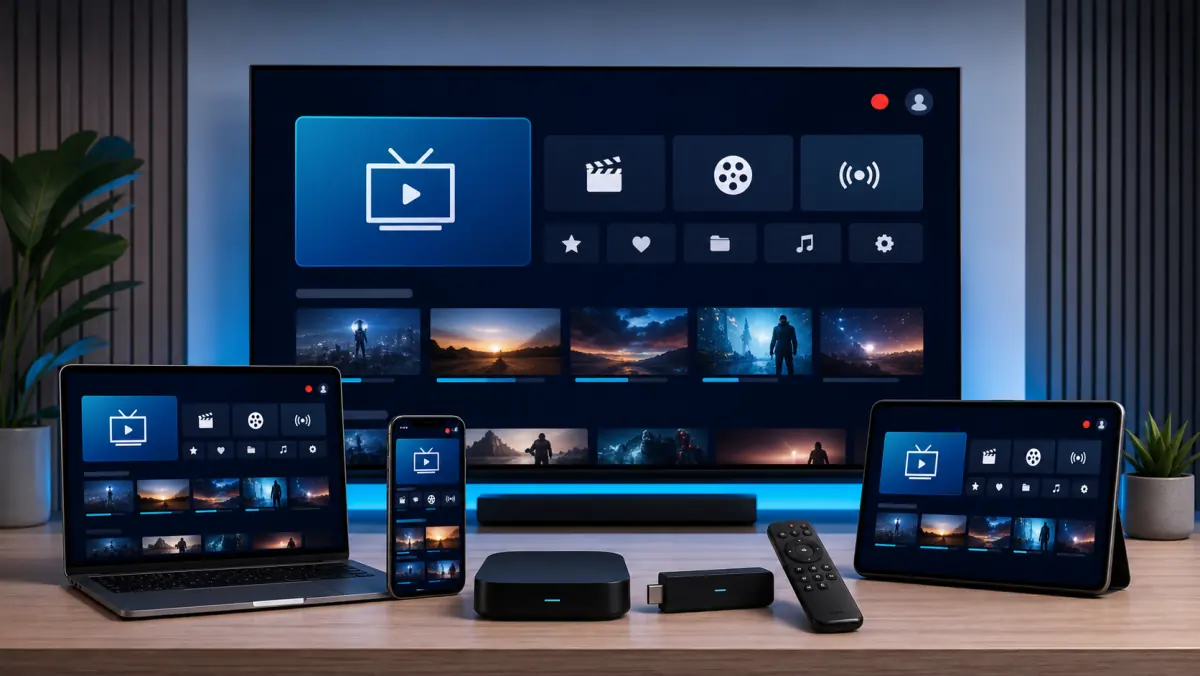
How to Install IPTV Smarters Pro: Complete Guide for Every Device
You have received your IPTV login details and want to start watching.
There is still one important thing you need: a compatible media player.
IPTV Smarters Pro is one of the most familiar names you will come across. The app is popular because it separates live television, movies, and series into clear sections.
However, the installation process is not the same on every device.
On Android TV, you can usually search for the app directly in the app store. On Samsung and LG televisions, you are limited to the versions available for Tizen or webOS. On Amazon Fire TV, the installation method may be different again.
There is another point to consider: many apps use names that look very similar to IPTV Smarters Pro.
Not every app containing the word “Smarters” comes from the same developer. Always verify which app you are installing before entering your username, password, or playlist.
In this guide, we explain how to install and configure IPTV Smarters Pro on:
- Android TV;
- Google TV;
- Android TV boxes;
- Amazon Fire TV;
- Samsung Smart TV;
- LG Smart TV;
- Android phones and tablets;
- iPhone and iPad;
- Windows and macOS.
We also cover common problems, including empty channel lists, black screens, an EPG that does not load, and login errors.
Important: IPTV Smarters Pro is a media player. The app itself normally does not provide channels, movies, series, or an IPTV subscription. Only use playlists and login details that you are authorized to access.
What Is IPTV Smarters Pro?
IPTV Smarters Pro is an application used to open your own media, playlists, or IPTV login details.
The player can organize the available content into sections such as:
- live television;
- movies;
- series;
- favorites;
- electronic program guide;
- catch-up, when supported by the provider;
- multiple playlists or user profiles, depending on the version.
The name sometimes causes confusion.
The app is not the same as an IPTV subscription. Simply installing the player does not automatically give you a channel package.
You need two separate components:
- An IPTV app or media player.
- Login details or a playlist from a provider.
To understand how internet television works before installing the app, read our guide: What is IPTV?.
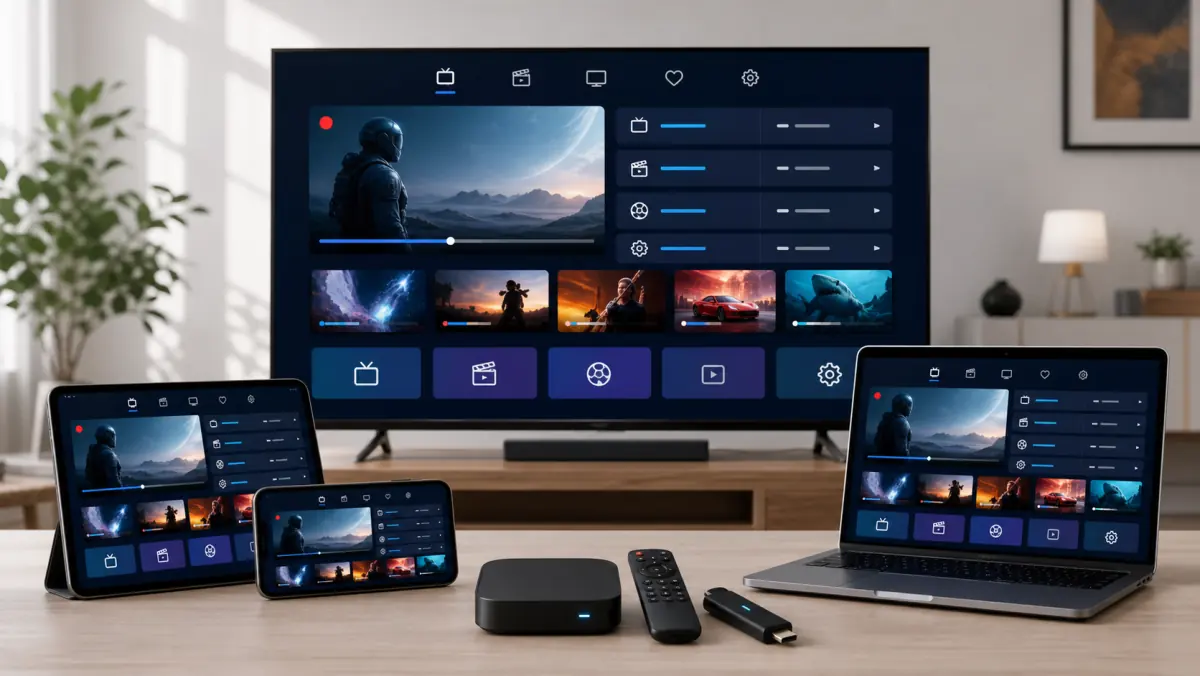
What Do You Need Before Installation?
Make sure you have the following:
- a supported device;
- a stable internet connection;
- access to the device’s app store;
- your IPTV username and password;
- the server address or complete playlist link;
- an M3U file, if applicable;
- an EPG link, if supplied separately;
- enough free storage space.
Your provider may supply the details in several different formats.
Option 1: Xtream Codes or API Login
You usually receive:
Server: http://example-server.com:8080
Username: user123
Password: password123
The server URL may need to include the port number.
Option 2: M3U Link
An M3U link may technically look similar to this:
http://example-server.com/get.php?username=USER&password=PASSWORD&type=m3u_plusThis is only an example.
Use the actual link supplied by your provider.
Option 3: Local File or Another Playlist Format
Some app versions may support local M3U files, JSON playlists, or other media formats.
The exact options depend on the version and device.
Check the Details Before You Begin
Pay attention to:
- uppercase and lowercase letters;
http://versushttps://;- the port number;
- special characters;
- accidental spaces;
- missing letters;
- a full stop or comma copied by mistake.
One incorrect character can prevent the app from connecting.
Quick Overview: Installation by Device
How to Install IPTV Smarters Pro on Android TV or Google TV
Android TV and Google TV are usually the easiest platforms for installation.
These operating systems are used on devices such as:
- selected Sony televisions;
- Philips televisions;
- TCL televisions;
- Chromecast with Google TV;
- Google TV Streamer;
- Nvidia Shield;
- certified Android TV boxes.
Installation Steps
- Turn on the television or streaming device.
- Open the Google Play Store.
- Search for Smarters Pro or the exact app name recommended by your provider.
- Check the developer name.
- Review the logo and app description.
- Select Install.
- Wait for the installation to finish.
- Open the app.
- Accept only the permissions the app genuinely needs.
- Add your own playlist or account.
The App Is Missing From the Play Store
Availability may differ by country, device, and app version.
Check:
- whether you are searching in the Play Store on the television rather than your phone;
- whether your device is certified;
- whether the operating system is updated;
- whether there is enough storage;
- whether the app is offered in your region.
Do not automatically install the first APK file you find through a search engine.
If installation outside the Play Store is genuinely required, use only a download supplied by the official developer.
Unknown APK files may be modified and could gain access to your login details.
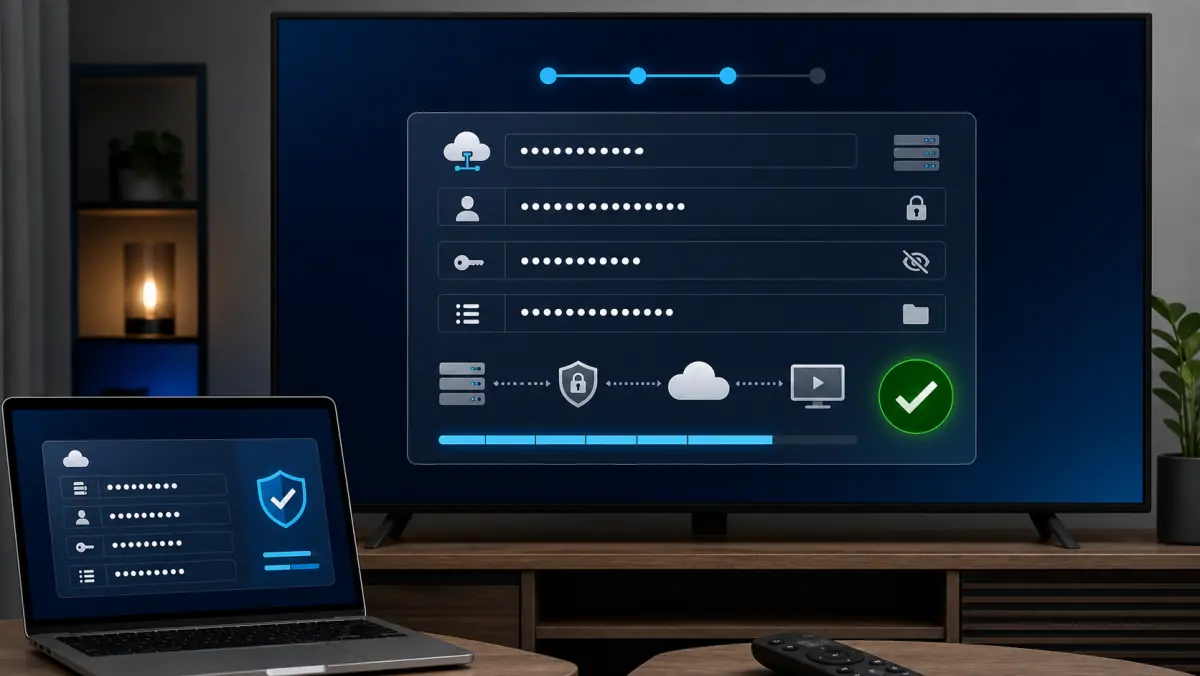
How to Set Up IPTV Smarters Pro With Xtream Codes
Do you see an option such as Login with Xtream Codes API, Add User, or Login with API?
You can usually add your account as follows:
- Open IPTV Smarters Pro.
- Select Add User.
- Choose Login with Xtream Codes API.
- Under Any Name, enter a recognizable profile name, such as
Living Room IPTV. - Enter your username.
- Enter your password.
- Enter the complete server address.
- Confirm that the port number is included.
- Select Add User or Login.
- Wait for live TV, movies, series, and EPG data to load.
Example
Name: Living Room IPTV
Username: user123
Password: password123
Server: http://example-server.com:8080
Do not use the example above as a real login.
The app requires the details assigned specifically to you.
Common Mistake: Incomplete Server URL
Do not enter only the domain if your provider also supplied a port number.
This:
http://example-server.commay not be the same as:
http://example-server.com:8080Copy the address exactly.
How to Set Up IPTV Smarters Pro With an M3U Link
Did you receive a complete M3U link?
Choose an option such as Load Your Playlist or File/URL, Add Playlist, or M3U URL.
The wording may differ between versions.
Steps
- Open the app.
- Select the option to add a playlist.
- Give the playlist a recognizable name.
- Choose M3U URL or File/URL.
- Paste the complete link.
- Check the beginning and end of the URL.
- Save the playlist.
- Wait for the channels to load.
- Add the EPG link separately if one was supplied.
Avoid Typing the Link With a Remote Control
An M3U link is often long.
When possible, you can:
- paste the link through a mobile remote-control app;
- connect a keyboard;
- copy it from a secure note;
- use a QR code or device-linking feature when supported.
Do not share your M3U link publicly.
The URL may contain your username and password.
How to Install IPTV Smarters Pro on an Android TV Box
On a certified Android TV box, follow the same process as Android TV:
- Open the Google Play Store.
- Search for the official app.
- Check the developer.
- Install the app.
- Add your account.
Android TV vs. Generic Android Boxes
Not every box uses the official Android TV interface.
Some inexpensive devices run a modified tablet version of Android. In that case, the mobile version of the app may be installed instead of the television version.
You may notice:
- buttons that respond poorly to the remote;
- menus designed for a touchscreen;
- text that is too small;
- an interface displayed in the wrong orientation;
- missing app updates.
A certified Android TV or Google TV device is usually a better choice.
How to Install IPTV Smarters Pro on Amazon Fire TV
Availability on Fire TV can vary by country and over time.
Always begin with the official Amazon Appstore.
Method 1: Amazon Appstore
- Open the Fire TV search menu.
- Search for the exact app name.
- Check the developer and description.
- Select Download or Install.
- Open the app.
- Add your details.
Method 2: Official APK Source Only
If the app is unavailable in the Amazon Appstore and the official developer provides a Fire TV or Android TV package, use only that official source.
Avoid websites offering a modified “premium unlocked” version.
Such files may:
- contain malware;
- collect your login details;
- inject advertisements;
- be outdated;
- change security settings;
- work poorly with the Fire TV remote.
If you temporarily enable installation from unknown sources, disable it again after the installation.
How to Install IPTV Smarters Pro on Samsung TV
Samsung Smart TVs usually run Tizen.
A standard Android APK does not work directly on Tizen.
Search the Samsung App Store first:
- Press Home.
- Open Apps.
- Select the search icon.
- Search for the exact app name.
- Check the developer.
- Install the app if it is available.
The App Is Not in the Samsung Store
This may be caused by:
- your television model;
- its production year;
- the selected region;
- changes in app availability;
- limited support on an older Tizen version.
You then have three practical options:
- Choose another native Samsung IPTV player.
- Use IBO Player or SmartOne IPTV if available for your model.
- Connect an Android TV or Google TV device.
For a full overview, read our guide to choosing and installing an IPTV app for Samsung TV.
How to Install IPTV Smarters Pro on LG TV
LG Smart TVs generally run webOS.
A standard Android APK does not work on webOS either.
Installation Through the LG Content Store
- Press Home.
- Open Apps or the LG Content Store.
- Search for the exact app name.
- Check the developer.
- Install the app if it is available for your television.
- Open the player and add your details.
The App Is Not Available
The app may be missing because of:
- your region;
- the television’s production year;
- the webOS version;
- discontinued support;
- a temporary app-store change.
Use a native alternative such as IBO Player, SmartOne IPTV, or SS IPTV when available.
An external Android TV box is another good solution.
For more details, read our guide to installing an IPTV app for LG TV.
How to Install IPTV Smarters Pro on an Android Phone or Tablet
On Android, installation normally takes place through Google Play.
- Open the Google Play Store.
- Search for Smarters Pro.
- Check the developer.
- Read the description.
- Install the app.
- Open the player.
- Add your playlist or account details.
Mobile Version vs. TV Version
The mobile interface may look different from the Android TV version.
That is normal.
A phone app is controlled with a touchscreen. A television version should be designed for a remote control.
Install the version intended for your device type whenever possible.
How to Install IPTV Smarters Pro on iPhone or iPad
The Apple App Store contains several apps with “Smarters” in the name.
Check carefully before installing one.
Steps
- Open the App Store.
- Search for the exact name.
- Check the developer.
- Review the supported playlist formats.
- Read the privacy information.
- Install the app.
- Open the player.
- Add your own M3U, JSON, or other supported playlist.
Not every iOS version supports the same login methods.
If you do not see an Xtream Codes option, use the method offered by that version or choose another compatible media player.
How to Install IPTV Smarters Pro on Windows or Mac
Some Smarters versions offer a desktop application or web player.
Use only an official download.
Safe Installation
- Open the official developer website.
- Select Windows or macOS.
- Check that the domain is correct.
- Download the installer.
- Scan the file using your computer’s security software.
- Install the application.
- Open the player.
- Add your own account details.
Do not download cracked or modified versions.
A media player may have access to your playlist, username, and password. The source of the installation file therefore matters.
First Settings After Installation
You do not need to change every setting immediately.
Start with the basics.
Let the App Finish Synchronizing
During the first login, the app may load:
- live channels;
- movies;
- series;
- images;
- EPG data;
- categories;
- favorites.
This can take several minutes.
Do not close the app immediately if the progress indicator appears to pause.
Set Up Favorites
Add the channels you regularly watch to your favorites.
This makes the interface easier to use.
Hide Unused Categories
A playlist may contain many international groups.
Hide the categories you do not use when the app offers that option.
Check Date and Time
An incorrect device clock may cause EPG and secure-connection problems.
Use automatic date and time settings.
Select the Correct Audio Track and Subtitles
International channels and movies may offer several languages.
Open the audio or options menu while the stream is playing.
How to Configure the EPG in IPTV Smarters Pro
EPG stands for Electronic Program Guide.
The guide may show:
- the program currently playing;
- the next program;
- start and end times;
- program titles;
- sometimes a short description.
Automatically Supplied EPG
With an API or Xtream login, the program guide may be linked automatically.
Wait several minutes after the first login.
Adding a Separate EPG Link
With an M3U playlist, you may receive a separate XMLTV or EPG link.
Add it through the EPG settings when your app version supports this.
The EPG Does Not Load
Try:
- Refreshing the EPG manually.
- Reloading the playlist.
- Checking the date and time.
- Restarting the app.
- Clearing the cache.
- Asking the provider whether the EPG URL is active.
An app cannot create program information that is not included in the supplied data.
Buffer and Player Settings
Change playback settings only when you are experiencing a specific problem.
Buffer
A larger buffer can absorb short fluctuations in your internet connection.
The disadvantage is slower channel switching.
Start with Normal or Medium.
Hardware Decoding
Hardware decoding uses the device’s video processor.
This is usually the best first option on modern devices.
Software Decoding
Software decoding may help when:
- you hear sound but see no picture;
- the image turns green;
- a particular stream does not start;
- hardware decoding freezes.
Software decoding often uses more processing power.
External Player
Some versions support an external player such as VLC.
This may help with a specific video or audio format.
If streams regularly stop or freeze, read our guide to watching IPTV without buffering.
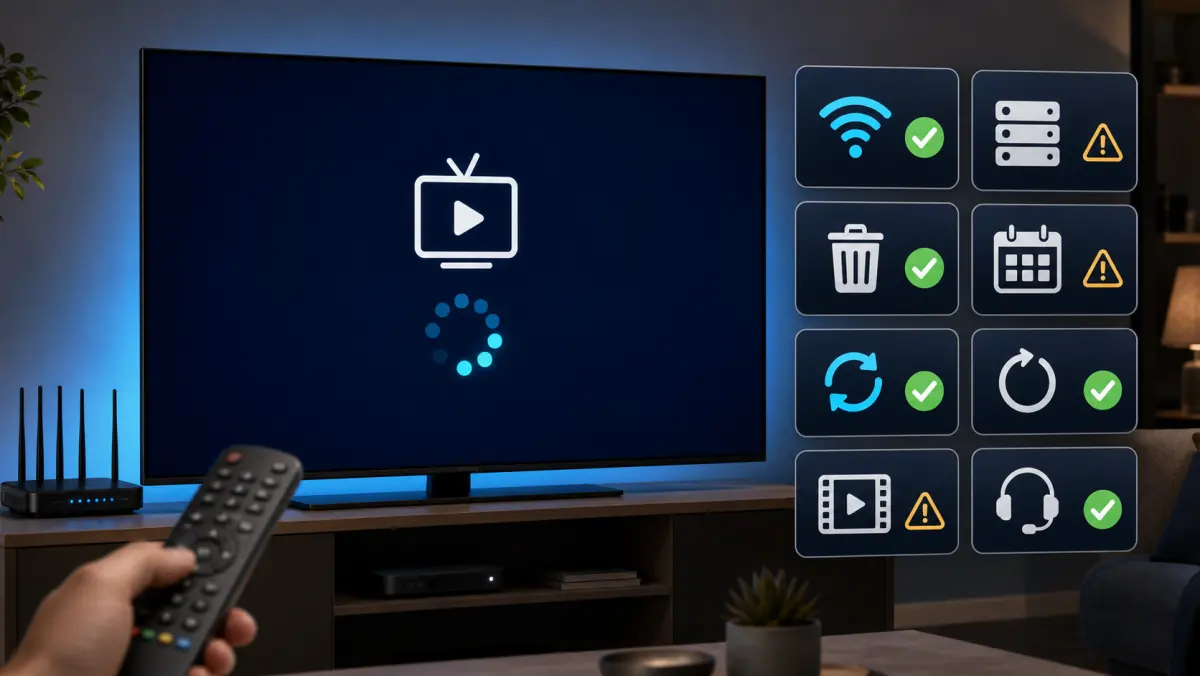
IPTV Smarters Pro Not Working: First Checks
Does the app fail after installation?
Start with the basics.
1. Does the Internet Work on the Same Device?
Open YouTube, a browser, or another streaming application.
2. Does the Account Work on Another Device?
Temporarily test the same details in another supported player.
3. Is the Subscription Active?
An expired account may display messages such as:
- authorization failed;
- invalid user;
- account expired;
- login failed.
4. Is the Account Already Being Used Elsewhere?
Many subscriptions include only one active connection by default.
Close the app completely on other devices.
5. Are the Login Details Correct?
Check the server address, username, password, and port number.
For a complete troubleshooting process, read IPTV not working.
Common Error Messages
The exact wording may differ by version.
The App Freezes While Loading
If the app remains stuck while loading channels or movies, possible causes include:
- a very large playlist;
- slow server response;
- insufficient storage;
- limited memory;
- damaged cache;
- unstable Wi-Fi;
- a very large EPG;
- an outdated app version.
Try:
- Closing the app fully.
- Restarting the device.
- Restarting the router.
- Clearing the cache.
- Testing another internet connection.
- Adding the playlist again.
- Using a smaller playlist.
- Updating the app.
The App Shows a Black Screen
Test several channels first.
Only One Channel Is Black
The source stream for that channel may be temporarily offline.
Every Channel Is Black
Check:
- whether the account is active;
- whether the internet works;
- whether the account is being used elsewhere;
- whether the selected player is suitable;
- whether the device supports the video format;
- whether the app is up to date.
Sound but No Picture
Switch between hardware and software decoding.
You can also try an external player.
Picture but No Sound
Try another audio track or switch to stereo output.
Older televisions do not support every audio format.
The App Buffers Constantly
Buffering may be caused by:
- unstable Wi-Fi;
- a busy home network;
- high bitrate;
- an older television;
- a slow streaming box;
- a problem with the source server;
- downloads on other devices;
- an unsuitable buffer setting;
- too many simultaneous account connections.
Test the following:
- Open another channel.
- Connect the device through Ethernet.
- Pause downloads.
- Restart the router.
- Test on a second device.
- Temporarily test through a mobile hotspot.
- Increase the buffer by one step.
- Try another player.
An app cannot repair an overloaded or offline source stream.
How to Clear the Cache and Reinstall the App
On Android TV, you can usually clear the cache as follows:
- Open Settings.
- Go to Apps.
- Select IPTV Smarters Pro.
- Open Storage.
- Choose Clear Cache.
- Restart the app.
Do not immediately select Clear Data.
That option may remove your accounts and settings.
Reinstalling the App
If clearing the cache does not help:
- Write down your login details.
- Remove the app.
- Restart the device.
- Install the official version again.
- Add your account again.
Is IPTV Smarters Pro Free?
That depends on the specific app version and platform.
There are free versions, ad-supported apps, trial periods, and paid features.
Check the current terms in the official app store.
If you pay for the app, you are usually paying for the media player or additional features.
The payment normally does not include an IPTV subscription or channels.
Is IPTV Smarters Pro Legal?
A media player is legal by itself.
The legal question concerns the media you open with it and whether you have permission to access that content.
Use:
- a reliable provider;
- lawfully obtained playlists;
- official applications;
- secure installation sources;
- no leaked accounts;
- no random free playlists from unknown websites.
The app is intended as a standalone media player and does not itself supply channels or streaming subscriptions.
How to Recognize a Safe Smarters App
Because many apps have similar names, extra caution is useful.
Check:
- the exact app name;
- the developer;
- the official domain;
- the privacy policy;
- recent updates;
- the number and quality of reviews;
- requested permissions;
- whether the app claims to include thousands of premium channels for free.
Be careful when a player:
- requests access to contacts;
- asks for SMS permissions;
- tries to install an unknown profile;
- displays an unusual payment request outside the app store;
- asks for cryptocurrency for activation;
- requires you to upload your complete playlist to an unknown website.
A media player does not need access to contacts or text messages to play an M3U playlist.
Frequently Asked Questions
How Do I Install IPTV Smarters Pro?
Open the official app store on your device, search for the exact app name, check the developer, and install the player.
Then add your own M3U or supported account details.
Can IPTV Smarters Pro Be Installed on a Smart TV?
It depends on the operating system and app availability.
Android TV and Google TV usually offer the easiest installation. Samsung and LG require a native Tizen or webOS version in their respective app stores.
Can I Install IPTV Smarters Pro on Samsung TV?
Only when a suitable native version is available in the Samsung App Store for your model and region.
Otherwise, use another Samsung IPTV app or an external Android TV box.
Can I Install IPTV Smarters Pro on LG TV?
Only when a compatible webOS version is available in the LG Content Store.
Otherwise, use IBO Player, SmartOne IPTV, SS IPTV, or an external Android TV device.
Can I Install IPTV Smarters Pro on Fire TV?
Start with the Amazon Appstore.
If the app is not available, use only an official installation method from the developer and avoid unknown APK websites.
What Should I Enter Under “Any Name”?
This is simply a recognizable profile name.
You can enter something like Living Room, My IPTV, or Home IPTV.
What Is the Server URL?
It is the address supplied by the provider.
Enter it exactly, including http://, https://, and the port number when provided.
Why Do I See No Channels?
Possible causes include incorrect details, an expired account, an incomplete M3U link, no internet connection, or a playlist that has not finished loading.
Why Does the EPG Not Work?
The EPG link may be missing, temporarily unavailable, or incorrectly connected.
Also check the date and time on the device.
Does IPTV Smarters Pro Include Channels?
No, normally it does not.
The app is a media player and requires your own lawfully obtained playlist or login details.
Can I Add the Same Account to Multiple Devices?
Usually, yes, but the number of simultaneous streams is determined by your IPTV subscription.
Which Is Better: M3U or Xtream Codes?
Xtream Codes is often easier to enter and may organize live TV, movies, series, and EPG data automatically.
M3U is widely supported and may be useful when an app does not offer an API login.
The better option depends on the app and provider.
Conclusion: Install the Correct Version for Your Device
Installing IPTV Smarters Pro is usually straightforward as long as you choose the correct version for your device.
On Android TV and Google TV, begin in the Google Play Store.
On Samsung and LG, first check whether a native Tizen or webOS app is available. If not, use a compatible alternative player or connect an Android TV device.
Before logging in, always verify:
- the app developer;
- the official installation source;
- your username and password;
- the complete server address;
- the port number;
- the status of your subscription;
- the number of allowed connections.
At iptv-netherland.com, we help customers not only access IPTV but also complete the installation and configuration of their devices.
Would you like to test IPTV Smarters Pro on your own television or streaming device first?
Compare our IPTV subscriptions, view the Dutch IPTV channel list, or request a free trial account.
This allows you to check whether the app, channels, and picture quality work well on your own internet connection.
Written by
IPTV Netherland Editorial Team
IPTV setup and streaming support
Our editorial team writes practical IPTV guides for viewers in the Netherlands, with a focus on device setup, stable streaming, app configuration, and clear troubleshooting steps.
Useful IPTV resources
Continue with the most relevant setup, channel, and subscription pages.