




How to Install TiviMate on Android TV (2026)
Learn how to install and set up TiviMate on Android TV, Google TV, Fire TV, and TV boxes. Includes Xtream Codes, M3U, EPG, Premium, and troubleshooting.
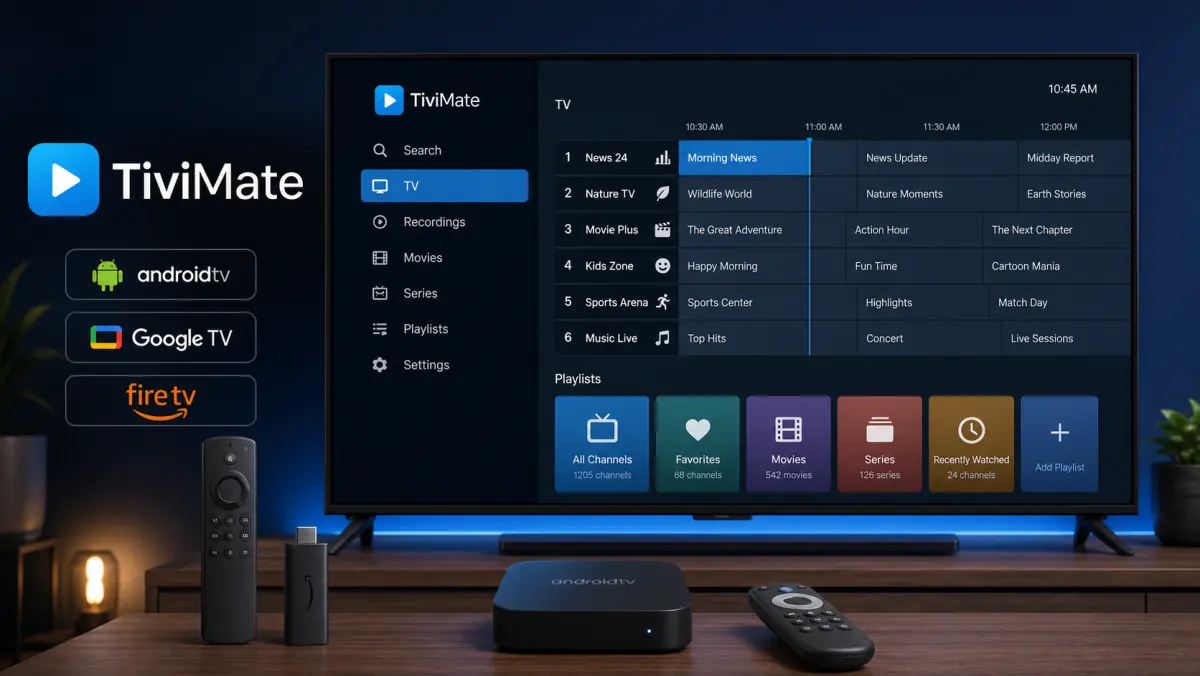
How to Install TiviMate: Complete Guide for Android TV and Fire TV
Do you want to install TiviMate to watch IPTV on your television?
You are not alone.
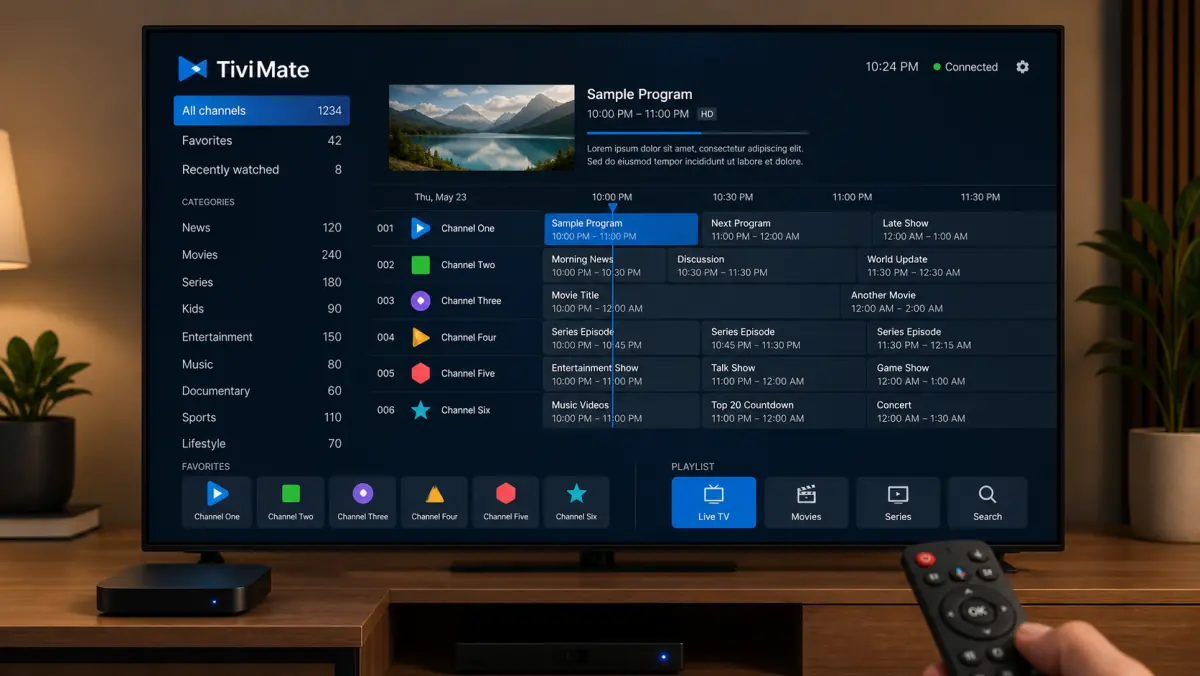
TiviMate is popular because it looks and feels like a modern television receiver. It gives you a clear channel list, an easy-to-read program guide, and navigation designed for a remote control.
However, the installation process is not the same on every device.
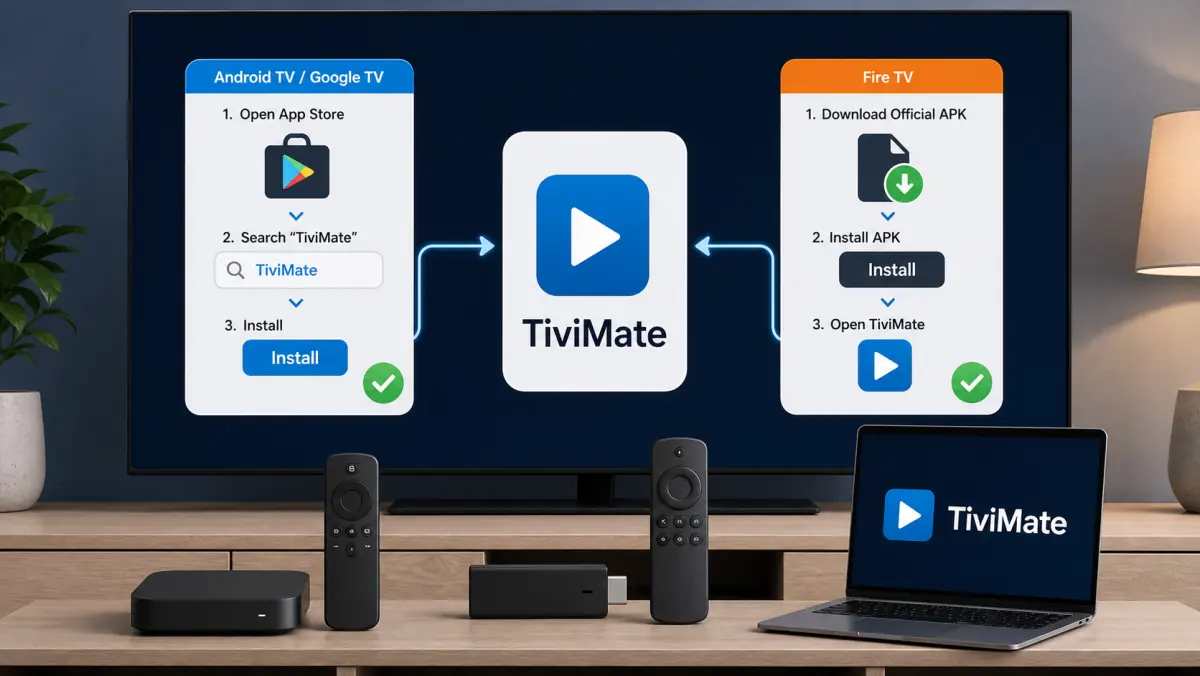
On Android TV and Google TV, you can usually install TiviMate directly from the Google Play Store. On Amazon Fire TV, you may need to use the official APK file. On Samsung or LG televisions, you cannot install TiviMate directly because those platforms do not run Android TV.
After installation, you also need to add your own playlist or IPTV account.
In this guide, you will learn:
- which devices support TiviMate;
- how to install the official app;
- how to add Xtream Codes, M3U, or Stalker Portal details;
- the difference between TiviMate and TiviMate Companion;
- how to configure the EPG, favorites, and channel groups;
- when TiviMate Premium is useful;
- how to fix black screens, empty channel lists, and buffering.
Important: TiviMate is only a media player. The app does not provide television channels, films, series, or an IPTV subscription. You must add your own lawfully obtained playlist or login details.
What Is TiviMate?
TiviMate is an IPTV media player designed specifically for Android TV devices and remote-control navigation.
Its interface is made for large television screens.
Depending on the version and license, TiviMate may offer features such as:
- an electronic program guide;
- favorites;
- channel and program search;
- multiple playlists;
- catch-up when supported by the provider;
- recording on compatible devices;
- parental controls;
- multiview;
- custom channel groups;
- player and buffer settings;
- backup and restore.
Not every feature is available in the free version.
TiviMate Premium unlocks additional options, but it still does not include channels or a subscription.
To understand how IPTV works before installing the app, read our guide: What is IPTV?.
Which Devices Support TiviMate?
TiviMate is designed for Android TV and Google TV.
It works best on devices such as:
- Android TV televisions;
- Google TV televisions;
- Nvidia Shield;
- Chromecast with Google TV;
- Google TV Streamer;
- certified Android TV boxes;
- selected Formuler and Android-based media players;
- Amazon Fire TV through the official APK file;
- Fire TV Stick through manual installation.
TiviMate is not optimized for touchscreens.
It should not be treated as a normal mobile app for Android phones or tablets. The interface is designed for a television and remote control.
Compatibility Overview
Can You Install TiviMate Directly on Samsung TV?
No.
Most Samsung Smart TVs use Tizen. TiviMate is an Android TV app and cannot be installed as a normal Tizen application.
Placing an Android APK file on a USB drive does not change that.
If you want to use TiviMate on a Samsung TV, connect an external device such as:
- Chromecast with Google TV;
- Google TV Streamer;
- Nvidia Shield;
- a certified Android TV box;
- Amazon Fire TV Stick.
The external device runs TiviMate, while the Samsung television displays the picture.
For native Samsung options, read our guide to choosing an IPTV app for Samsung TV.
Can You Install TiviMate Directly on LG TV?
No.
LG Smart TVs normally use webOS. Older models may use Netcast.
Neither platform runs a standard Android TV app.
If you want to use TiviMate on an LG TV, connect an external Android TV, Google TV, or Fire TV device through HDMI.
For native webOS alternatives, read our guide to choosing an IPTV app for LG TV.
What Do You Need Before You Begin?
Prepare the following:
- a supported Android TV, Google TV, or Fire TV device;
- a stable internet connection;
- enough free storage space;
- a Google account if you use the Play Store;
- your IPTV login details;
- an M3U link, if supplied;
- a Stalker Portal URL, if supplied;
- a separate EPG link, if supplied;
- the device remote control.
Your provider may supply access in several formats.
Xtream Codes
You usually receive:
Server: http://example-server.com:8080
Username: user123
Password: password123
M3U Link
An M3U link may look similar to this:
http://example-server.com/get.php?username=USER&password=PASSWORD&type=m3u_plusThis is only an example.
Use the exact details supplied by your provider.
Stalker Portal
With Stalker Portal, you normally receive a portal address and possibly additional device details.
Ask your provider which method to choose if the instructions are unclear.
How to Install TiviMate on Android TV
On Android TV, the Google Play Store is the easiest and safest installation method.
Steps
- Turn on the Android TV or TV box.
- Confirm that the device is connected to the internet.
- Open the Google Play Store.
- Search for TiviMate IPTV Player.
- Check that the developer is Armobsoft FZE.
- Select the correct app.
- Choose Install.
- Wait for installation to finish.
- Open TiviMate.
- Add your playlist or account.
Check both the app name and developer.
Several apps use names similar to TiviMate but are not produced by the same developer.
TiviMate Is Missing From the Play Store
Check:
- whether you are searching in the TV version of Google Play;
- whether the device runs Android TV or Google TV;
- whether the box is Google Play certified;
- whether the operating system is updated;
- whether enough storage is available;
- whether the app is offered in your region.
Some inexpensive Android boxes run a mobile version of Android instead of Android TV.
On those devices, the official television version may be unavailable or difficult to control with a remote.
How to Install TiviMate on Google TV
Google TV uses the same underlying platform as Android TV.
The installation process is almost identical.
- Open the Apps section.
- Select Search for apps.
- Search for TiviMate IPTV Player.
- Check the developer.
- Select Install.
- Open the app.
- Add your login details.
This method works on devices such as:
- Chromecast with Google TV;
- Google TV Streamer;
- televisions with built-in Google TV;
- certified Google TV streaming boxes.
How to Install TiviMate on Nvidia Shield
Nvidia Shield runs Android TV.
You can install TiviMate directly through Google Play.
- Open the Play Store.
- Search for TiviMate.
- Confirm the developer.
- Install the app.
- Add your playlist.
Nvidia Shield is especially suitable if you plan to use features such as recording, several playlists, or multiview.
Actual performance still depends on the network, storage, and source streams.
How to Install TiviMate on Amazon Fire TV or Fire TV Stick
TiviMate may not be available directly in the Amazon Appstore.
The official TiviMate website provides an APK file for installation on compatible Android-based devices.
Use only the official file.
Do not download modified APK files from random websites, forums, or video descriptions.
Step 1: Install Downloader
- Open the Amazon Appstore.
- Search for Downloader.
- Check that you are installing the established Downloader app.
- Install and open it.
Step 2: Allow Installation Through Downloader
Menu names can differ depending on the Fire OS version.
You can usually find the setting through:
- Open Settings.
- Go to My Fire TV.
- Open Developer Options.
- Select Install Unknown Apps.
- Temporarily allow Downloader.
If Developer Options is missing, some Fire TV versions require you to open About and press the device name several times to reveal the menu.
Step 3: Download the Official TiviMate APK
- Open Downloader.
- Go to the official TiviMate website.
- Select the official APK file.
- Wait for it to download.
- Choose Install.
- Open TiviMate.
- Delete the APK installer afterward to free storage space.
Disable installation through Downloader again when you no longer need it.
Why the Official Source Matters
A modified APK may:
- collect your login details;
- insert advertisements;
- contain malware;
- miss security updates;
- attempt to unlock Premium illegally;
- behave unpredictably.
Never use a “modded,” “cracked,” or “Premium unlocked” version.
How to Set Up TiviMate With Xtream Codes
Xtream Codes is often the easiest setup method.
You normally enter three main details:
- server address;
- username;
- password.
Steps
- Open TiviMate.
- Select Add Playlist.
- Choose Xtream Codes.
- Enter the server address.
- Enter your username.
- Enter your password.
- Give the playlist a recognizable name.
- Choose whether to include video-on-demand content.
- Confirm the details.
- Wait for TiviMate to load the channels and media.
Check the Server Address
Copy the address exactly.
This:
http://example-server.commay not be the same as:
http://example-server.com:8080The port number may be required.
Also check:
http://orhttps://;- uppercase characters;
- special symbols;
- extra spaces;
- missing slashes.
How to Set Up TiviMate With an M3U Link
If you received an M3U link, choose the M3U method.
Steps
- Open TiviMate.
- Select Add Playlist.
- Choose M3U Playlist.
- Select Enter URL.
- Paste or type the complete M3U link.
- Give the playlist a name.
- Confirm the entry.
- Wait for the playlist to be processed.
- Add a separate EPG link if needed.
Entering a Long Link
When possible, use:
- a mobile remote-control app;
- Google TV Remote;
- a Bluetooth keyboard;
- copy and paste;
- a text-transfer app for Android TV.
Check the entire link before saving.
One missing character can result in an empty channel list.
How to Set Up TiviMate With Stalker Portal
If you have a Stalker Portal account, choose Stalker Portal when adding the playlist.
You may need:
- a portal URL;
- a MAC address;
- device identification;
- additional login information.
Stalker configurations vary between providers.
Use the exact details and instructions supplied with your account.
Do not change the MAC address randomly. The provider may have linked the account to a specific device.
TiviMate vs. TiviMate Companion
This confuses many new users.
TiviMate IPTV Player
This is the actual media player installed on Android TV, Google TV, or a compatible Fire TV device.
You use it to open playlists and watch television.
TiviMate Companion
TiviMate Companion is not an IPTV player.
It is used for Premium activation and managing activated devices, especially for devices without Google Play.
You cannot watch channels inside TiviMate Companion.
If you install only Companion on a phone, you still need the TiviMate player on the television.
How to Activate TiviMate Premium
The free version is useful for testing the basics.
Premium unlocks extra features. The exact features and purchase options may change over time.
Premium may include access to:
- multiple playlists;
- advanced favorites management;
- catch-up features;
- recording;
- custom channel groups;
- manual channel organization;
- parental controls;
- multiview;
- additional interface options;
- backup and restore.
Check the current features and pricing inside the official app, Google Play, or the official TiviMate account environment.
Premium Does Not Include Channels
This is important.
When you purchase TiviMate Premium, you are paying for additional player features.
You do not receive television channels, films, series, or an IPTV account.
You must still add your own playlist.
How to Configure the EPG in TiviMate
EPG stands for Electronic Program Guide.
It may display:
- what is currently on;
- which program starts next;
- start and end times;
- program titles;
- descriptions when available.
Automatic EPG Through Xtream Codes
With an Xtream Codes login, TiviMate may receive the EPG automatically.
Give the app several minutes to synchronize after the first setup.
Adding EPG to an M3U Playlist
If you received a separate XMLTV or EPG link:
- Open Settings.
- Go to EPG.
- Add a new source.
- Enter the complete URL.
- Link the EPG source to the correct playlist.
- Start the update.
The EPG Does Not Load
Check:
- whether the EPG link is complete;
- whether the link is still active;
- whether the internet connection works;
- whether the device date and time are correct;
- whether the EPG source is linked to the right playlist;
- whether the app has had enough time to load;
- whether the provider supplies guide data.
TiviMate cannot create program information that is missing from the source.
How to Add Favorites
A large playlist may contain thousands of channels.
You do not need to see all of them every day.
To add a channel to favorites:
- Open the channel list.
- Hold the select button or open the context menu.
- Choose Add to Favorites.
- Open the Favorites group later.
With Premium, you may also be able to reorder, hide, or reorganize groups.
This makes the app much easier to navigate.
How to Hide Unused Categories
Many playlists contain channel groups from several countries.
If you only watch Dutch, Belgian, and selected sports channels, there is no reason to scroll through every category.
Open the playlist or group settings and hide the categories you do not use.
Benefits include:
- faster navigation;
- less clutter;
- clearer favorites;
- easier use for other household members;
- reduced access to unwanted categories.
How to Set Up Parental Controls
TiviMate supports parental controls.
You can protect certain sections with a PIN, including:
- specific channels;
- channel groups;
- settings;
- adult categories;
- account-related options.
Choose a PIN that is not easy to guess.
Store it safely. Losing the PIN may make protected sections difficult to access again.
How to Adjust the Buffer
A buffer stores a small amount of video data before playback.
This can absorb short fluctuations in the internet connection.
Which Setting Should You Choose?
Start with the default value.
If you experience brief freezing, increase the buffer by one step.
Do not immediately select the largest setting.
A larger buffer may:
- delay channel startup;
- make channel switching slower;
- increase the delay behind a live broadcast.
The buffer does not help when:
- the source stream is offline;
- the server is overloaded;
- your connection remains too slow;
- the account is active elsewhere;
- the video format is unsupported.
Read our guide to watching IPTV without buffering for a full troubleshooting process.
Hardware vs. Software Decoding
TiviMate uses a video player to process the stream.
Hardware Decoding
Hardware decoding uses the device’s video processor.
This is usually the best default option.
Benefits include:
- lower CPU usage;
- smoother playback;
- better high-resolution performance;
- less heat.
Software Decoding
Software decoding uses more general processing power.
It may help when:
- you hear sound but see no picture;
- the picture is green or distorted;
- a specific channel does not start;
- hardware decoding freezes.
Change one setting at a time and test again.
Using an External Player
Some streams may work better in an external player.
For example, VLC may help when:
- an audio codec does not work;
- subtitles are missing;
- a stream freezes in the internal player;
- you need specific playback options.
Use an external player only when you have a specific problem.
The built-in TiviMate player normally offers the best integration with channel lists and EPG data.
Recording With TiviMate
TiviMate Premium may support recording on compatible devices.
You need:
- enough storage space;
- write permission for the selected location;
- a stable stream;
- a device that remains active during recording;
- enough simultaneous connections if you want to watch something else at the same time.
Choosing Storage
Depending on the device, you may use:
- internal storage;
- USB storage;
- network storage;
- a shared folder.
Start with a short test recording.
Then check:
- whether the file was saved;
- whether audio and video remain synchronized;
- whether the recording plays fully;
- whether enough storage remains.
Recording Stops Unexpectedly
Possible causes include:
- unstable stream;
- insufficient storage;
- slow USB drive;
- missing write permission;
- device entering sleep mode;
- account connection limit;
- network interruption.
How to Use Multiview
Multiview lets you display several channels on one screen.
It is especially useful for sports or news.
Multiview requires more:
- processor power;
- memory;
- internet bandwidth;
- account connections;
- server capacity.
Four simultaneous streams use roughly four times the bandwidth of one stream.
Your IPTV subscription must also support several simultaneous connections.
Do not use multiview when your account allows only one active stream.
How to Back Up TiviMate
If you have configured many favorites, custom groups, and settings, create a backup.
A backup is useful when:
- you buy a new TV box;
- you reinstall the app;
- you reset the device;
- you want to reproduce the same setup on another device.
Save the backup file in a secure location.
It may contain playlist information and settings. Do not share it publicly.
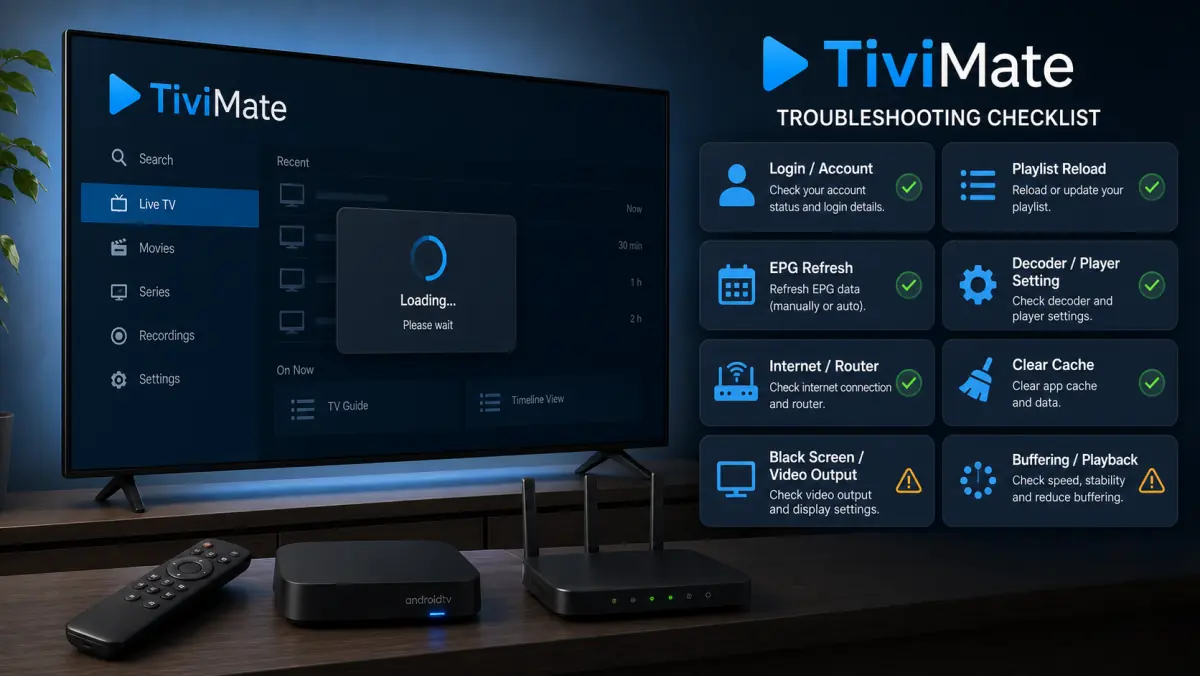
TiviMate Shows No Channels
Does the app open but the channel list remain empty?
Check:
- whether the playlist finished loading;
- whether the username is correct;
- whether the password is correct;
- whether the server address is complete;
- whether the port number is present;
- whether the M3U link is active;
- whether the subscription has expired;
- whether the device has internet access;
- whether the same details work on another device.
Do not delete the playlist immediately.
First verify the details and refresh the playlist.
TiviMate Shows a Login Error
Common causes include:
- incorrect server URL;
- missing port number;
- typo in the username;
- incorrect password;
- expired subscription;
- temporarily unavailable server;
- disabled account;
- extra space in a field.
Enter the details again manually if necessary.
If you copied them from a message, check that no punctuation or spaces were included accidentally.
Black Screen in TiviMate
A black screen can have several causes.
Only One Channel Is Black
Test other channels.
If they work, the problem is probably limited to that source stream.
Every Channel Is Black
Check:
- internet connection;
- account status;
- active sessions on other devices;
- player setting;
- decoder;
- app version;
- playlist;
- device compatibility.
Sound but No Picture
Try:
- Hardware decoding.
- Software decoding.
- An external player.
- Another channel.
- A lower resolution when available.
Picture but No Sound
Test:
- another audio track;
- stereo instead of surround;
- an external player;
- HDMI audio settings;
- another channel.
For a complete checklist, read IPTV not working.
TiviMate Buffers or Freezes
If playback regularly stops, TiviMate may not be the cause.
Possible reasons include:
- unstable Wi-Fi;
- a busy home network;
- high bitrate;
- server load;
- an older TV box;
- limited free memory;
- a source-stream problem;
- downloads on other devices;
- another user on the same account.
Test in this order:
- Open another channel.
- Restart TiviMate.
- Restart the Android TV device.
- Restart the router.
- Use an Ethernet cable.
- Pause large downloads.
- Test the same stream on another device.
- Increase the buffer by one step.
- Try another decoder.
- Contact the provider if only certain channels have problems.
The EPG Remains Empty
Check:
- whether the EPG source is active;
- whether it is linked to the playlist;
- whether the date and time are correct;
- whether the time zone is correct;
- whether the provider supplies program information;
- whether the app has had enough time to synchronize.
Then try:
- Refreshing the EPG.
- Clearing EPG data.
- Restarting the app.
- Reloading the playlist.
- Adding the EPG link again.
TiviMate Feels Slow
A slow app may be caused by:
- limited storage;
- a very large playlist;
- extensive EPG data;
- old hardware;
- several background apps;
- demanding multiview settings;
- damaged cache;
- an outdated app version.
Try:
- Removing unused apps.
- Restarting the device fully.
- Hiding unused categories.
- Refreshing the playlist.
- Updating TiviMate.
- Clearing the cache.
- Using a smaller playlist.
- Testing a faster certified TV box.
How to Clear the Cache
On Android TV, the process usually looks like this:
- Open Settings.
- Go to Apps.
- Select TiviMate.
- Open Storage & Cache.
- Choose Clear Cache.
- Restart TiviMate.
Do not immediately select Clear Data.
That may remove playlists, favorites, and settings.
Create a backup before clearing all app data.
How to Remove and Reinstall TiviMate
If nothing else helps, reinstall the app.
- Create a backup if possible.
- Write down your playlist details.
- Remove TiviMate.
- Restart the device.
- Install the official version again.
- Open TiviMate.
- Restore the backup or add the playlist again.
Use only Google Play or the official TiviMate APK.
TiviMate vs. IPTV Smarters Pro
Both apps can open IPTV playlists, but the experience is different.
TiviMate
TiviMate is especially strong for:
- live television;
- traditional EPG layout;
- remote-control navigation;
- custom channel groups;
- favorites;
- advanced television settings.
IPTV Smarters Pro
Smarters Pro may be easier for users who prefer a home screen with separate sections for:
- live TV;
- movies;
- series.
The best choice depends on your device and preferences.
To install Smarters, read our guide: How to install IPTV Smarters Pro.
Is TiviMate Free?
TiviMate offers a free basic version and Premium features.
The current price, trial options, and purchase methods may change.
Always check:
- the official TiviMate app;
- Google Play;
- the official TiviMate account environment;
- TiviMate Companion when relevant to your device.
Never pay for a “lifetime Premium APK” from an unknown website.
Is TiviMate Legal?
TiviMate is a media player and is legal by itself.
The legal question concerns the playlist and content you add.
Use:
- lawfully obtained login details;
- a reliable provider;
- official app versions;
- no stolen accounts;
- no random free playlists;
- no illegally modified APK files.
TiviMate is not connected to a specific content provider and does not supply streams itself.
Frequently Asked Questions
How Do I Install TiviMate?
On Android TV or Google TV, open the Google Play Store, search for TiviMate IPTV Player, verify the developer, and install the app.
On Fire TV, use the official TiviMate APK.
Which Devices Support TiviMate?
TiviMate is designed for Android TV and Google TV.
It can also be installed on Fire TV through the official APK.
Can I Install TiviMate on Samsung TV?
Not directly.
Use an external Android TV, Google TV, or Fire TV device.
Can I Install TiviMate on LG TV?
Not directly on webOS.
Connect an external Android TV or Google TV device.
Can I Use TiviMate on a Phone?
TiviMate is not optimized for touchscreens.
Use a mobile IPTV player on a phone instead.
Should I Choose M3U or Xtream Codes?
Xtream Codes is often easier and may automatically organize live TV, films, series, and EPG data.
M3U is widely supported and useful when you only have a playlist URL.
What Should I Enter as the Server Address?
Enter the exact address supplied by your provider, including http://, https://, and the port number when provided.
Why Do I See No Channels?
Check the login details, playlist, internet connection, account status, and server address.
What Is TiviMate Companion?
TiviMate Companion is used for Premium activation and device management.
It is not an IPTV player.
Does TiviMate Premium Include Channels?
No.
Premium only unlocks media-player features.
How Many Devices Does Premium Support?
The number of supported Premium devices and purchase conditions may change.
Check the latest information in the official app or TiviMate account environment.
Can I Record With TiviMate?
Recording may be available on compatible devices with Premium.
You need enough storage, a stable stream, and sufficient account connections.
Why Does Multiview Perform Poorly?
Multiview requires extra processing power, bandwidth, and several permitted streams.
Reduce the number of screens and check your subscription’s connection limit.
Which Buffer Setting Should I Use?
Start with the default setting.
Increase it by one step if you experience brief network interruptions.
Conclusion: TiviMate Is Easy to Install on the Right Device
TiviMate is mainly designed for Android TV and Google TV.
On these devices, you can install the app directly from the Google Play Store. On Amazon Fire TV, you can use the official APK file.
Samsung Tizen and LG webOS do not support TiviMate directly. An external Android TV, Google TV, or Fire TV device is the simplest solution.
After installation, add your own playlist through:
- Xtream Codes;
- M3U;
- Stalker Portal.
Always check:
- that you are using the official TiviMate app;
- that the developer is correct;
- that the server address is complete;
- that the port number is included;
- that your subscription is active;
- how many simultaneous connections are allowed;
- whether you have enough storage for recordings.
At iptv-netherland.com, we help customers not only access IPTV but also complete the installation and configuration of their devices.
Would you like to test TiviMate on your own Android TV, Google TV, or Fire TV device first?
Compare our IPTV subscriptions, view the Dutch IPTV channel list, or request a free trial account.
This allows you to check whether TiviMate, the channels, and picture quality work well on your own internet connection.
Written by
IPTV Netherland Editorial Team
IPTV setup and streaming support
Our editorial team writes practical IPTV guides for viewers in the Netherlands, with a focus on device setup, stable streaming, app configuration, and clear troubleshooting steps.
Useful IPTV resources
Continue with the most relevant setup, channel, and subscription pages.